Quick start: from zero to your first app
Five steps through GPU Fabric — pick a machine, deploy an app, attach a domain. Every step has a real screen to compare against.
First time in GPU Fabric? Run the shortest path once: get a machine → deploy an app → attach a domain. The whole thing takes about ten minutes, and after that you can repeat the same flow with your own app and domain.
Before you start
| What you need | How to check |
|---|---|
| Knowing which project or personal account to use | The name at the upper left; machines and apps both belong to it |
| An account allowed to deploy | You can see the GPU Fabric button |
| Wallet balance (only needed to rent a machine) | The amount at the upper right |
Step 1: Switch to GPU Fabric
- Select Personal or a project at the upper left.
- Select GPU Fabric at the top.
- Five entries appear on the left: Machines, Rent machines, Software marketplace, My apps, Domains.
Check it worked: all five are on the left. If they are missing, the account usually lacks permission for this feature — ask your administrator to confirm.
Step 2: Get a machine
Two routes, take one:
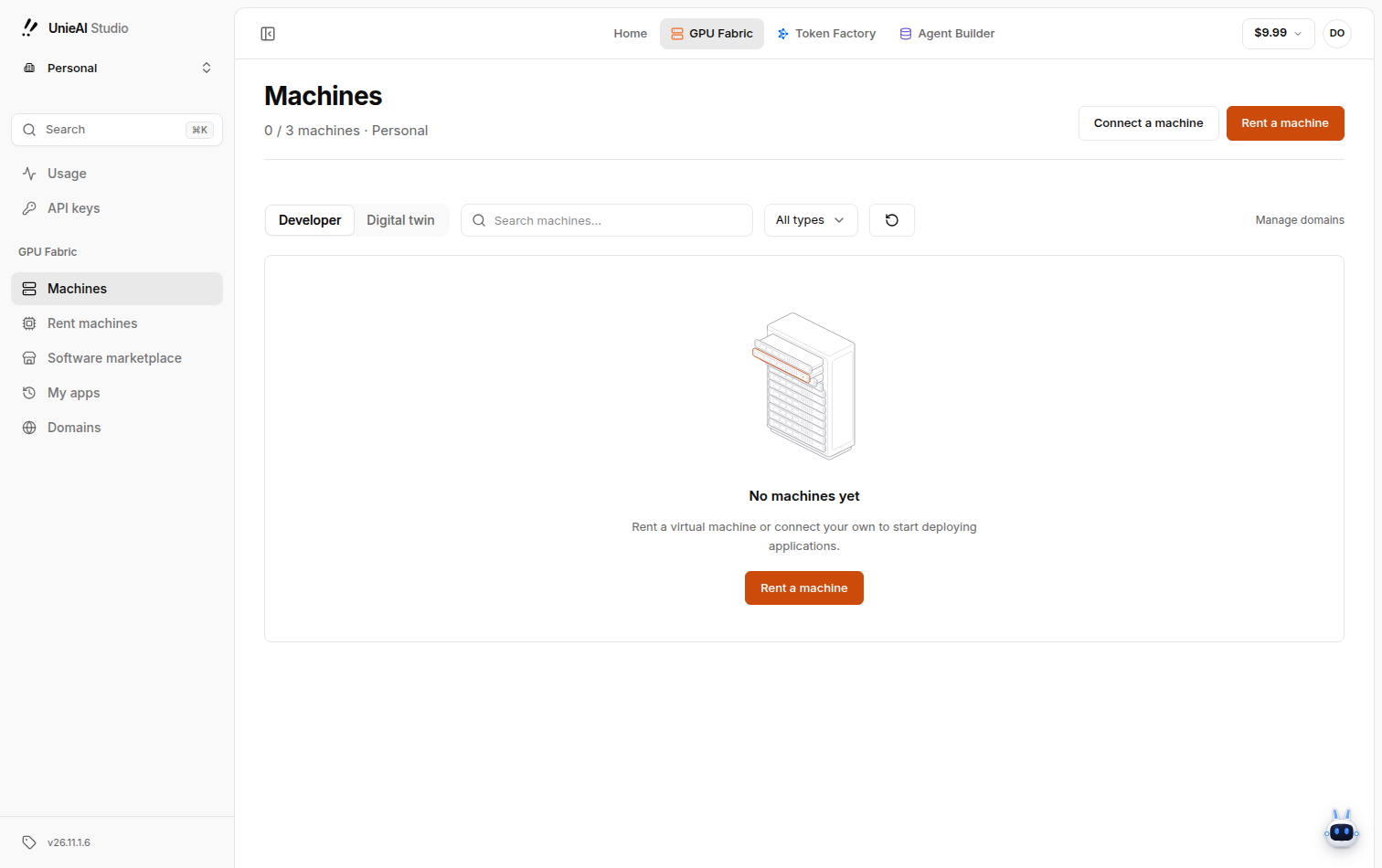
- Your own machine: Machines → Connect a machine at the top right, then finish the four connection steps (see Connect your machine).
- Rent one: Rent machines → pick a configuration and select Rent → submit the request (see Rent compute).
Check it worked: back on Machines, the machine is in the list and its status is neither failed nor Setup required.
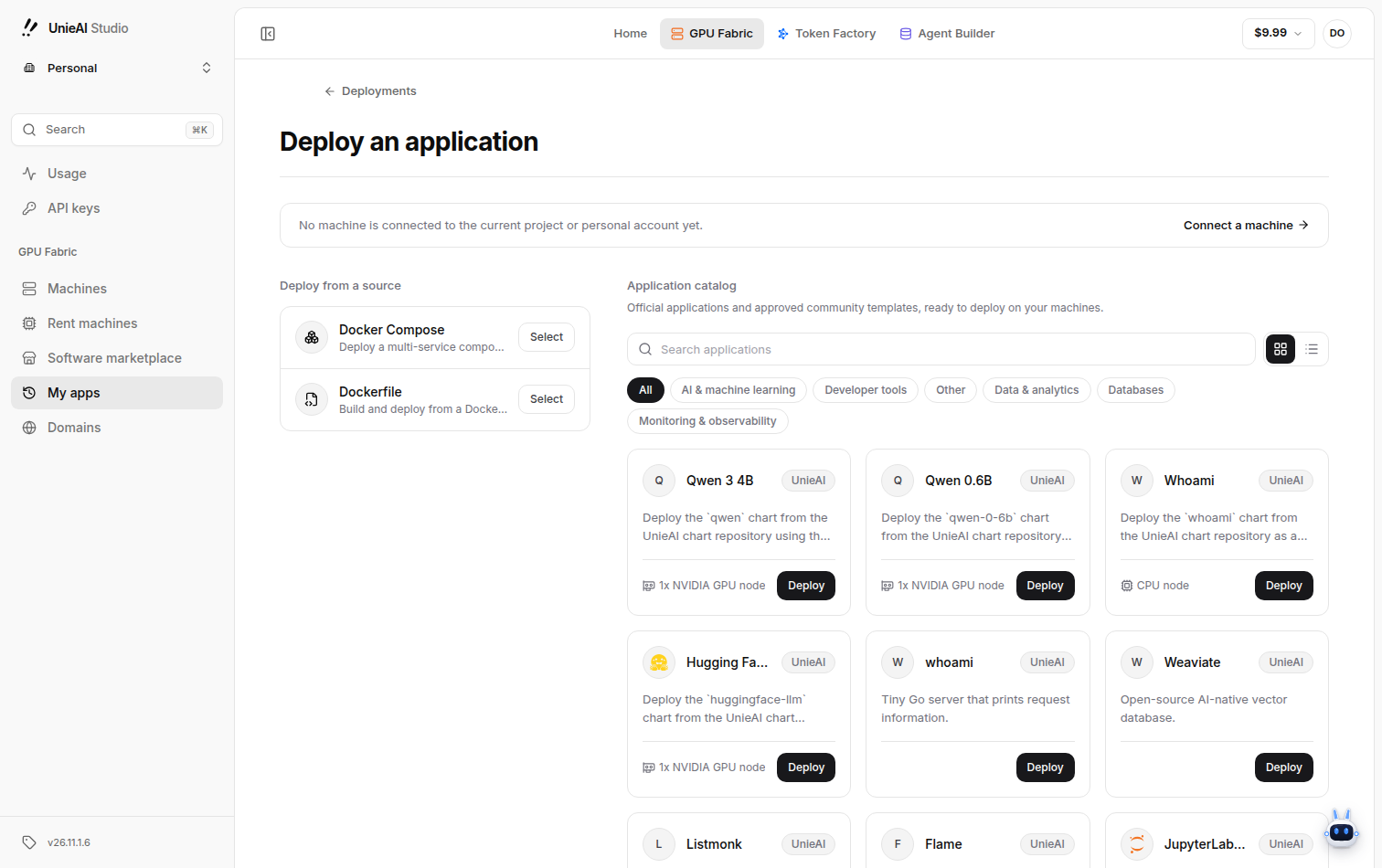
Step 3: Deploy an app
- My apps on the left → Add at the top right → Deploy app.
- Pick a template from the catalog (a small CPU service such as whoami), or bring your own source with Docker Compose / Dockerfile on the left.
- Pick a machine, work through the wizard, and select Continue.
Check it worked: the app's detail page shows the status Running. The full walkthrough is in Deploy an app.
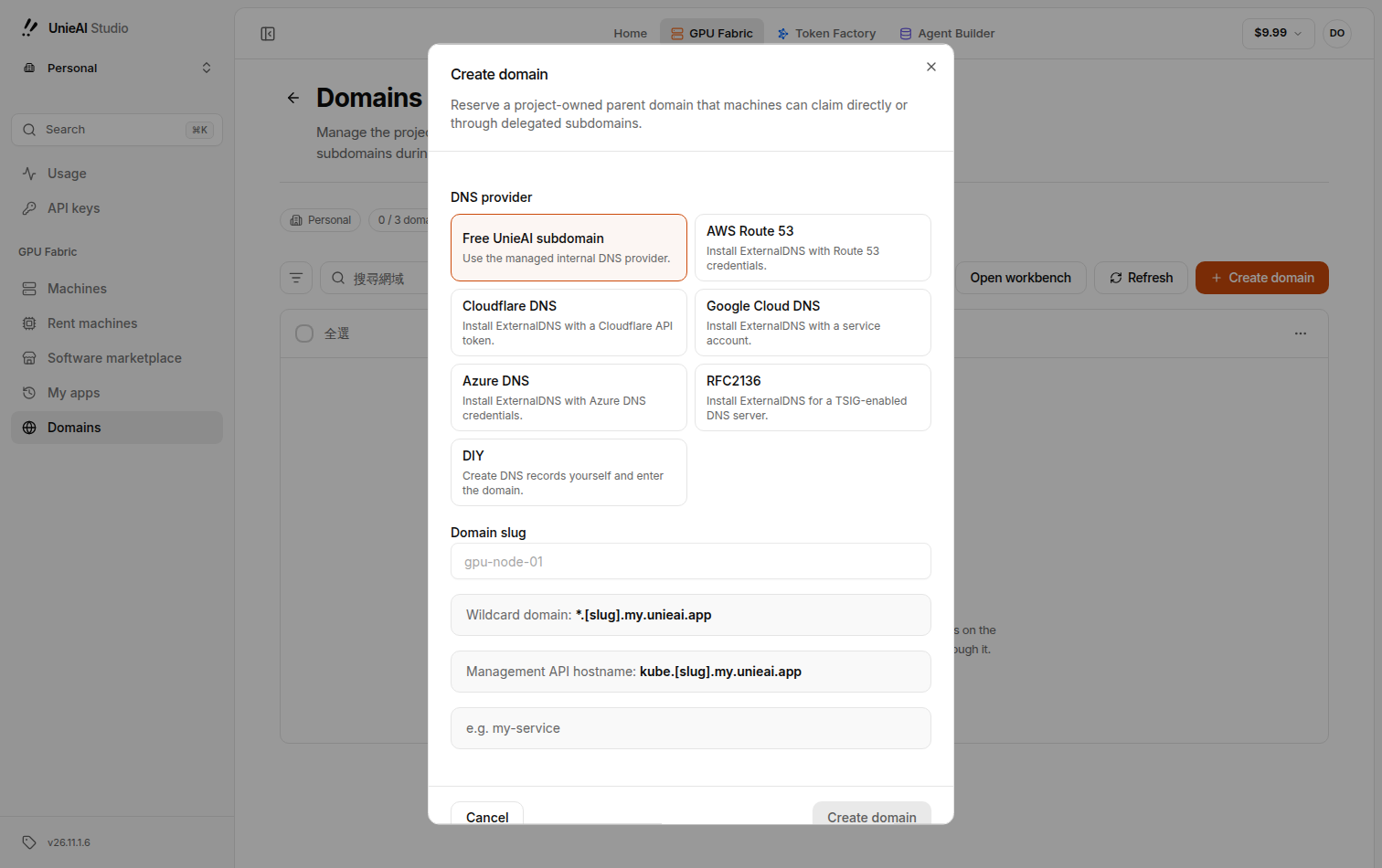
Step 4: Attach a domain
- Domains on the left → Create domain at the top right.
- Leave DNS provider on the default Free UnieAI subdomain and fill in a Domain slug.
- Go back to Machines, open that machine, choose the domain on the setup screen and select Configure cluster.
Check it worked: the Domains tab on the app's detail page shows an address of the form *.{slug}.my.unieai.app, and it opens. Details are in Set up a domain.
Swap in your own app
That is the flow working end to end. Next, replace the template with your own app: find the matching service in the catalog, or bring your own image with Docker Compose / Dockerfile. The machine and the domain are reused as they are.
Reverse direction: supply compute instead (optional)
Spare compute can be listed for rent. The Compute provider console at the lower left connects hosts, splits vClusters, sets listings and prices, and handles rental requests — see Supply compute.
Common snags
| Where you get stuck | Usual cause | What to do |
|---|---|---|
| Those five entries are missing on the left | The account lacks the GPU Fabric permission, or you are in another project | Switch to a project that has it; if Personal does not have it either, ask an admin |
| A request never turns into a machine | The request needs provider approval, or the order is not placed yet | Check Rent a machine → My requests; when you are in a hurry pick a listing that is delivered straight away |
| The app stays Preparing | The image is still pulling, or the machine is short on resources | Give it 2–3 minutes, then open the app and read Status & events |
| The public URL does not open | The domain is not applied to this machine yet, or DNS is still propagating | Go back to the machine's setup screen, confirm the domain is selected, and retry in a few minutes |
Next steps
- Rent compute: the first step when you have no machine
- Deploy an app: what to look at in each stage of the wizard
- Set up a domain: domains, certificates and public addresses
Deploy & compute overview
Three kinds of things (physical machines, compute sources and virtual clusters), two roles, and the whole path from connecting a machine to a live app.
Connect your machine
Bring one of your own Linux servers into GPU Fabric over SSH — fill in the machine details, review the connection check, wait for installation to finish, and deploy applications on it after four steps.