Handle machine alerts
Decide which machine, GPU, disk, certificate and app alerts reach you, where to see the ones that are firing, and which tab to open first when one arrives.
The platform checks every machine, GPU, disk, certificate and app once a minute. When something is wrong the alert appears under Notifications and is marked on the machine's Overview tab. This page covers three things: choosing which categories notify you, where to look, and which tab to open first.
Before you start
| What you need | How to check |
|---|---|
| You manage this machine | It is listed on the Machines page; a vCluster you rent only sends you alerts about your own apps |
| Email delivery | Your account has an email address and the category's Email switch is on under Machine alert notifications; nothing is sent while the platform has no mail service configured |
| The machine is reporting | An Alerts block on the Overview tab means monitoring is running |
| Disk thresholds, if you want to change them | They live on the machine's Storage tab — Compute provider → Hosts → the machine — not on this page |
Step 1: Decide which categories notify you
- Notifications on the left → Machine alert notifications in the top right.
- Six categories each have two switches — Machines and nodes, GPUs, Disks, Certificates, Apps and Monitoring itself — and each row can turn off In-app or Email separately.
- Turn off the noisy ones for now and switch them back on later; a critical alert still sends again once the condition clears.
Check it worked: a category you turned off no longer appears under Notifications, and one condition notifies you once — if it flickers again within 30 minutes it does not repeat.
Step 2: See what is wrong on the Overview tab
- Machines → select the machine → Overview.
- The Alerts block at the top lists what is firing: its severity (Warning or Critical), a one-line explanation, when it started and what to do about it.
- The entry disappears once the condition clears; the line below, Show N resolved in the last 24 hours, takes you back over recent ones.
Check it worked: the block is empty, or holds only items whose cause you already know.
A renter only receives alerts about their own apps: when the host has a problem they see "the underlying machine failed" but not your host name, address or cause.
Step 3: Follow the category to the tab with the detail
- Machines and nodes (cannot connect, not ready, resources tight): the Nodes tab has each node's live state (ready, not ready, unreachable), why it is tight, whether scheduling has stopped and when it last reported.
- GPUs (temperature, ECC, driver errors, a missing GPU): GPU partitioning has GPU hardware health, listing every card's model, driver, GPU and memory temperature and ECC errors, plus XID driver errors on NVIDIA.
- Disks: the Storage tab — see which mount point filled up, then free space or move default storage onto a data disk; the how-to is in Storage and disks.
- Certificates: expiry dates under Control-plane certificate on the Maintenance tab of Compute provider → Hosts → the machine, in Back up and restore a cluster.
Check it worked: you can name the node, the card, the mount point — not just repeat the alert line.
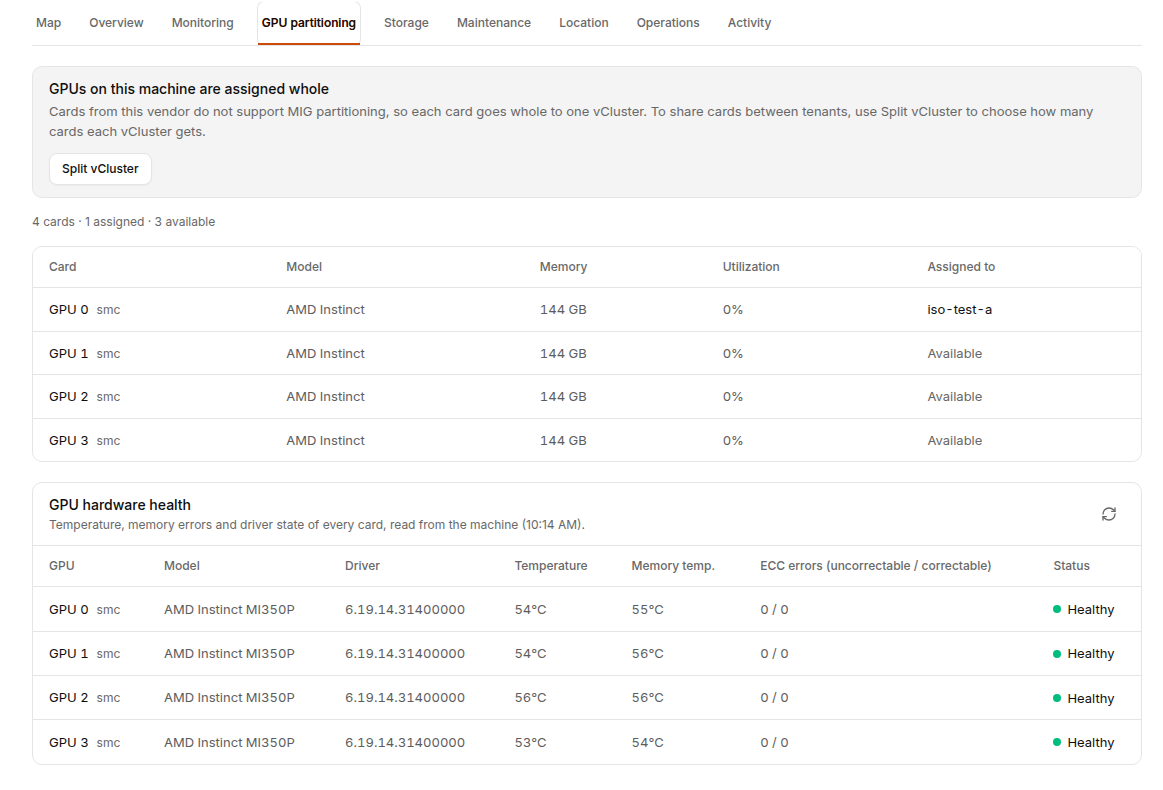
Step 4: Open the app for app alerts
Apps alerts (restarting repeatedly, out-of-memory killed, image pull failed, cannot be scheduled) are almost always the app's own problem rather than a broken machine. Open the app's page for Status & events and Logs; the order to work through is in Application Troubleshooting.
Check it worked: the events show the real reason (a mistyped image name, a too-small memory limit, a node short of resources) rather than just "restarting".
Common snags
| Screen | Usual cause | What to do |
|---|---|---|
| Machine unreachable | The machine is off, or the network is down (internal network included) | Check that it is powered on and reachable; the alert clears itself once it is back — if it still cannot connect, the host's maintainer has to look |
| Node {node} is not ready | A full disk, too little memory, or the node's service is stuck | Free space or shed load first; the node recovers by itself once the cause is gone |
| Disk {mountpoint} on {node} at {value}%, or Disk {mountpoint} on {node} almost full ({value}%) | Old images, old logs or data have filled it | Remove unused images and logs, or move default storage onto a data disk |
| Certificate {name} expires in {value} days / Certificate {name} failed to issue | The domain does not point at this machine, or 80 / 443 cannot be reached | The certificate retries by itself once that is fixed; a machine with no public network should use the platform CA instead |
| GPU {index} running hot ({value}°C) / GPU {index} overheating ({value}°C) | Room temperature, fans or case airflow | Shed load or improve cooling; sustained overheating throttles or shuts the card down |
| GPU {index} uncorrectable memory errors / GPU {index} reported XID {value} | Concentrated on one card | Stop the apps on that card and reboot; if it keeps coming back, arrange a hardware repair |
| Node {node} lost {value} GPUs | A driver error, or the card has dropped off the bus | If the card is still missing after a reboot, arrange a repair |
| {pod} keeps restarting / {pod} was killed for running out of memory | Its own configuration or too few resources | Read Status & events and Logs, see Application Troubleshooting |
| A node's last reported is a long time ago | The node really has stopped checking in | Check the host and its network; if the state still reads ready it is usually just a lagging display |
| A renter says GPU memory looks high but they are not using it | Some vendors report a whole card, and programs on the host outside the platform count too | The supplier confirms what else runs on that card; it is not the renter's usage |
Next steps
- Back up and restore a cluster: certificate expiry, version updates and backups all live on the Maintenance tab
- Storage and disks: the real fix for a disk alert is usually moving default storage off the system disk
- Application Troubleshooting: working through app alerts step by step
Application troubleshooting
Start from the status dot on Deployments, then find the cause with Status & events, Logs and Resources, and change the GPU, redeploy or roll back when you need to.
Set up a domain
Create a domain, hand it to the machine you just got, and the public address for your apps comes from there.