Back up and restore a cluster
Read versions and certificate expiry on a machine's Maintenance tab, back up or schedule a backup of cluster state, restore from a snapshot, and arrange maintenance notice before you rent a machine out.
Take a backup before you change anything, so you can go back to how it was. Every machine you connect yourself, and every supplier host, has a Maintenance tab. It backs up cluster state — which apps and vClusters exist and how they are configured; data inside an app needs an app snapshot, see Storage and disks. A rented vCluster has no such tab: the host's maintenance belongs to whoever manages the host.
Before you start
| What you need | How to check |
|---|---|
| You manage this machine | It is listed on the Machines page and you can open its Maintenance tab |
| The machine is ready | The Nodes tab reads ready; actions are refused while it is installing or the installation failed |
| Free space on the system disk | A backup needs at least 2 GiB, and more than twice the size of the most recent snapshot |
| No rented vClusters, if you plan to restore | While a machine is rented out, restore and Rotate certificates are restricted — schedule a maintenance window first |
Step 1: Open Maintenance and read versions and certificates
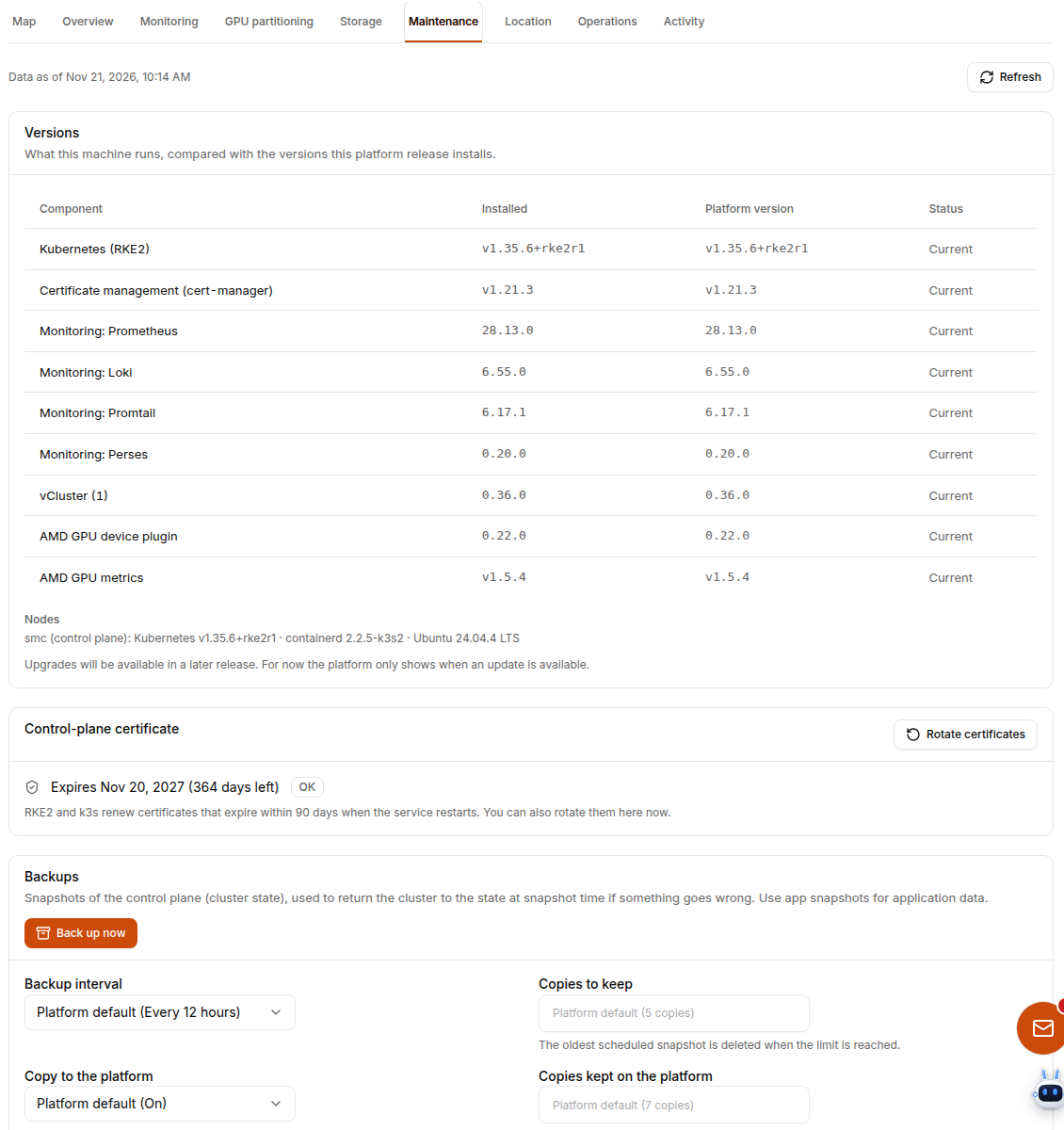
- Machines → select the machine → Maintenance; Refresh in the top right updates the timestamp.
- The Versions table lists each component's Installed and Platform version with a Status: Current, Update available or Version not pinned. For now the platform only reports that an update exists; it does not upgrade by itself.
- Control-plane certificate shows the expiry date and days left: under 90 days it reads Expiring, under 30 days Expiring soon.
Check it worked: the data timestamp is just now and nothing in the versions table needs attention; if the certificate still has plenty of days left, leave it alone.
Step 2: Take one backup first
- Back up now, in the top right of the Backups block.
- For a fixed schedule adjust Backup interval and Copies to keep (the default follows the platform: every 12 hours, keeping 5, and the oldest scheduled snapshot is deleted past that).
- Copy to the platform is on by default: the platform keeps an extra copy in object storage (7 by default, adjustable) and records a checksum for each. Copy now takes one immediately.
- After changing settings, Apply to machine appears above the tab and only takes effect when you select it; the control plane restarts for about 30 seconds and running apps are not affected.
Check it worked: Snapshots has one more row, with its time, Type (Scheduled or Manual), size and Location (on the machine or the platform). If space is short it stops and tells you why.
Step 3: To go back, restore from a snapshot
- Select Restore on that row of Snapshots.
- Type the machine name to confirm (complete and same case).
- Read the confirmation screen, then submit.
Check it worked: the cluster is back to how it was at that snapshot — apps, vClusters and settings created or changed afterwards all go back to that point. Before restoring, the platform takes a backup of the current state, so nothing is deleted outright.
Step 4: With rented vClusters, schedule a maintenance window
- Further down the same Maintenance tab, open Maintenance notice.
- Renters are notified 72 hours ahead for regular maintenance and 24 hours ahead for urgent security fixes; you can set it longer than the platform default, never shorter.
- To replace the control-plane certificate, select Rotate certificates beside Control-plane certificate. While a vCluster is rented out this is temporarily unavailable.
Check it worked: once settings are saved, renters are notified before maintenance; with a rented vCluster in place, restore and rotation explain why they are restricted.
Step 5: On an older machine, catch up on these two
- Is Monitoring components still on the settings it was connected with? Update monitoring settings moves it to the current ones; saved data is kept, components restart one by one and charts may briefly show gaps.
- Does the web terminal say this machine has no terminal component installed? Install web terminal component on the Maintenance tab adds it without restarting the machine or its apps.
Check it worked: querying more than 7 days of records no longer fails, and the web terminal opens.
Common snags
| Screen | Usual cause | What to do |
|---|---|---|
| Maintenance data will not load | The machine is temporarily unreachable, or still installing | Wait for Nodes to read ready, then select Refresh; if it keeps failing see Handle machine alerts |
| An action is refused, saying the machine must be ready | It is installing, the installation failed, or it is being deleted | Finish or retry the installation and come back once it is ready |
| It says another job is already running on this machine | A machine does one thing at a time (maintenance, installation, adding a node, deletion) | Wait for the current job to finish and try again |
| It asks you to reconnect the machine | The SSH details the platform stored are gone | Edit host details on the machine page, fill in SSH again, then retry |
| Back up now fails for lack of space | Under 2 GiB left on the system disk, or less than twice the most recent snapshot | Free space on the system disk, or move default storage to a data disk and back up again |
| Apply to machine will not go away | The settings differ from the schedule the machine runs (a changed platform default counts too) | Select Apply to machine; the control plane restarts for about 30 seconds and apps are unaffected |
| Restore refused: more than one control-plane node | Restore currently supports single control-plane machines only | Contact platform support for a multi-node machine |
| Restore refused: a rented vCluster is running | Restoring would drag the renter back through time with you | Wait until the rental ends, or schedule a maintenance window first |
| Restoring from the platform copy stops, saying the checksum does not match | The copy on the platform is incomplete | The platform will not restore from a bad copy; pick a different snapshot |
| The confirmation field never accepts the name | The name must be complete and in the same case | Retype the machine name in full, not just its first few characters |
| A status reads Version not pinned | That component had no fixed version when the machine was connected | It does not affect operation; a later upgrade moves it to the platform version |
Next steps
- Handle machine alerts: a backup will not tell you the disk is nearly full or a GPU is overheating
- Storage and disks: moving default storage off the system disk also gives backups room
- Application Troubleshooting: when the app itself is at fault, a cluster backup will not help