GPU support
Turn on GPU components when you connect an NVIDIA or AMD machine, confirm every card is seen, split whole cards across vClusters, and get an application to actually use one.
On this platform a GPU is used in one place at a time: the driver and scheduling components go in when you connect the machine, cards are handed out when a vCluster is split, and the application picks a card when it is deployed. NVIDIA and AMD are both supported — NVIDIA cards can be sliced by VRAM or MIG, AMD cards are always allocated whole.
Before you start
| What you need | How to check |
|---|---|
| An NVIDIA or AMD card on the machine | Run nvidia-smi or amd-smi on the machine and see the model and memory |
| No driver yet is fine | The platform adds it during installation; automatic AMD driver installation covers Ubuntu 22.04 and 24.04 only |
| Nothing else on the host using the GPU | Stop it before connecting, or those cards show as occupied |
| A plan for how many vClusters need cards | One vCluster can only take cards from one vendor, so decide the card count first |
Step 1: Check the cards and the driver before connecting
- Sign in to the machine over SSH and run
nvidia-smi(NVIDIA) oramd-smi(AMD). - Confirm every card is listed with the right model and memory. A missing driver is fine — the next step covers it.
- If your own GPU programs are running on the host, stop them so the cards can be handed out.
Check it worked: the command lists every card, and the count matches what you expect.
Step 2: Turn on GPU components while connecting
- Follow Connect your machine up to Connect machine, and tick GPU components under Installation options.
- Select Run connection check; the page reports "vendor GPU detected" with each card's model, count and driver status.
- If it looks right, select Start installation. The installation log then shows Install NVIDIA GPU components or Install AMD GPU components.
Check it worked: installation finishes without stopping on a failed step. An AMD machine may reboot once during installation; that is normal.
Automatic AMD driver installation currently supports Ubuntu 22.04 and 24.04 only. On any other system, install the driver on the machine yourself, confirm amd-smi lists every card, then come back and retry the installation.
Step 3: Confirm every card is seen
- At the bottom left, switch to Compute provider, open Hosts, and select the machine.
- Choose the GPU partitioning tab at the top.
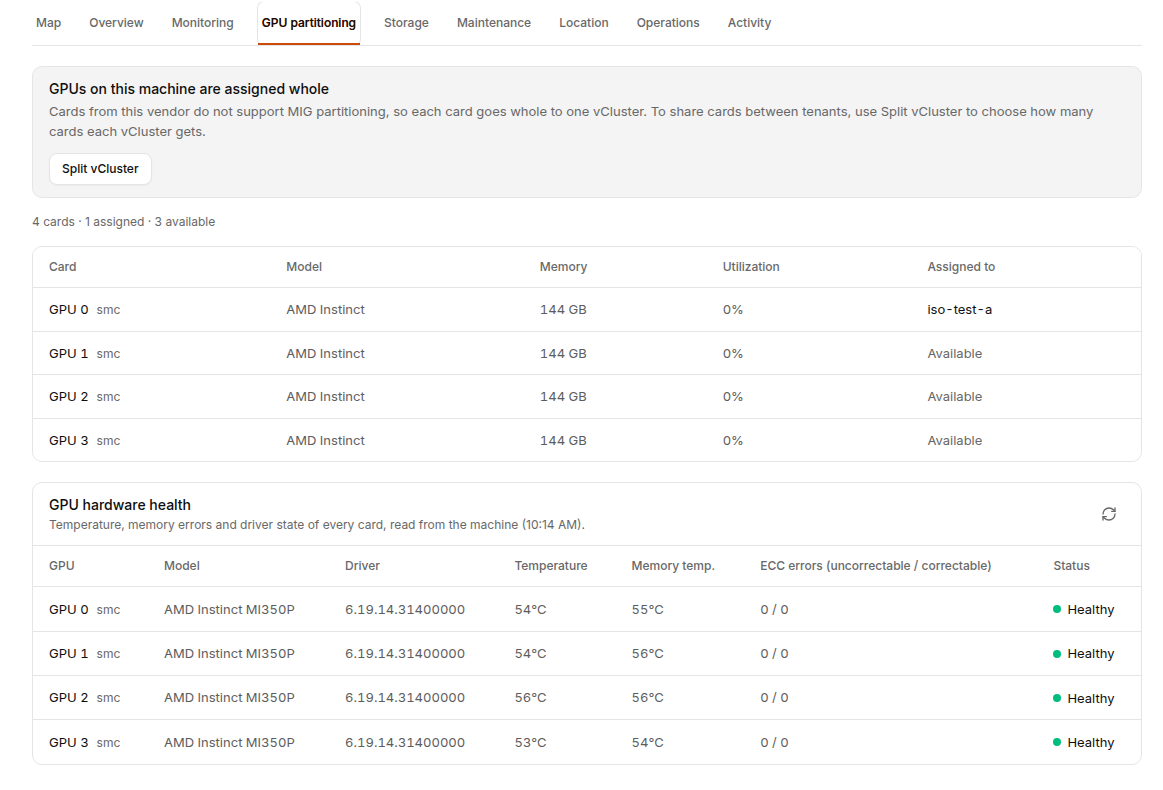
- Read each card's row: model, memory, utilization, and which vCluster holds it. Above the table, the page explains whether this machine assigns whole cards or can split further.
- Below that, check GPU hardware health: driver version, temperature and ECC error counts.
Check it worked: the number of cards matches the machine, utilization is not "—", and hardware health shows nothing in red.
Step 4: Hand cards to a vCluster
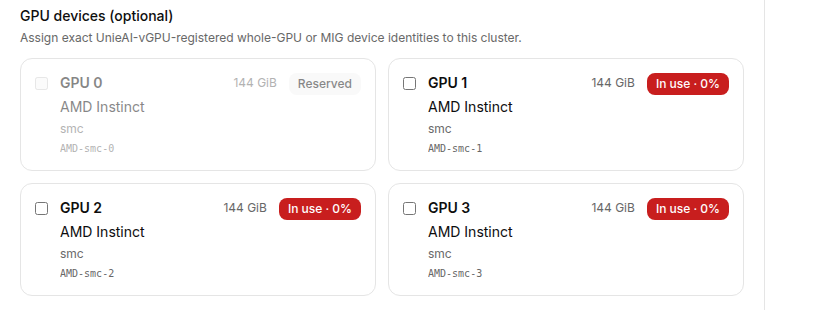
- While splitting a vCluster, tick the cards for it under GPU devices (optional).
- On a machine that assigns whole cards, each card is numbered (GPU 0, GPU 1, …) and ticking several gives that many. A card marked Reserved cannot be ticked; an In use card can be ticked after confirming.
- An NVIDIA machine can also hand out MIG slices, not only whole cards.
- After saving, go back to GPU partitioning and confirm each card points at the right vCluster.
Check it worked: the vCluster holds the number of cards you intended, and the available count at the top of GPU partitioning has dropped by that many.
One vCluster cannot hold NVIDIA and AMD cards at once. A CPU-only vCluster gets 0 cards, and it cannot borrow cards from another vCluster.
Step 5: Make an application use it
- Deploy an application and go to the GPU resources step; choose the machine and the GPU devices to use.
- An AMD card offers only Whole GPU, with no VRAM slider — every application takes a whole card.
- An NVIDIA card accepts a VRAM limit, or the whole card.
- Once deployed, open the application to see utilization.
Check it worked: the application is running and the available count on GPU partitioning has dropped by one more. To add replicas later you have to redeploy with more GPUs — the replica count on the application page only goes down.
Common snags
| Screen | Usual cause | What to do |
|---|---|---|
| GPU component installation failed | Driver and kernel versions do not match, or the machine needs a reboot | Run nvidia-smi or amd-smi on the machine to check the driver, reboot if needed, then select Retry installation — it continues from the failed step |
| AMD driver installation stops, saying the system is unsupported | Automatic installation covers Ubuntu 22.04 and 24.04 only | Install the driver yourself, confirm amd-smi lists every card, then install again |
| A card is marked In use | The card is not assigned to a vCluster, but a program outside the platform is using it | Stop those programs first; assigning it anyway needs a confirmation tick, and the renter may not get full performance |
| GPU memory on the machine page reads 0 | The GPU components cannot read the devices | Select Retry installation to reapply them; if it stays 0, confirm the driver is loaded |
| The application stays pending and events say GPU is short | No free card, or the vCluster's cards are all taken | Free cards from other applications, ask the provider for more, or request fewer cards — see Application Troubleshooting |
| The replica count will not go up | A GPU application can only be scaled down on the application page | Redeploy and select more GPUs |
| Utilization shows "—" or never moves | The monitoring component is missing, sampling stopped, or the machine is only reachable on a private network — utilization is read over that same private connection, so the figures stay blank when samples cannot be fetched | Re-run installation to add the component; if the machine has no public address, that is expected, and the rest of the machine page keeps working |
| A GPU temperature or ECC alert fires | Overheating, memory errors, or a card dropped off | Check cooling and the card seating, then confirm in GPU hardware health |
Next steps
- Connect your machine: start here if no machine is connected yet
- Supply compute: split vClusters and put the capacity on the market
- Deploy an application: what each stage of the deployment wizard asks for
- Handle machine alerts: what to do when a temperature, ECC or utilization alert fires
Connect your machine
Bring one of your own Linux servers into GPU Fabric over SSH — fill in the machine details, review the connection check, wait for installation to finish, and deploy applications on it after four steps.
Storage and disks
On a machine's Storage page, read how full each disk is, move default storage off the system disk, prepare a blank disk as LVM storage, and adjust the capacity share and alert thresholds.