Set up a domain
Create a domain, hand it to the machine you just got, and the public address for your apps comes from there.
Every deployed app needs a public address, and the address comes from a domain. This page does two things: create a domain first, then hand it to the machine. A machine you just connected, or a virtual cluster you just rented, has to go through this before it can deploy apps.
Before you start
| What you need | How to check |
|---|---|
| A machine whose status is Setup required | Machines on the left → the status column of that row |
| Domain quota | The used / limit shown at the top of the Domains page, for example 0 / 3 |
| The name you want | A domain slug takes lowercase letters, digits and hyphens only, and becomes part of the address |
| Your own DNS credentials (optional) | Only needed for your own domain through Route 53, Cloudflare and the like; the platform-managed subdomain needs none |
Step 1: See which domains you already have
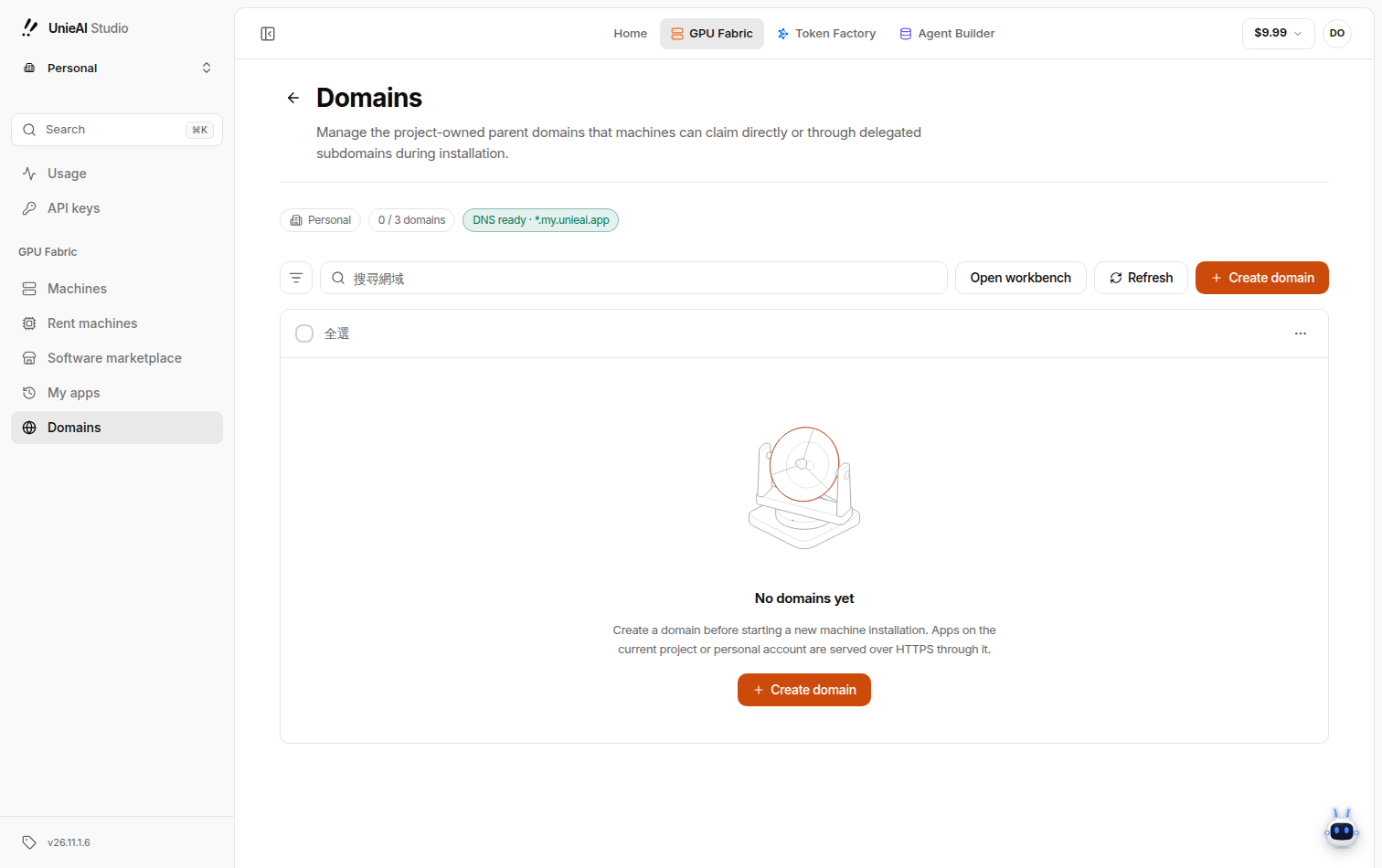
- Select GPU Fabric at the top, then Domains on the left.
- Switch the tabs at the top to the project or personal account you want to use.
- Look at the usage "N / limit" at the top right, and at the list itself.
Check it worked: if the list already holds a domain marked Reusable, nothing has claimed it yet, so you can skip Step 2.
Step 2: Create a domain
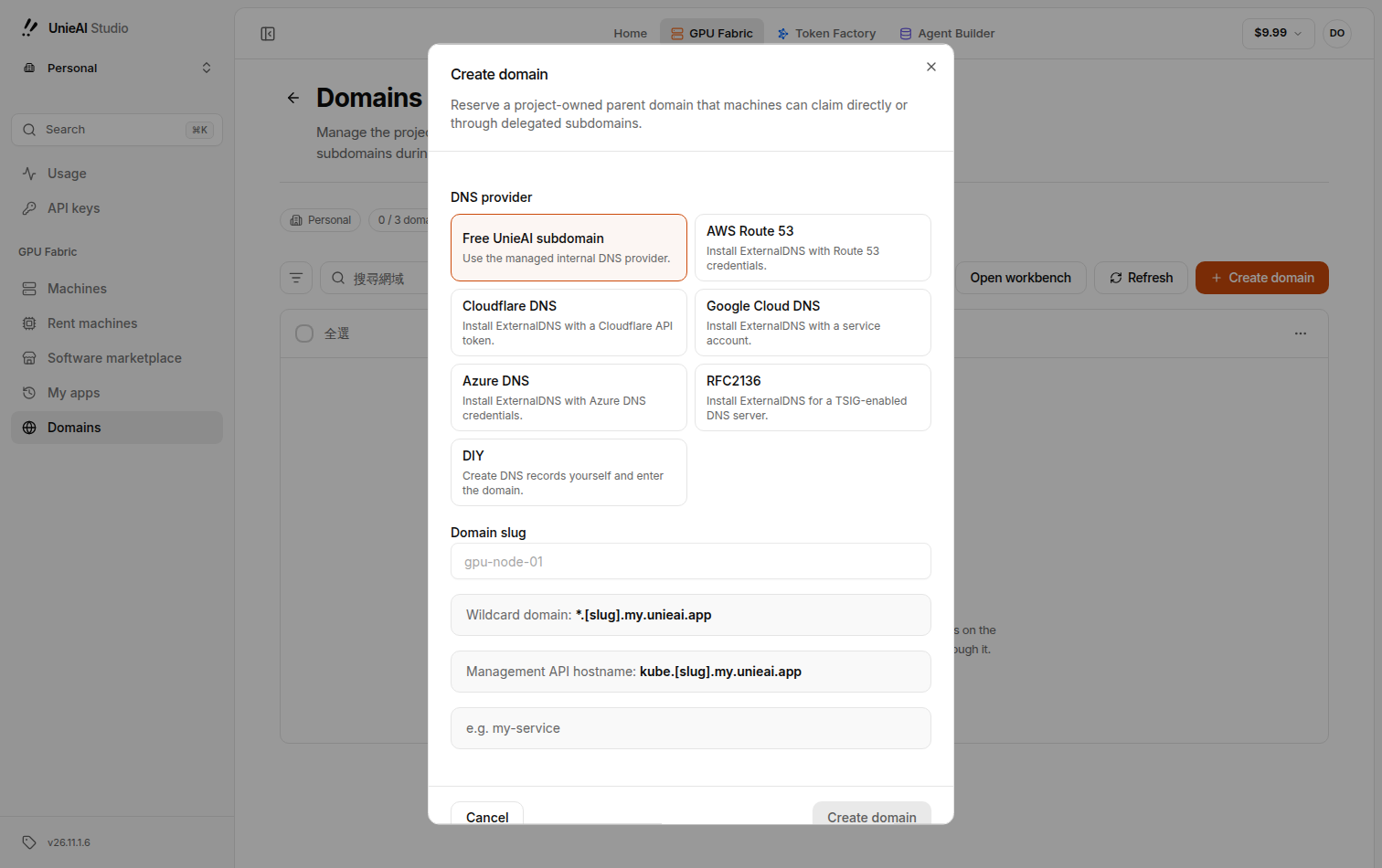
- Select Create domain at the top right.
- Choose a DNS provider. If you are unsure, keep the default Free UnieAI subdomain (platform-managed, so you add no DNS records yourself). For your own domain, choose AWS Route 53, Cloudflare DNS, Google Cloud DNS, Azure DNS, RFC2136 or DIY.
- Fill in the Domain slug. The dialog works out two names live: Wildcard domain:
*.{slug}.my.unieai.appand Management API hostname:kube.{slug}.my.unieai.app. - Select Create domain.
Check it worked: the new domain appears in the list with the status Reusable. If the slug is already taken, the dialog says so — try another one.
Step 3: Hand the domain to the machine
- Back on Machines on the left, select the machine whose status is Setup required.
- On the Set up the delivered cluster screen, choose Domain.
- Pick how to assign it: Use this domain directly; when the same domain has to serve several machines, choose Delegate a subdomain and fill in a Subdomain label.
- Select Configure cluster.
Check it worked: the screen starts showing setup progress and activity, and the machine leaves Setup required. Setup runs in the background, so you can leave the page.
If Manual DNS records required appears, it means you picked your own domain. Point the wildcard domain and the API domain at the address shown, following the instructions on screen; setup carries on by itself once the records resolve, with no rerun needed.
Step 4: Confirm it can deploy
- Back on Machines, open that machine.
- If you can see the overview tabs (Deployed apps, Topology, Monitoring), setup is done.
- Then go to My apps and create your first deployment.
Check it worked: the address field on the machine's detail page is filled with *.{slug}.my.unieai.app, and My apps → Add lets you pick this machine.
Common snags
| What you see | Usual cause | What to do |
|---|---|---|
| It says the slug cannot be used while creating | The slug is taken, or it contains uppercase letters, underscores or non-Latin characters | Use lowercase letters, digits and hyphens |
| The new domain is not in the list | The tab is parked on another project or personal account | Switch back to the one you created it under |
| Create domain is greyed out | The quota is used up (3 / 3) | Delete a domain you are not using, or use a project-level domain |
| Setup sits there without moving | You chose your own domain and the DNS records have not taken effect | Add the records as the screen instructs, then wait for them to resolve |
| Setup finished but the address does not open | The app is not public yet, or the certificate is still being issued | Check the address status on the app's detail page and try again in a few minutes |
Next steps
- Deploy an app: run your first app on the machine you just set up
- Rent compute: rent one first when you have no machine
- Handle machine alerts: once the domain works, wire up notifications for trouble
Handle machine alerts
Decide which machine, GPU, disk, certificate and app alerts reach you, where to see the ones that are firing, and which tab to open first when one arrives.
Back up and restore a cluster
Read versions and certificate expiry on a machine's Maintenance tab, back up or schedule a backup of cluster state, restore from a snapshot, and arrange maintenance notice before you rent a machine out.