API keys, project or personal account scope, and the Default Key
Obtain a Default Key or create an application key, verify model access, and diagnose authentication failures.
Choose the service before choosing a key. Background KB parsing requires the system Default Key. Agent chat uses an appropriate project key, subject to model permissions and balance.
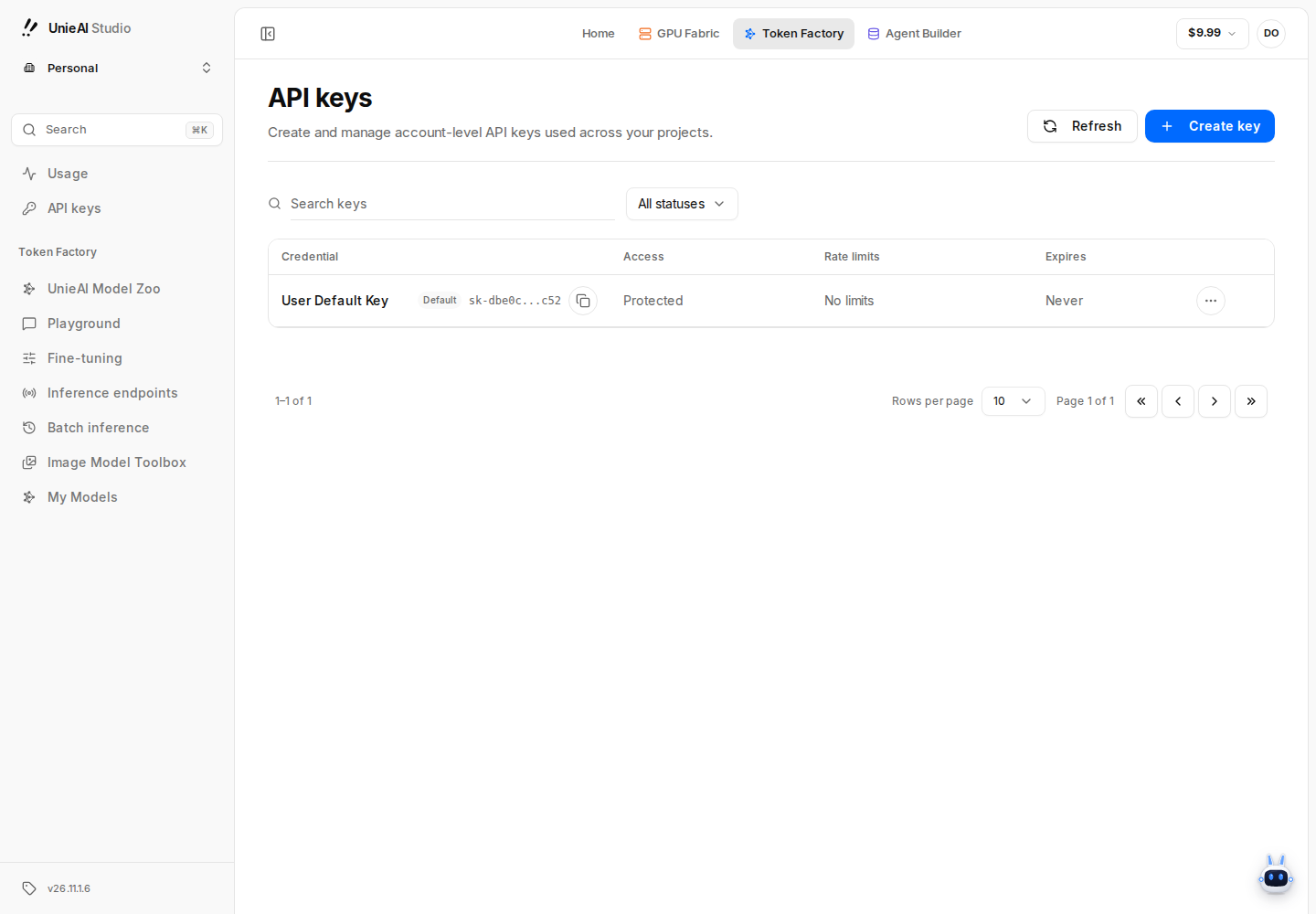
1. Open the target project or personal account's keys
- Select the personal account or project at the top left.
- Open API Keys in the sidebar.
- Verify the current project or personal account and key names.
- Distinguish the system Default Key from manually created keys.
| Service | Key |
|---|---|
/api/parse/jobs and its status/result endpoints | Target project or personal account's system Default Key |
Agent /v1/chat/completions | Project key with access to that agent model |
Synchronous /api/parse/pdf and /api/parse/image | Personal user key with the configured VLM access; different rules from background jobs |
A personal Default Key does not write into a project, and a project key does not become a personal key.
2. Obtain and verify the Default Key
- Use the Default Key row's reveal/copy action to obtain its full value.
- Confirm it is enabled and unexpired.
- Store it in backend environment variables; the masked display is not a usable secret.
- Upload a small file using the parsing tutorial, retain the job ID, and poll.
Checkpoint: upload returns 202. If a 403 explicitly requires Default Key, verify the key type. Naming an ordinary key “Default Key” does not make it system generated.
3. Create an application key
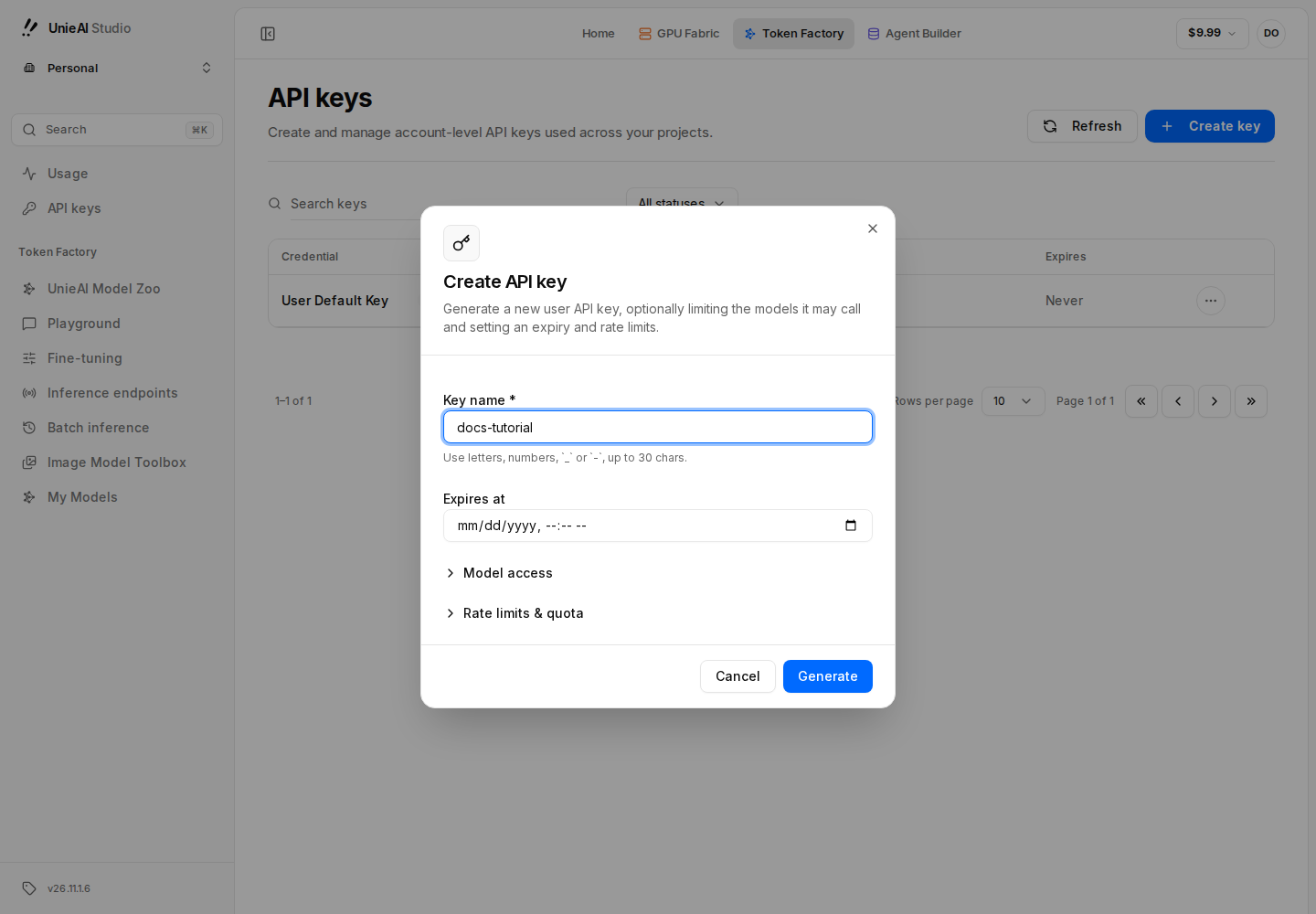
- Click Create key.
- Enter a purpose-specific name such as
docs-agent-dev. - When restricting models, select the agent model ID, not only its base model.
- Configure expiry, rates, or quotas where offered by the current UI.
- Click Generate, then copy and save the full value on the success screen.
- Test it against the target agent.
Checkpoint: the agent request returns 200 and an assistant answer. Ordinary key creation does not enable Default Key-only endpoints.
4. Inspect usage and failures
- Select the correct project or personal account and open Usage.
- Find the request by time and model.
- Inspect status, error, and request ID.
- Resolve project or personal account balance separately from key rate or model restrictions.
| Symptom | Check |
|---|---|
| 401 | Full secret, Bearer header, disabled/expired state |
| 403 | Key type, agent permission, model allowlist, project or personal account |
| 404 for KB/document | Key project or personal account and actual resource IDs |
| 429 | Rate/usage limits; follow the response's retry guidance |
| Agent settings ignored | Agent model ID rather than the base model name |
Regeneration or disabling affects applications using the key: update their environment configuration. Do not include full secrets in screenshots, frontend source, or public documentation.
Guardrail Rules and Intercepts
Use an LLM judge to inspect custom-model inputs and outputs, configure refusal behavior, and review blocks and misfires.
API Compatibility
Use the OpenAI, Responses, and Anthropic-compatible Runtime endpoints and understand UnieAI extensions, streaming metadata, and upstream differences.