Notifications and project invitations
Read notifications, accept or decline project invitations, and configure browser alerts.
1. Open the inbox
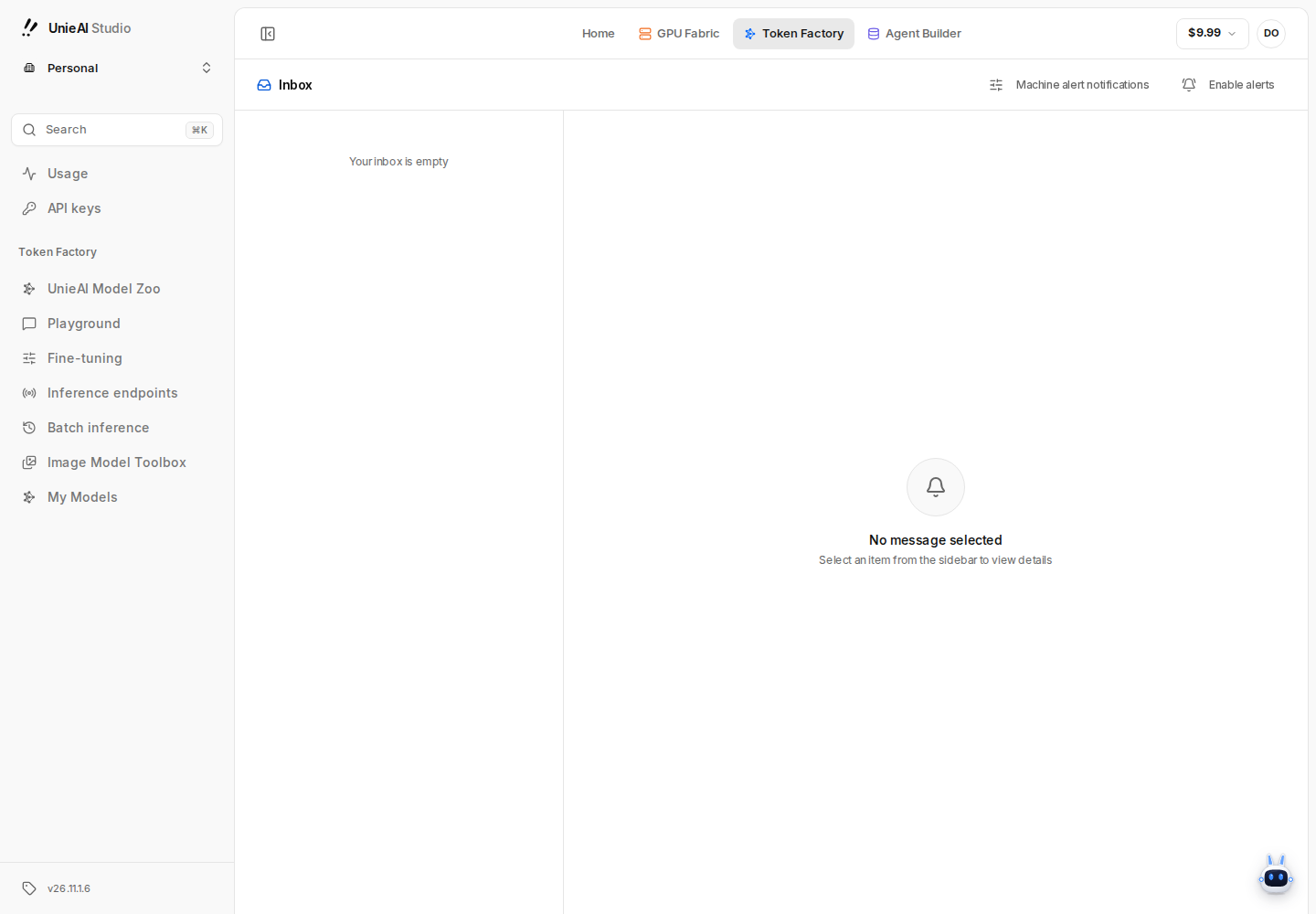
Open /notifications. Select a message in the left list to see its full content, received time, and recipient. With no selected message, the detail area remains empty.
2. Accept a project invitation
Select the project invitation. Verify its project and sender, then choose Accept to join or Decline to refuse. Membership becomes active after acceptance. Reopen the current project or personal account menu and confirm that the project is available. Direct resource sharing is a separate process and may already be active when its settings are saved.
3. Follow a resource link
A notification about a resource may offer an action that opens that resource. Access is checked again on the destination page. A notification does not grant administrator privileges.
4. Read status and alerts
Opening a notification marks it read; use a mark-read action where provided. Enable alerts requests browser notification permission. That permission belongs to the current browser and device. See projects for the invitation workflow.
Projects: create, invite, and review access
Create a project, verify its project or personal account, invite members, and distinguish project roles from resource access.
Permission and Access Scenarios
Use quick-reference tables and real scenarios to understand roles, resource sharing, wallets, and API keys in UnieAI Studio.