Test an agent in Playground
Select the right agent, start a clean conversation, check evidence and tools, and compare configuration changes.
Playground lets you test a model or agent without writing code or entering a separate API key. Requests still use the current project or personal account's balance and permissions.
Run repeatable document-agent checks
- Confirm the document can be found in KB Search first.
- Open Try in Playground from the target agent and verify it is selected, not the base model.
- After a change, start a new conversation and test a fact, a procedure, and information absent from the document.
- Check answers, sources, and available tool events.
- If search works but answers do not, use RAG diagnosis to inspect attachments, engine, and instructions.
Use the three tutorial questions, retaining input and expected output for comparison instead of accepting one fluent answer as proof.
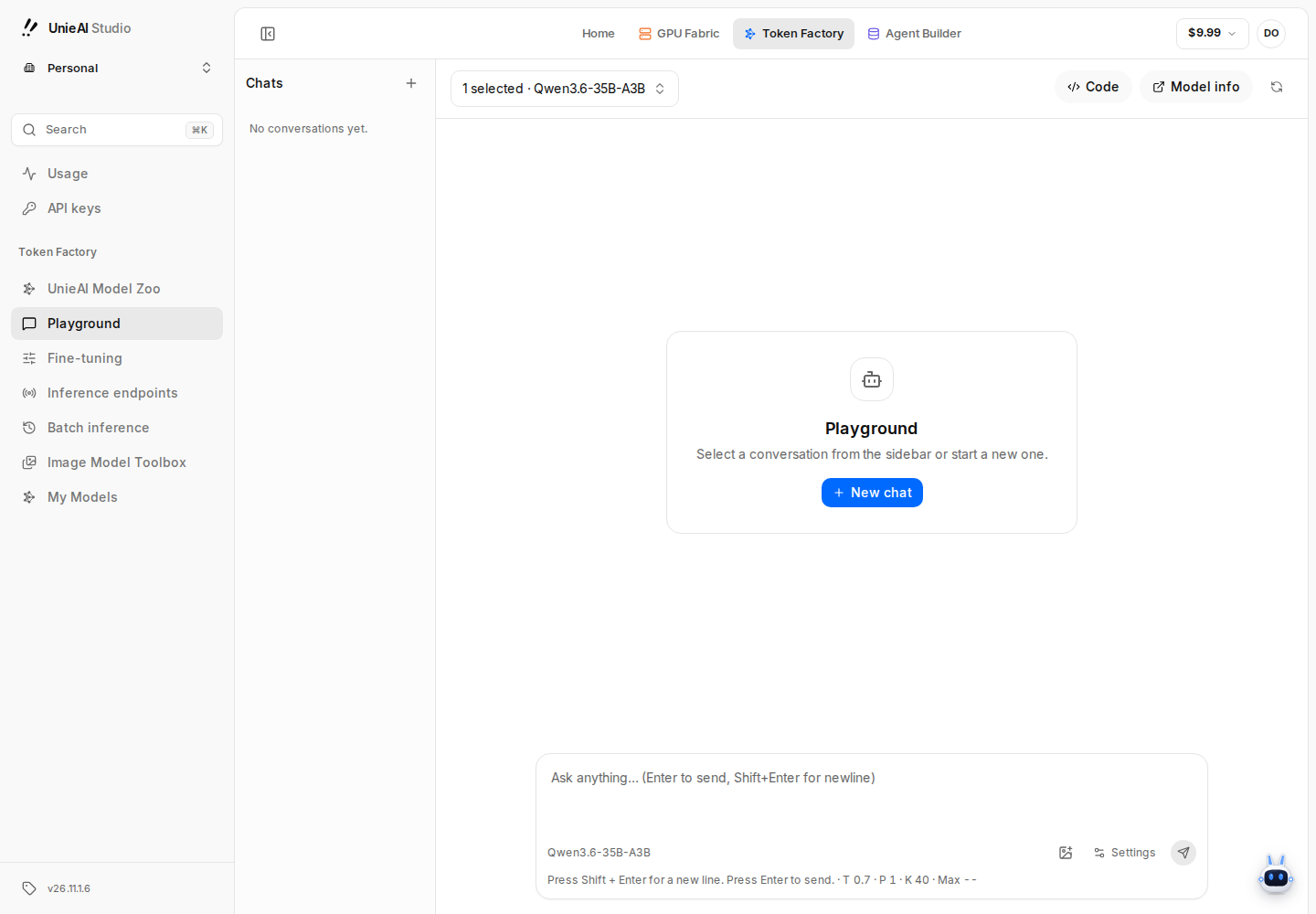
Start a conversation
- From the target agent, click Try in Playground, or open Token Factory → Playground.
- Check the selected model. To test instructions, KBs, and tools, select the agent rather than its base model.
- Start a new conversation.
- Type a question and press Enter. Use Shift+Enter for a newline.
- Inspect the answer, sources, and available tool events.
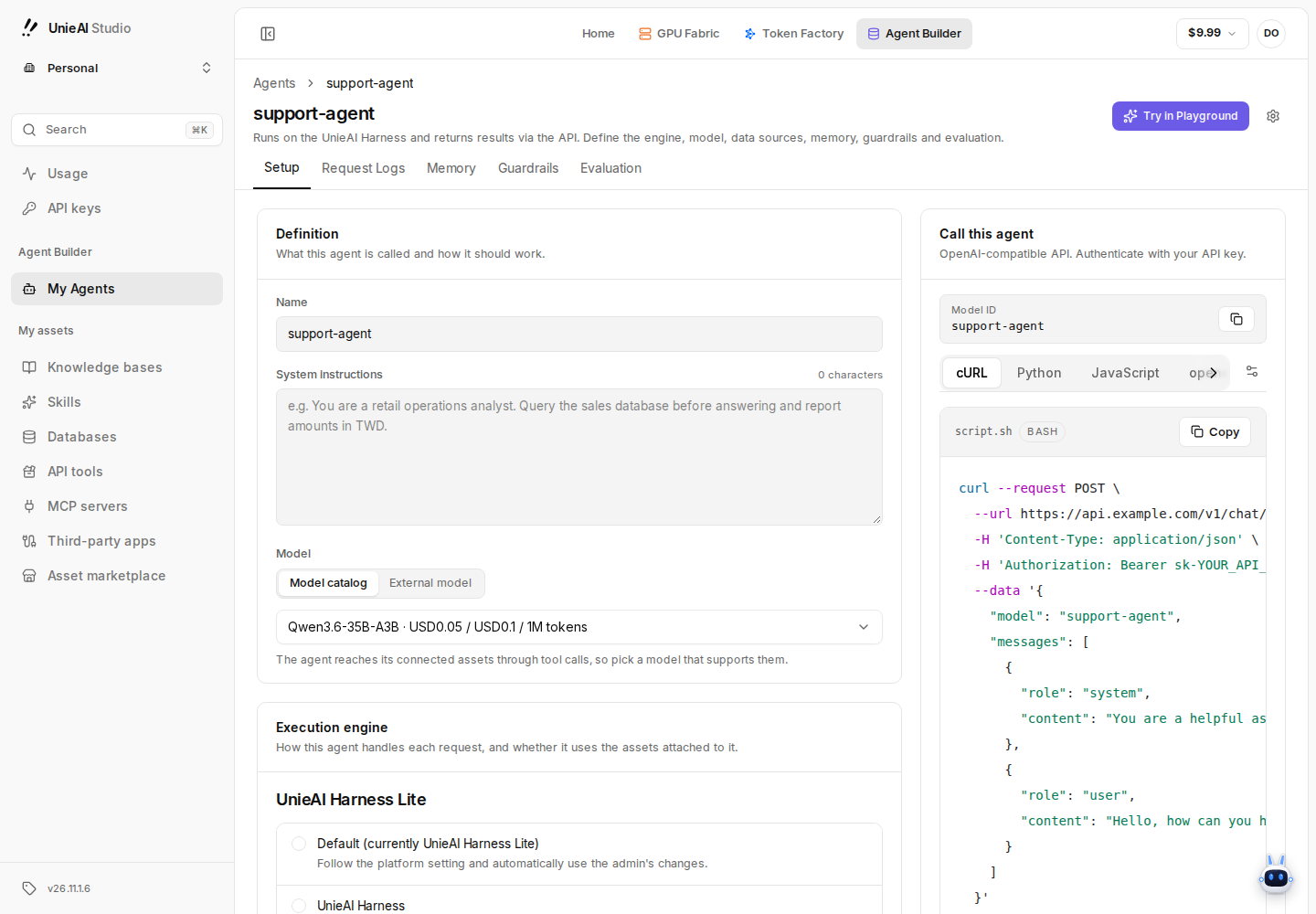
Change request parameters
Use the input area's settings to inspect generation parameters. Lower Temperature generally improves consistency; higher values allow more variation. Max tokens limits answer length. Keep the initial settings for the first verification, then change one parameter at a time.
Files and images
Attachment controls follow the selected model's capabilities. A text-only model does not gain vision or speech input merely because a file is dropped into the composer.
Speech-to-text models
Use the audio control to choose one audio file. Supported extensions are .mp3, .wav, .wave, .m4a, .aac, .ogg and .flac. The default per-file size is 25 MB; the administrator can change the Playground limit. Transcription is inserted into the input so you can review or edit it before sending.
A document or image selected through this audio control is reported as not an audio file, with its filename. A transcription or authorization error is shown separately.
Vision models
Use the image control or drag supported images into the composer. Supported formats are .jpg/.jpeg, .png, .webp and .gif, with up to 10 images per message. The default per-file size is 10 MB, subject to the administrator's Playground settings. For an agent, image input must also be enabled in its configuration.
A non-image file is reported as not an image, with its filename. If the file is an image but the selected model lacks image input, the error instead explains that capability requirement.
For PDF, Word, spreadsheets, presentations or video, use the KB upload workflow, then connect the indexed KB to the agent. Playground attachments do not replace persistent document ingestion.
Compare a configuration change
- Save the agent change in Setup first.
- Start a new conversation to avoid stale answers in the history.
- Reuse the same questions and expected evidence.
- Check whether retrieval or the final answer changed.
- For integration, use the agent API guide with the same model ID and question.
Inspect the API details of a reply
Click … below a completed LLM reply to open LLM request information. It shows the actual model, finish_reason, TTFT, duration, input/output/cached/reasoning tokens and Request ID. An unavailable field means the upstream did not provide it, not that its value is zero.