Knowledge Base Access
Manage knowledge-base users, co-editors, group access, and Marketplace publishing permissions.
Knowledge bases use two resource roles: Can use and Can edit. Creators and co-editors maintain the content. People with use access can view, search, and link the knowledge base, but cannot change its data or settings.
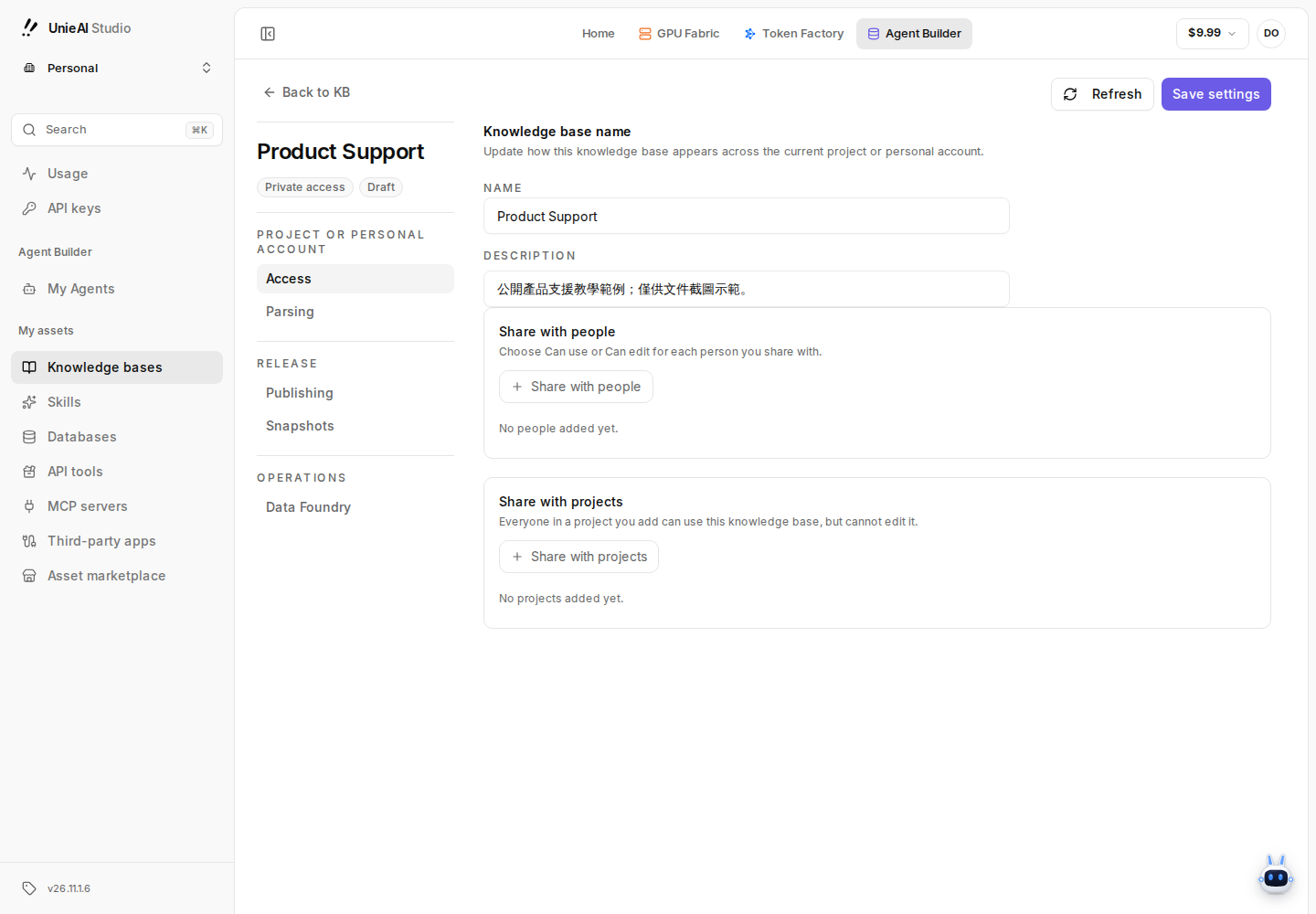
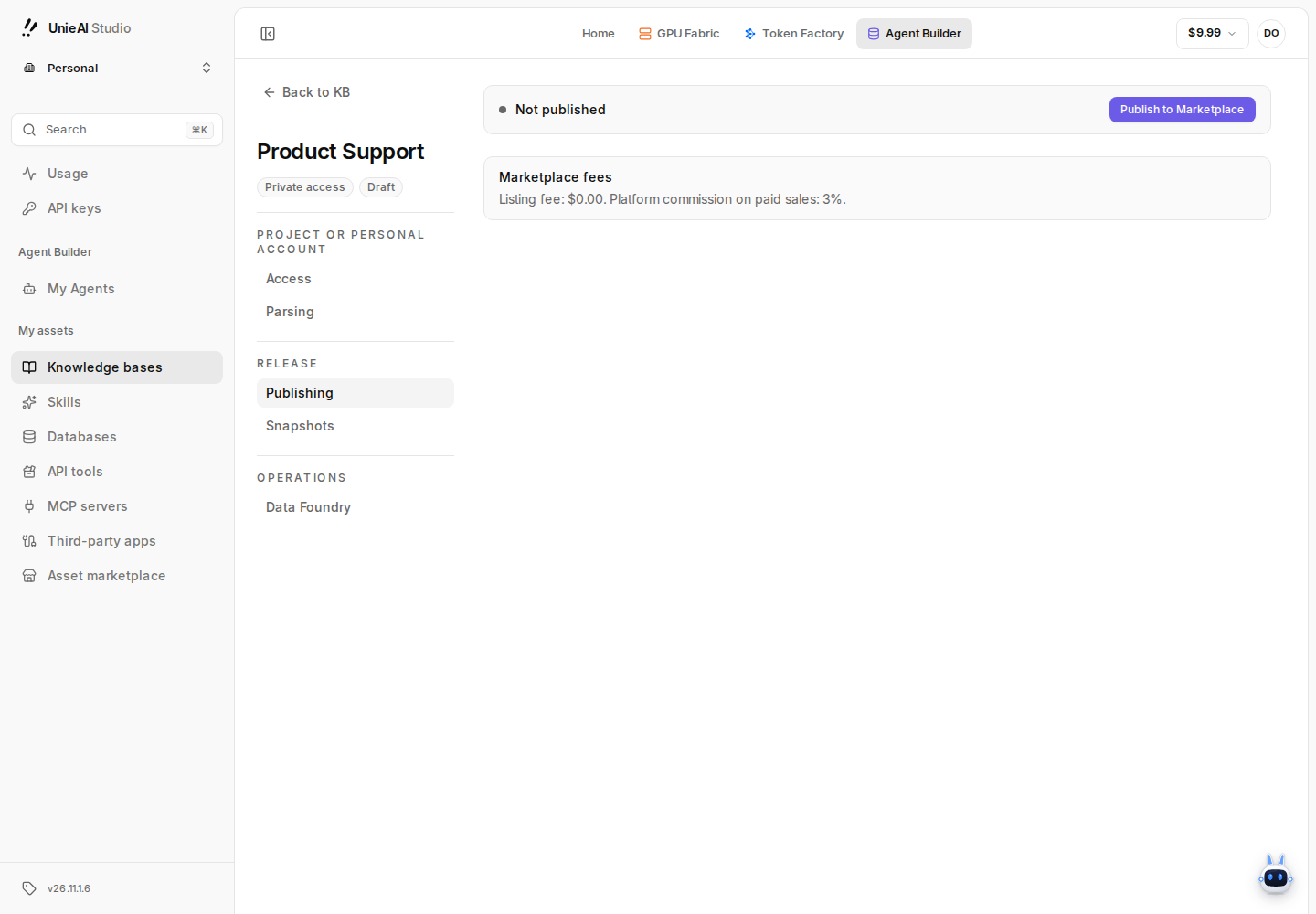
The current interface does not provide a three-way Private, Group, and Public visibility selector. Manage people and groups under Settings → Access. Public Marketplace publishing uses the separate Settings → Publishing flow.
Access roles
| Role or access source | View and search | Link to a Customize Model | Manage documents and parsing | Manage access and publishing | Delete the knowledge base |
|---|---|---|---|---|---|
| Creator | ✓ | ✓ | ✓ | ✓ | ✓ |
| Can edit / co-editor | ✓ | ✓ | ✓ | ✓ | ✓ |
| Can-use user or group member | ✓ | ✓ | — | — | — |
| Ordinary project member | Depends on the access list | Depends on the access list | — | — | — |
| Admin / Super Admin | ✓ | ✓ | Not granted by platform role alone | Not granted by platform role alone | — |
Co-editors can change the name and description, upload or delete documents, edit parsed document content, reparse or re-index content, change parsing settings, manage other members, and handle snapshots and publishing. A co-editor cannot remove or downgrade their own access.
Can edit provides nearly complete resource-management access, including permanent deletion of the knowledge base. Grant it only to trusted users.
Personal accounts and projects
- A new knowledge base is accessible only to its creator by default.
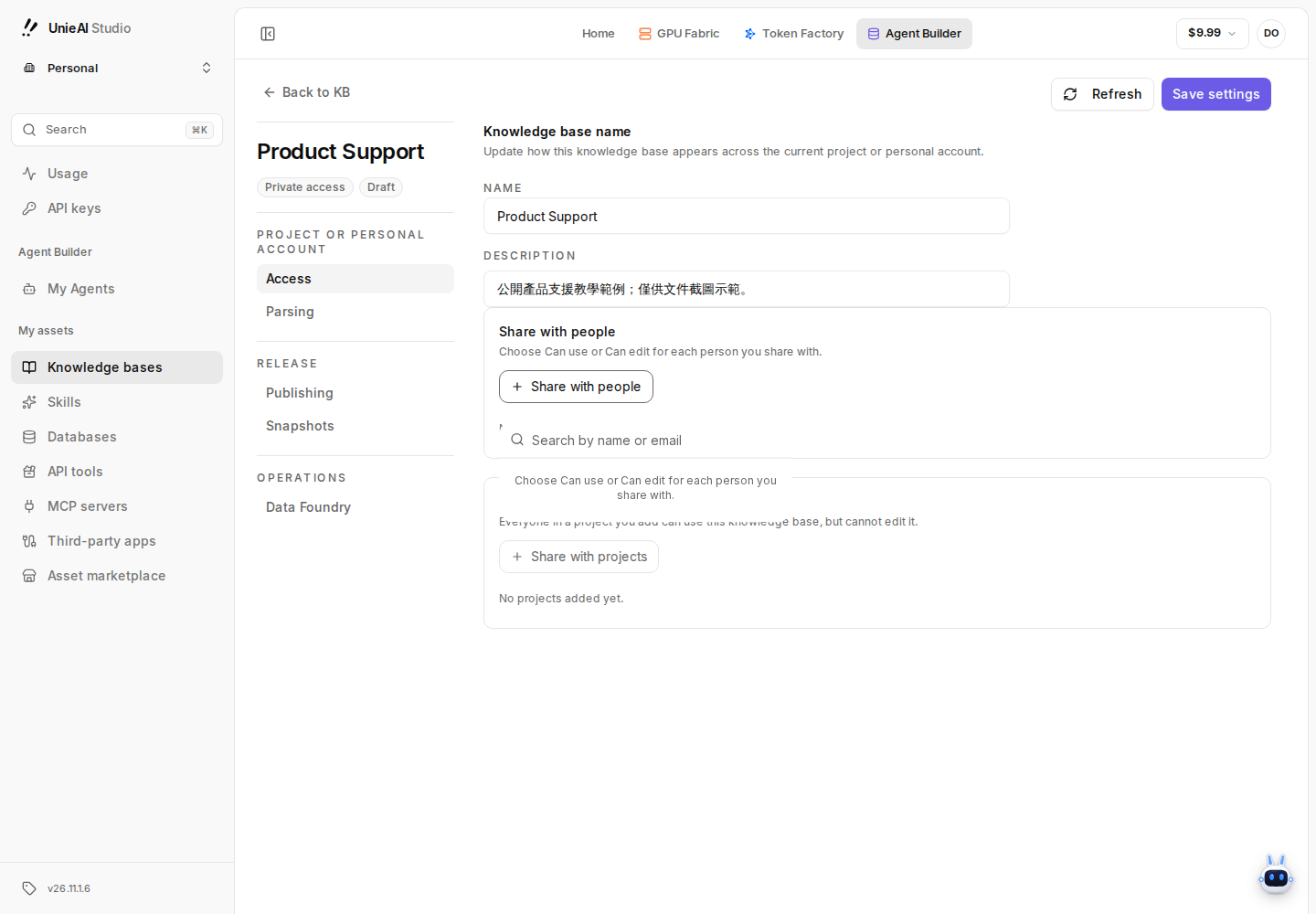
- You can search for existing platform users by entering an exact full name or email address.
- An individual user can receive Can use or Can edit.
- The creator is not shown as a removable entry, and ownership cannot be transferred.
- Project or personal account creators and collaborators can manage knowledge bases in that project or personal account.
- When no explicit user or group access list exists, ordinary project members can use the knowledge base by default.
- After an explicit can-use group is added, ordinary members are evaluated against the group list. Creators and co-editors retain access.
- Groups are always assigned Can use.
- Individual users are always assigned Can edit and cannot be changed to use-only in a project.
To let every project member use a knowledge base, leave the can-use list empty. To restrict use, add the appropriate groups and add only the people who need to manage content as individual co-editors.
Change access
Open Knowledge bases from the sidebar and select the target knowledge base.
Go to Settings → Access. Only the creator or someone with edit access can change this page; other users see read-only content.
Select Share with people / Share with projects, then search for and add a user or group.
In a personal account, assign the user Can use or Can edit as needed. Group roles and individual-user roles in projects are fixed by policy.
Select Save settings. Additions, removals, and role changes take effect only after the save succeeds.
The selected person must already have an active platform account and cannot remain in the Pending state. A co-editor of a project knowledge base must belong to its project or personal account or to one of the groups already granted use access.
Can use and Can edit
The user can see the resource in their available knowledge bases, test KB Super full-text search, and link it to a Customize Model they are allowed to configure. They cannot upload, change, or delete documents or modify parsing, access, snapshot, or publishing settings.
The user becomes a knowledge-base co-editor and can manage content and settings. Access becomes active as soon as the settings are saved; there is no separate invitation to accept. A newly added knowledge-base co-editor receives an in-app notification.
Permission to use a knowledge base does not grant permission to edit every Customize Model that links it. Each Customize Model applies its own access rules separately.
Remove or change access
After the save, subsequent page and API requests use the new permissions. A removed person can no longer search or relink the knowledge base. The system also cleans up knowledge-base references from models the removed user owns or co-edits. Requests already in progress are not revoked, and removing access does not delete knowledge-base content.
A co-editor cannot remove or downgrade themselves. The creator or another person with management access must make the change. Knowledge-base ownership cannot currently be transferred.
Marketplace publishing and public access
Marketplace publishing and member access are separate settings. To let other projects adopt a knowledge base through Marketplace:
Marketplace adoption uses the approved snapshot and does not make the adopter a co-editor of the source knowledge base. The adopted resource is read-only. Adopters can remove it from their project or personal account but cannot delete or modify the source knowledge base.
Changing the ordinary member list does not require Marketplace review. Conversely, submitting a Marketplace release does not add every user as a co-editor.
Quotas and limits
- The number of can-use users and co-editors may be limited by the resource owner's or project or personal account's sharing quota.
- Total knowledge-base storage and the maximum size of one file depend on the creator's current entitlements and platform-administrator settings.
- Files uploaded by a co-editor still consume the knowledge-base owner's capacity, not the co-editor's personal quota.
If capacity is exhausted, delete unneeded documents or contact a platform administrator to verify the current entitlement. See Upload and Manage Documents for file and capacity rules.