SQL data sources: connect and verify
Create a PostgreSQL, MySQL, or SQL Server connection, test credentials, and bind it to an agent.
1. Open data sources
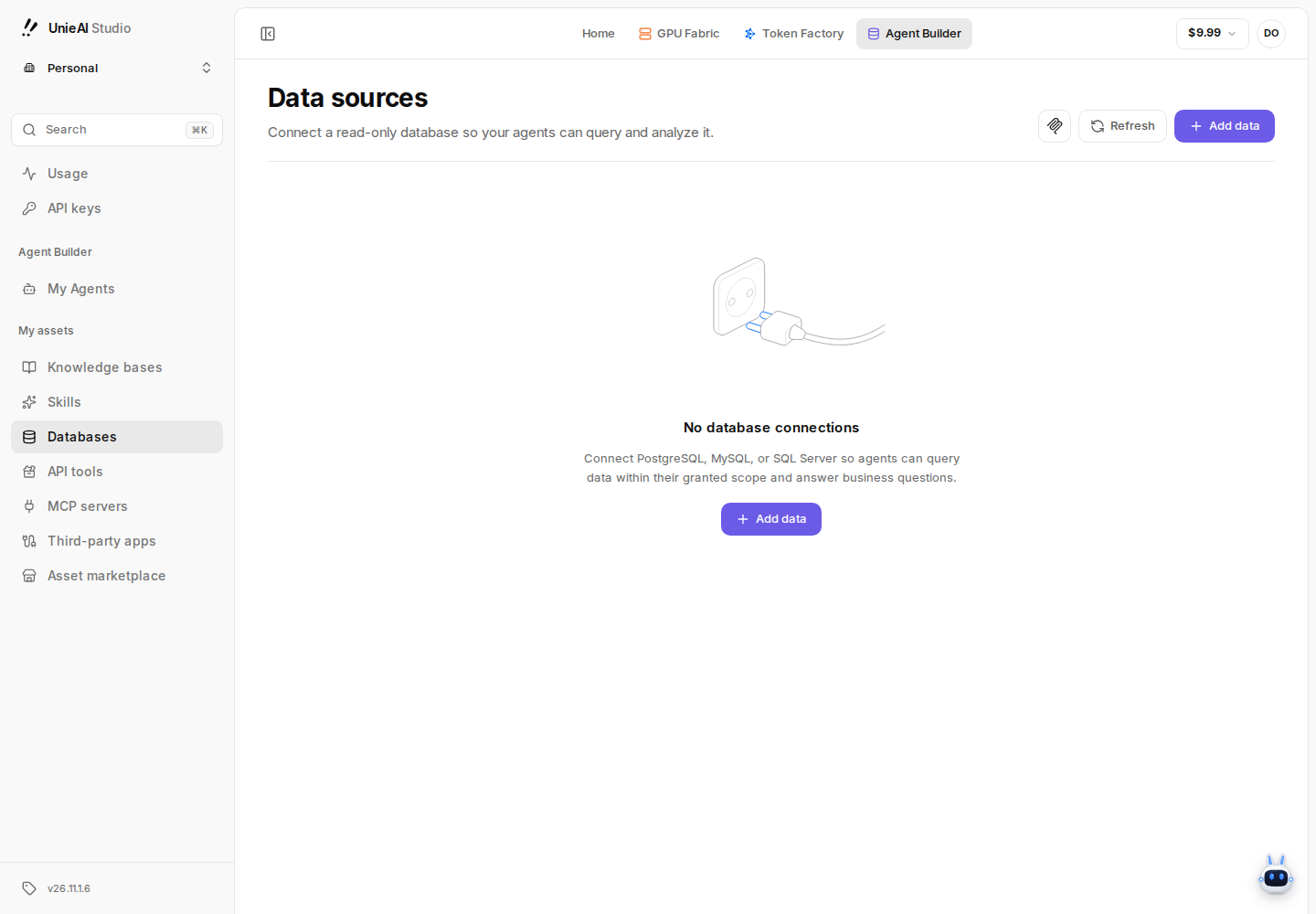
Choose the current project or personal account, then open Agent Builder → Databases. Click Add data and select the database entry. The first-use empty-state button may open the wizard directly.
2. Enter connection details
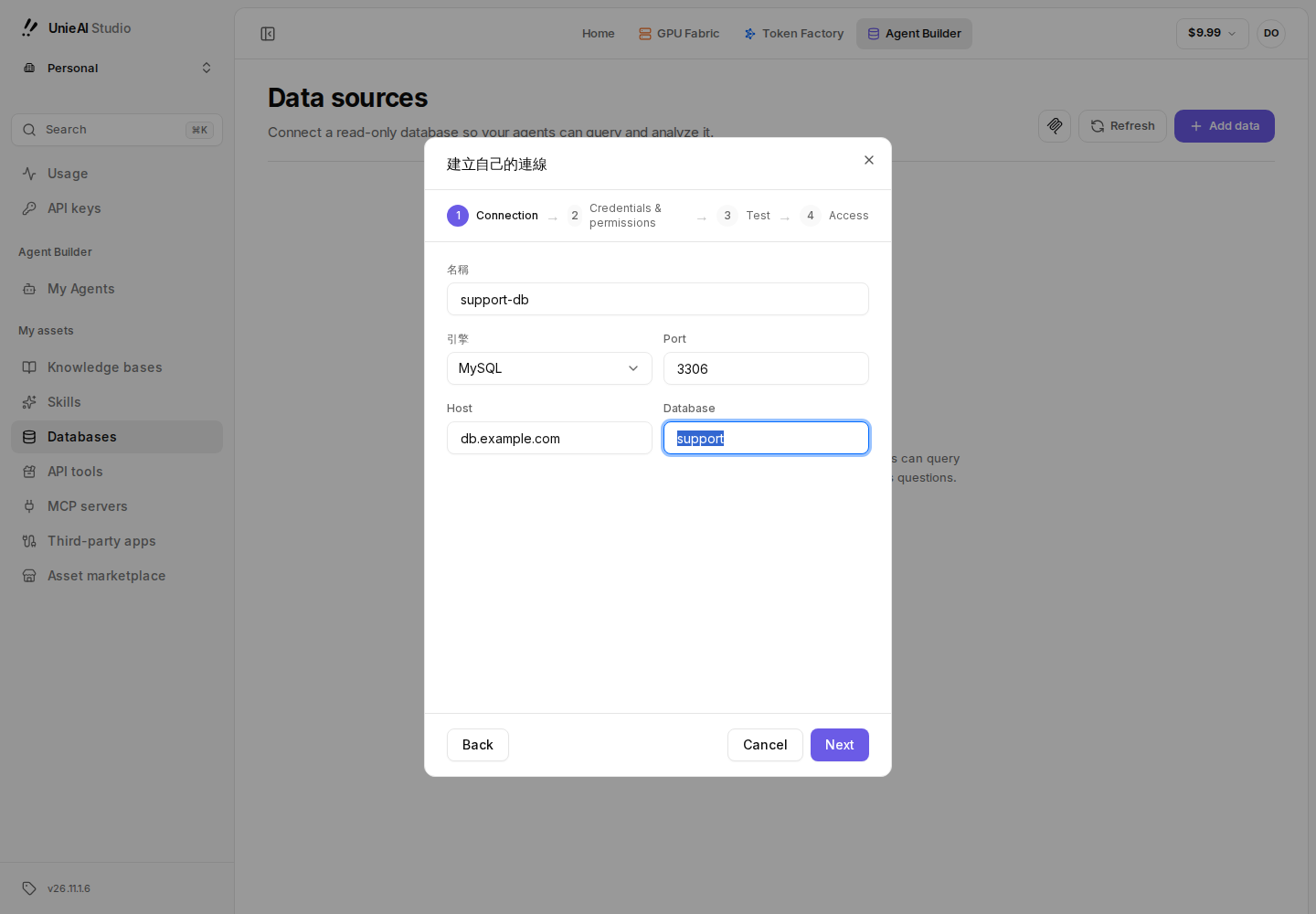
Name the connection, choose PostgreSQL, MySQL, or MSSQL, and enter host, port, and database name. The example host is illustrative; replace it with a server reachable from your deployment. Default ports depend on the selected engine.
3. Enter credentials and permissions
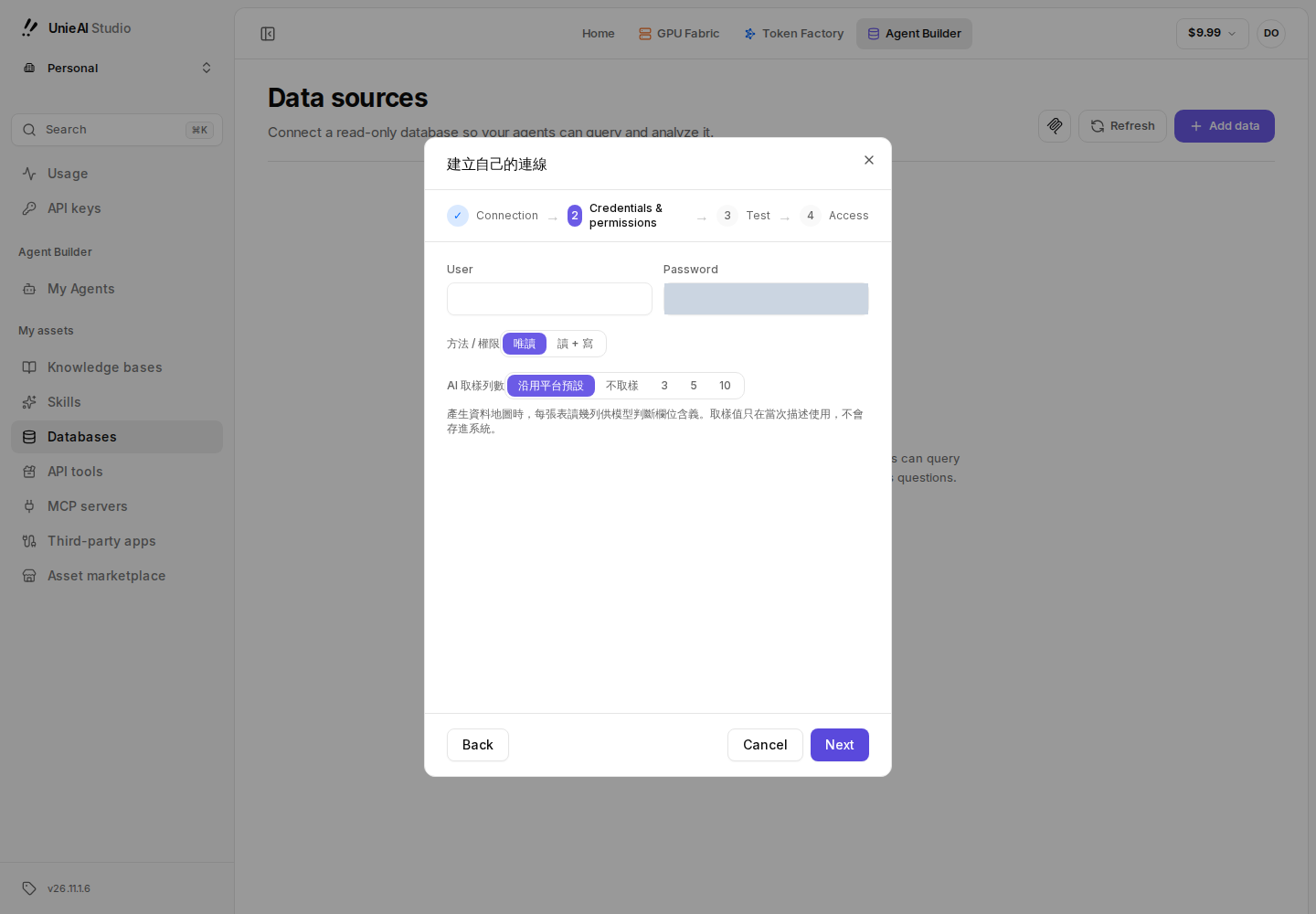
Provide a database user and password. Prefer a read-only database account and the read-only application option for analysis. Select whether AI schema descriptions may sample rows. This controls sampling for descriptions, not permission to query tables. Continue to the test step.
4. Test and create
Click Test connection. Correct connectivity or credential errors before continuing: a new connection must pass its test. Review sharing in the final step and create the asset. After scanning tables, narrow the allowed-table list if needed. An empty list in the UI before creation is not a successful connection.
5. Bind the source
Open the agent’s data connections or Setup → Assets → Databases and select the source. Confirm the intended query target: source or a configured warehouse mirror. For a mirror, finish its first synchronization before querying it.
Run a small factual query and verify its result, then use the semantic-layer guide or BI. Removing a connection removes its configured access; it does not delete the source database.