Step by step: build an agent that answers from documents
Use a downloadable sample to prepare models, parse a KB document, verify search, configure an agent, and test it in Playground.
Build support-agent and ask it when ORBIT-42 support is available. By the end, it should answer from your document and identify the source. Each step includes a checkpoint: resolve a failed checkpoint before continuing.
The screenshots illustrate interface operations; click an image to view it full size. Choose an available answering model with Tool Calling and verify connectivity after adoption. Use ORBIT-42 Tutorial for the sample KB and support-agent or another unused agent name. Repeated uploads of the same filename may receive (1) or (2) suffixes.
Before you start
| Requirement | Check |
|---|---|
| Active account and project or personal account | You can open Agent Builder and create resources |
| Balance and quotas | Check the current project or personal account balance; parsing, indexing, and model requests may incur usage |
| Answering model | Text generation and Tool Calling, adopted into the target project or personal account |
| KB system models | Adopt the format-appropriate parsing models requested by the KB |
| Sample file | Download product-support.md |
The sample describes a fictional product. You can substitute a short document of your own, provided the test questions have explicit answers in it.
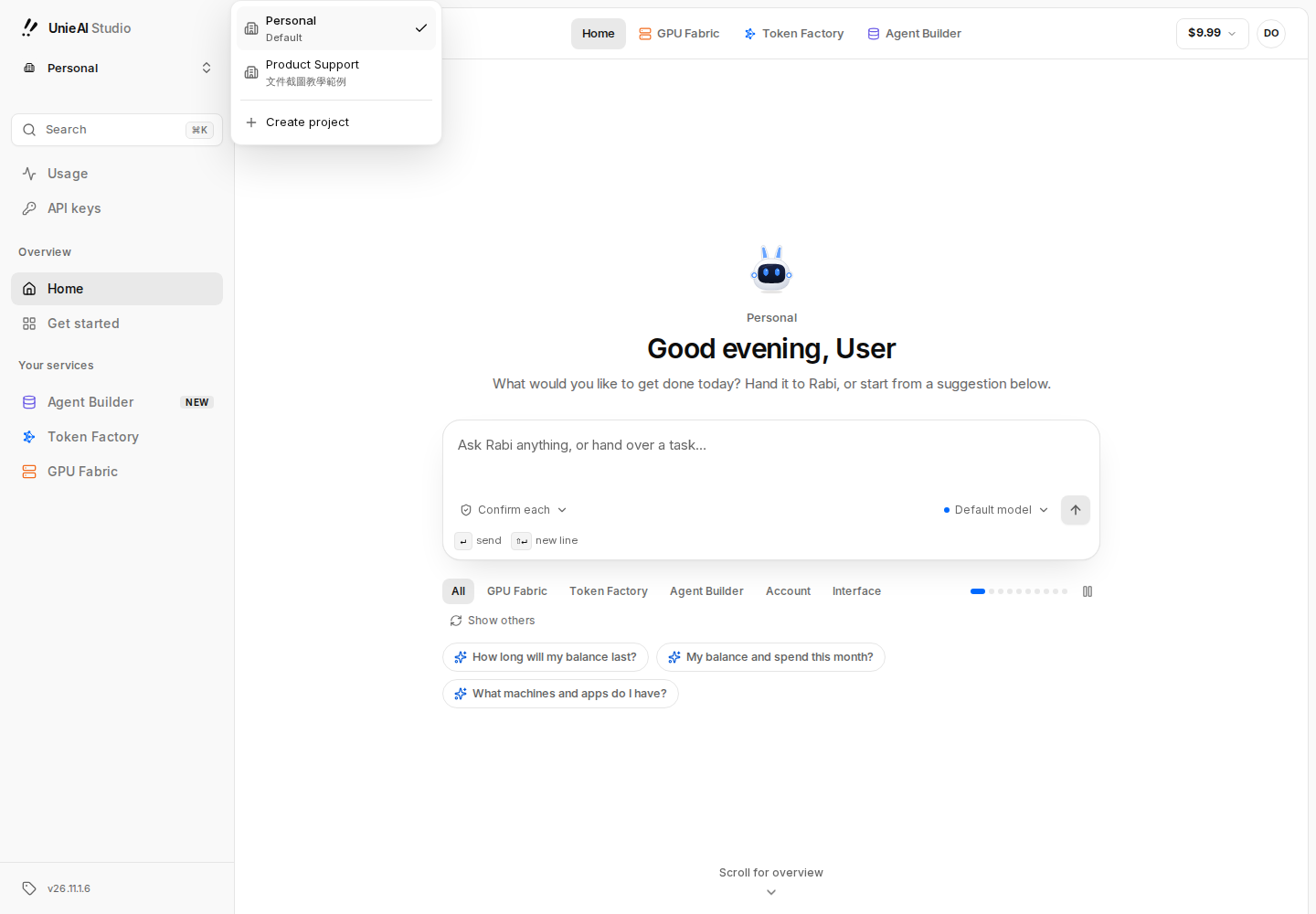
Step 1: choose the current project or personal account
- Sign in and click the project name at the top left.
- Select your personal account or a project where you can create resources.
- Keep models, the KB, the agent, and API keys in that same target project or personal account throughout this guide.
Checkpoint: the top-left project name is correct. If a list suddenly looks empty, check whether the current project or personal account changed.
Step 2: adopt the answering model
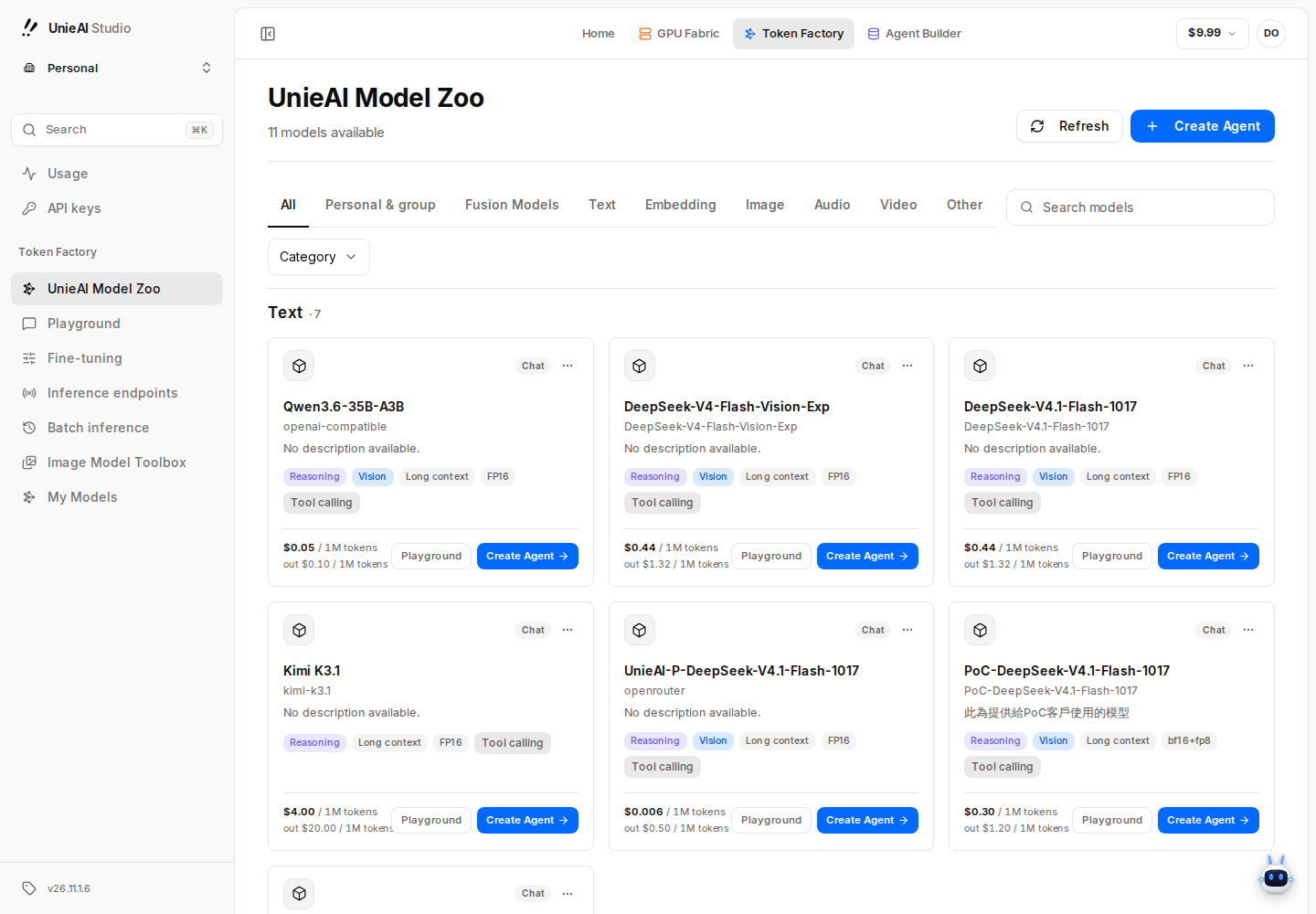
- Open Token Factory → UnieAI Model Zoo.
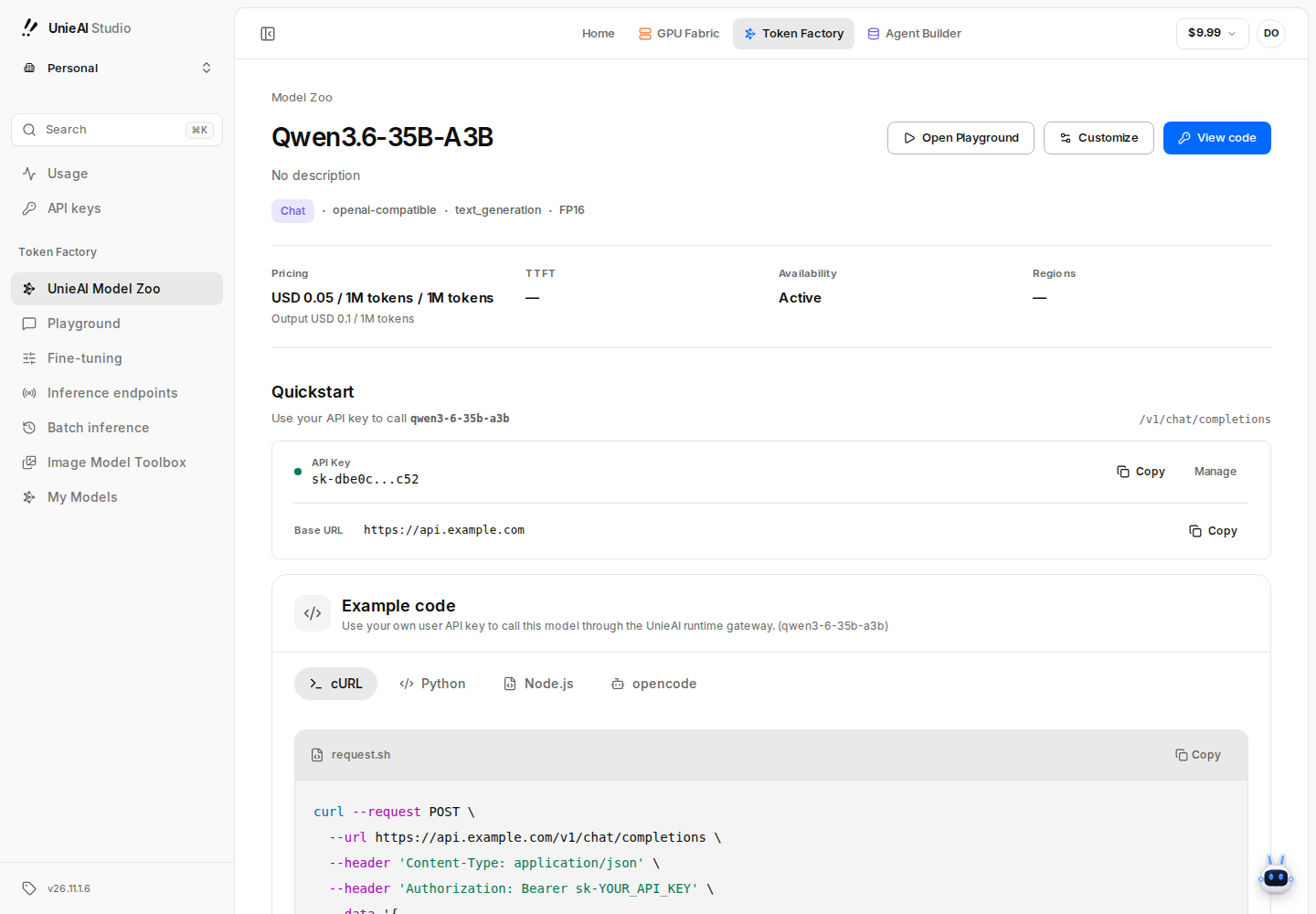
- Choose a text-generation model that supports Tool Calling; inspect its capabilities and price.
- Click Use base model and confirm adoption into the current project or personal account.
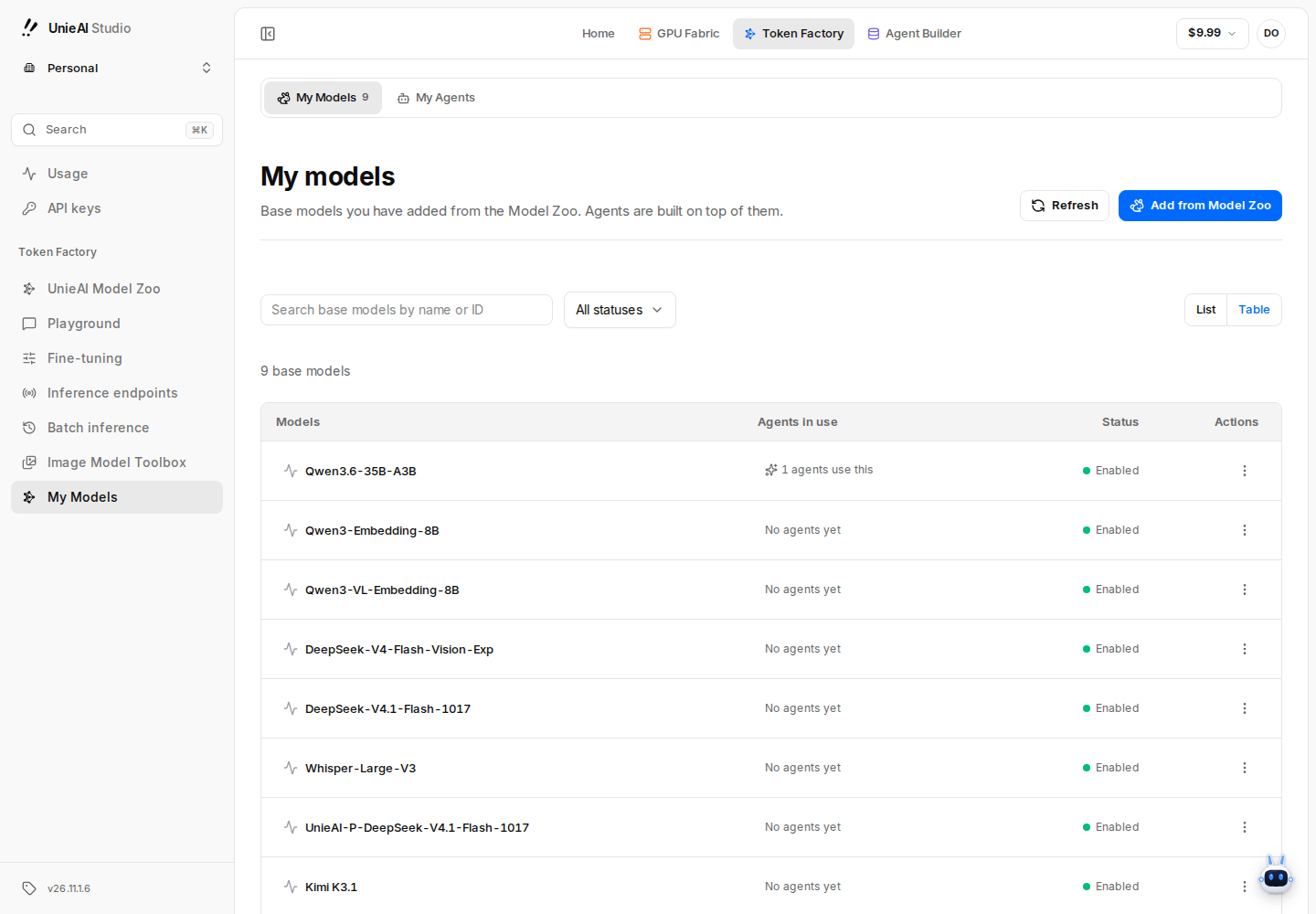
- Open My Models and confirm it is available.
Checkpoint: the model appears in My Models. This is the agent's answering model; KB parsing and indexing models are separate prerequisites.
Step 3: create the tutorial KB
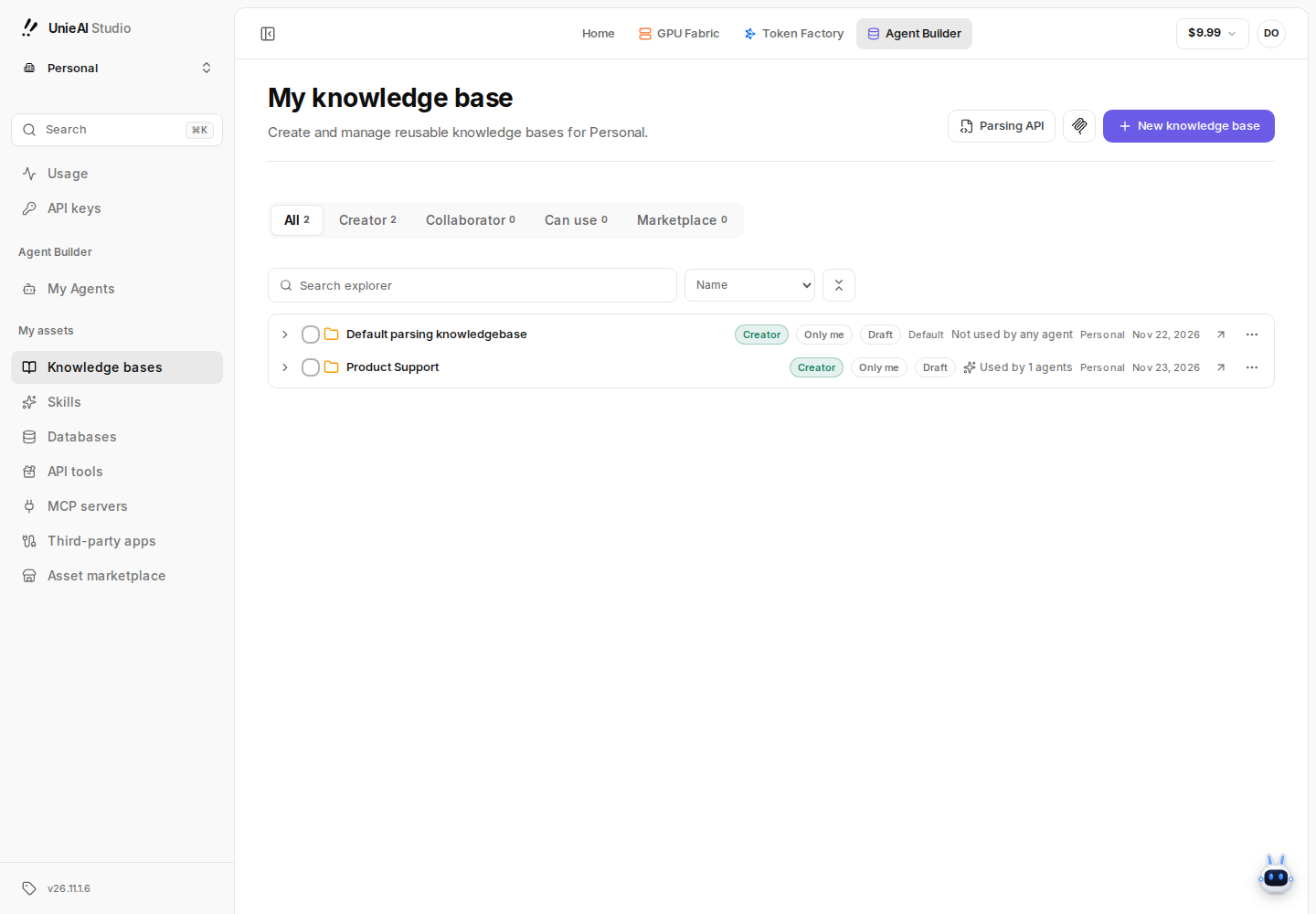
- Open Agent Builder → Knowledge bases.
- If a required-model dialog appears, click its Add to My Models or Add model action. Complete each required purpose that appears.
- Click New knowledge base.
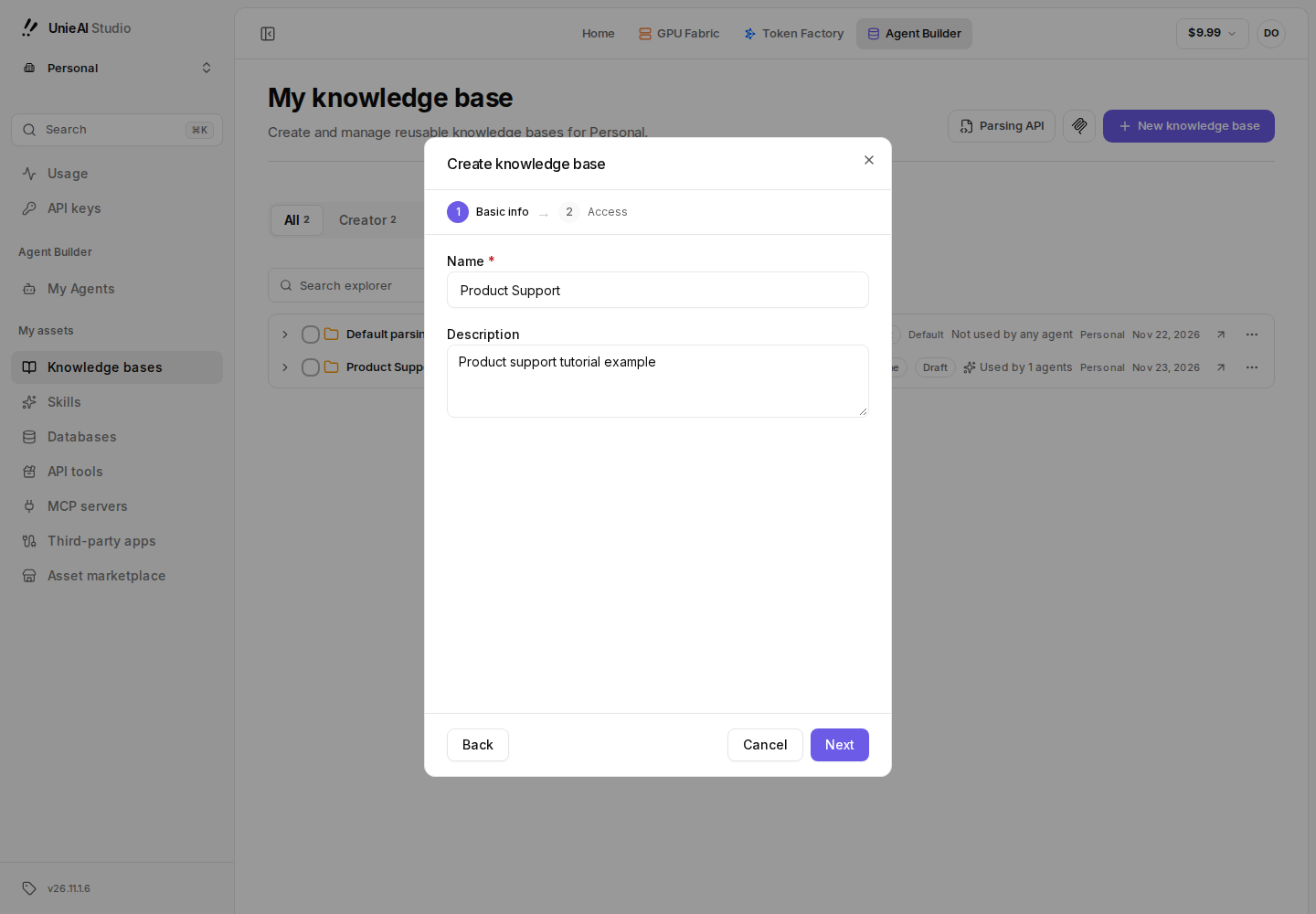
- Enter
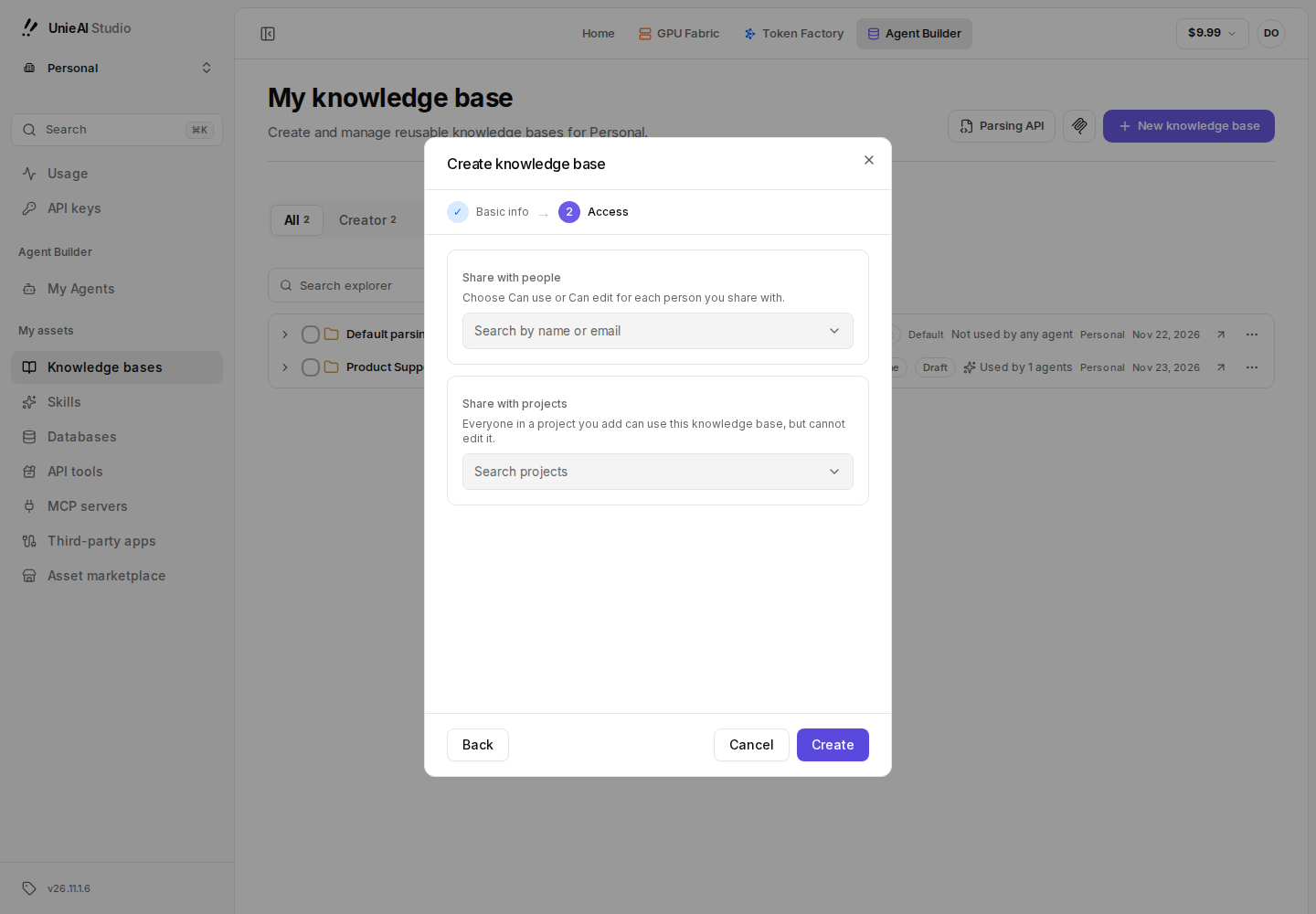
ORBIT-42 Tutorialas the name andORBIT-42 product-support sample documentsas the description. - Click Next and choose access. Keep the private setting for a personal exercise.
- Click Create, then open the new KB from the list.
Checkpoint: the KB file list opens. Uploading requires the creator or a co-editor, rather than use-only access.
Step 4: select the file and start uploading
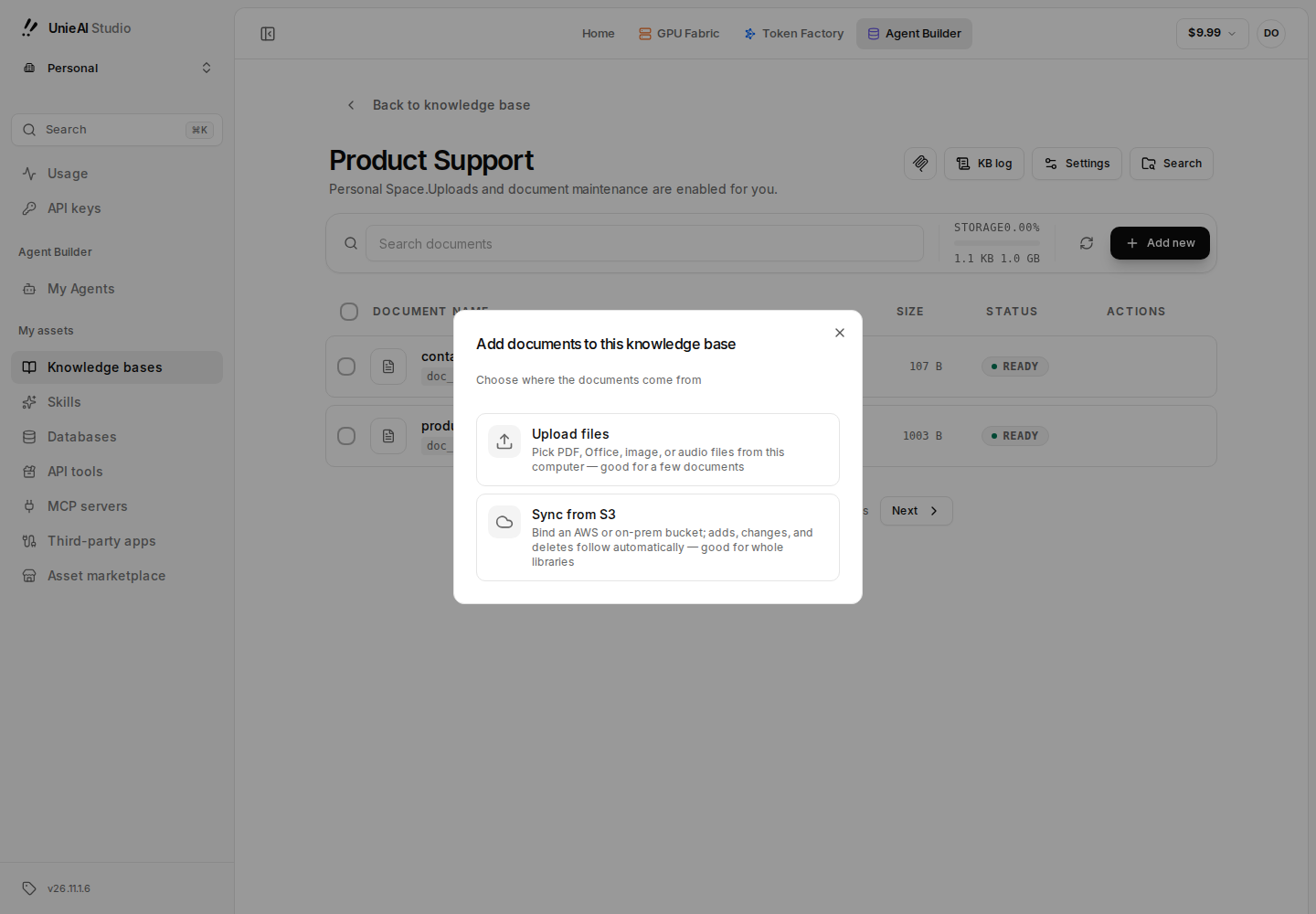
- In the KB file page, click Add new → Upload files.
- Select
product-support.md. - Check its name in the pending upload queue.
- Click Start. Selecting a file only queues it; it does not start transfer.
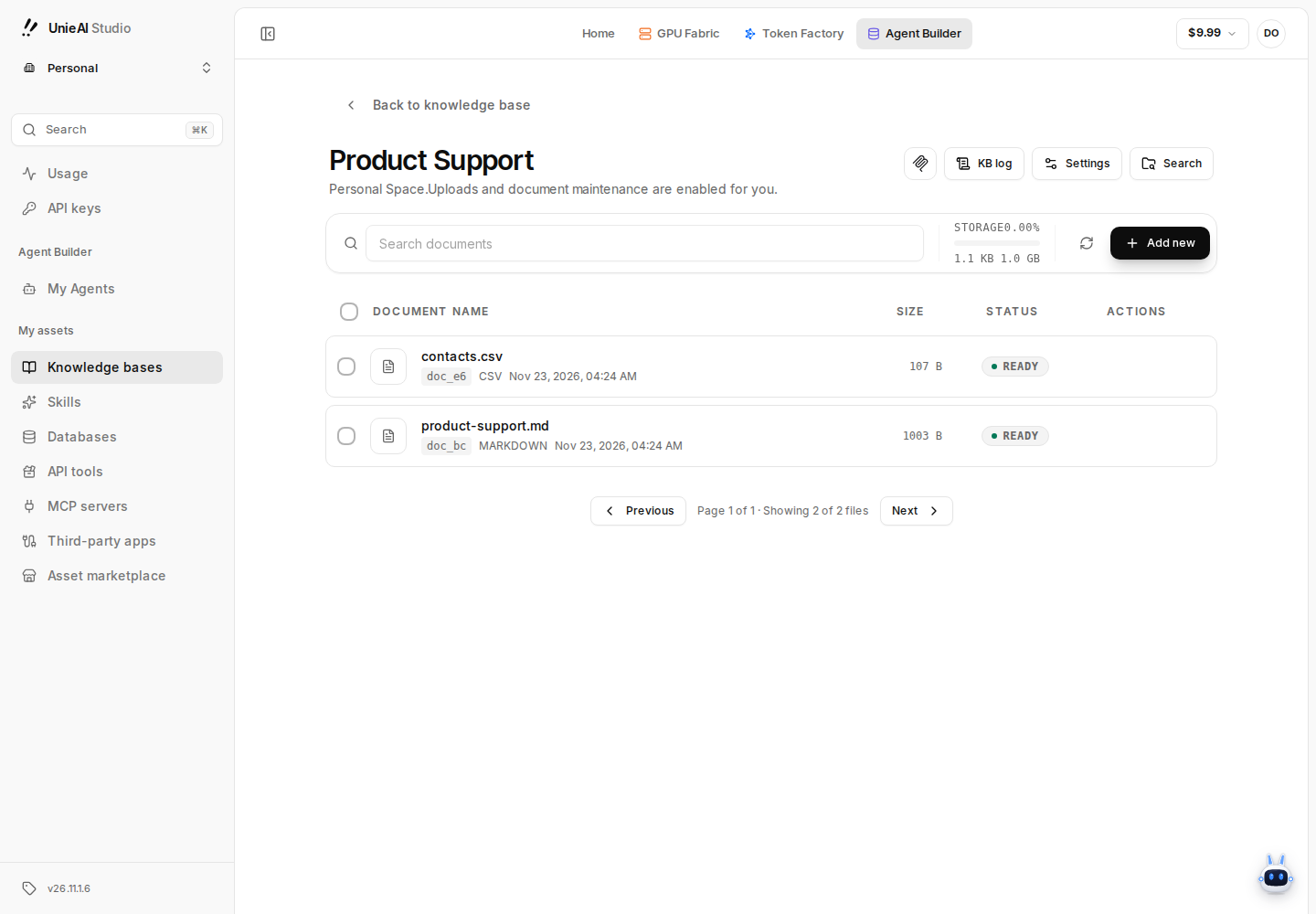
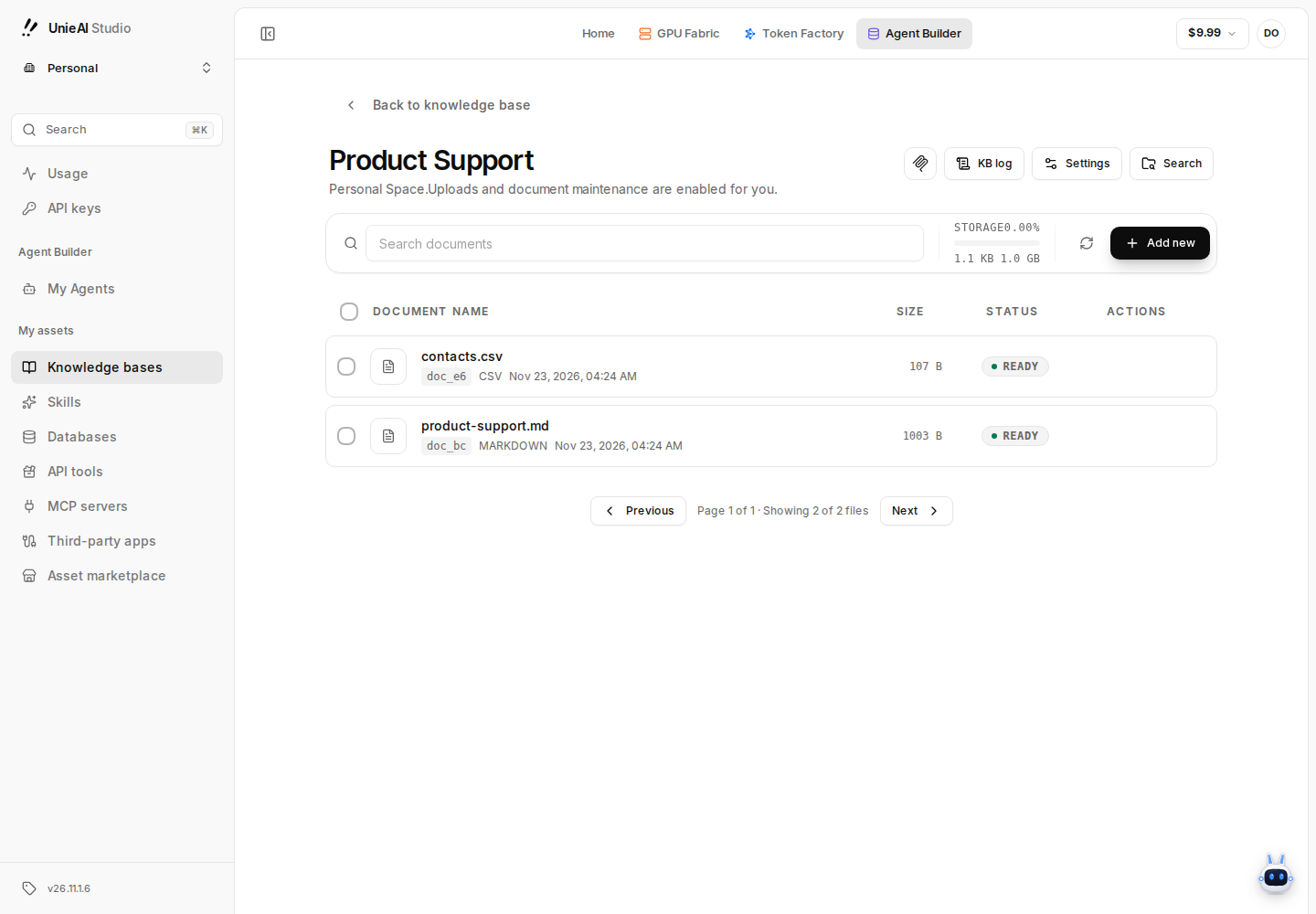
- Wait for the document to appear in the file list.
Checkpoint: the file is listed with a queued or processing state. Upload success is not parsing or indexing success.
Step 5: wait for parsing and indexing
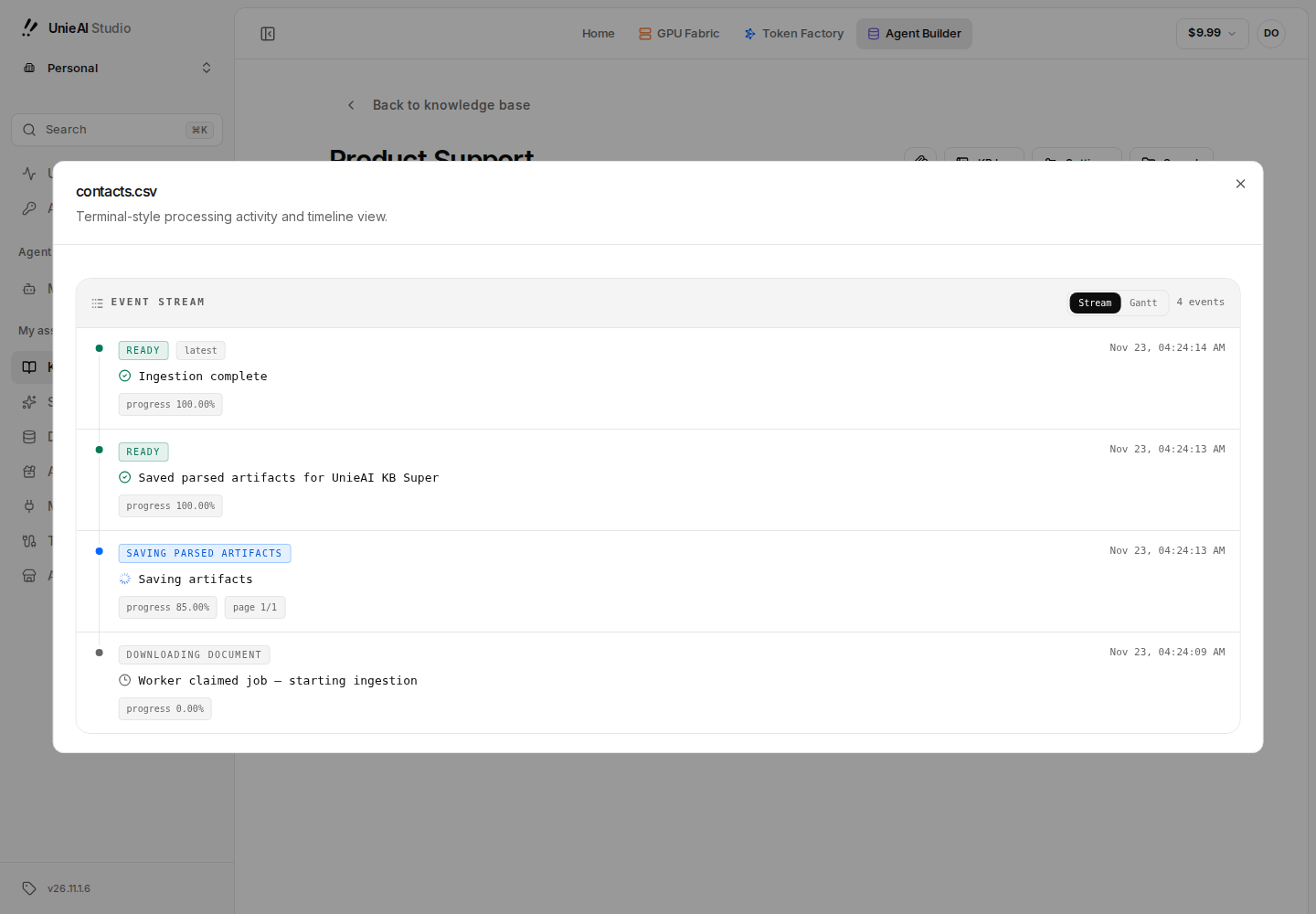
- Watch the document state and progress message.
- Click its state to inspect stages, page progress, or errors.
- Wait for Indexed, Ready, or an equivalent usable state.
- For a partial result, inspect failed pages. Use a fully successful file for this first exercise.
- If processing fails, resolve model access, balance, or file issues before using Reparse document.
Checkpoint: indexing is complete. See Uploading and managing documents for limits, failed-page retries, and recovery.
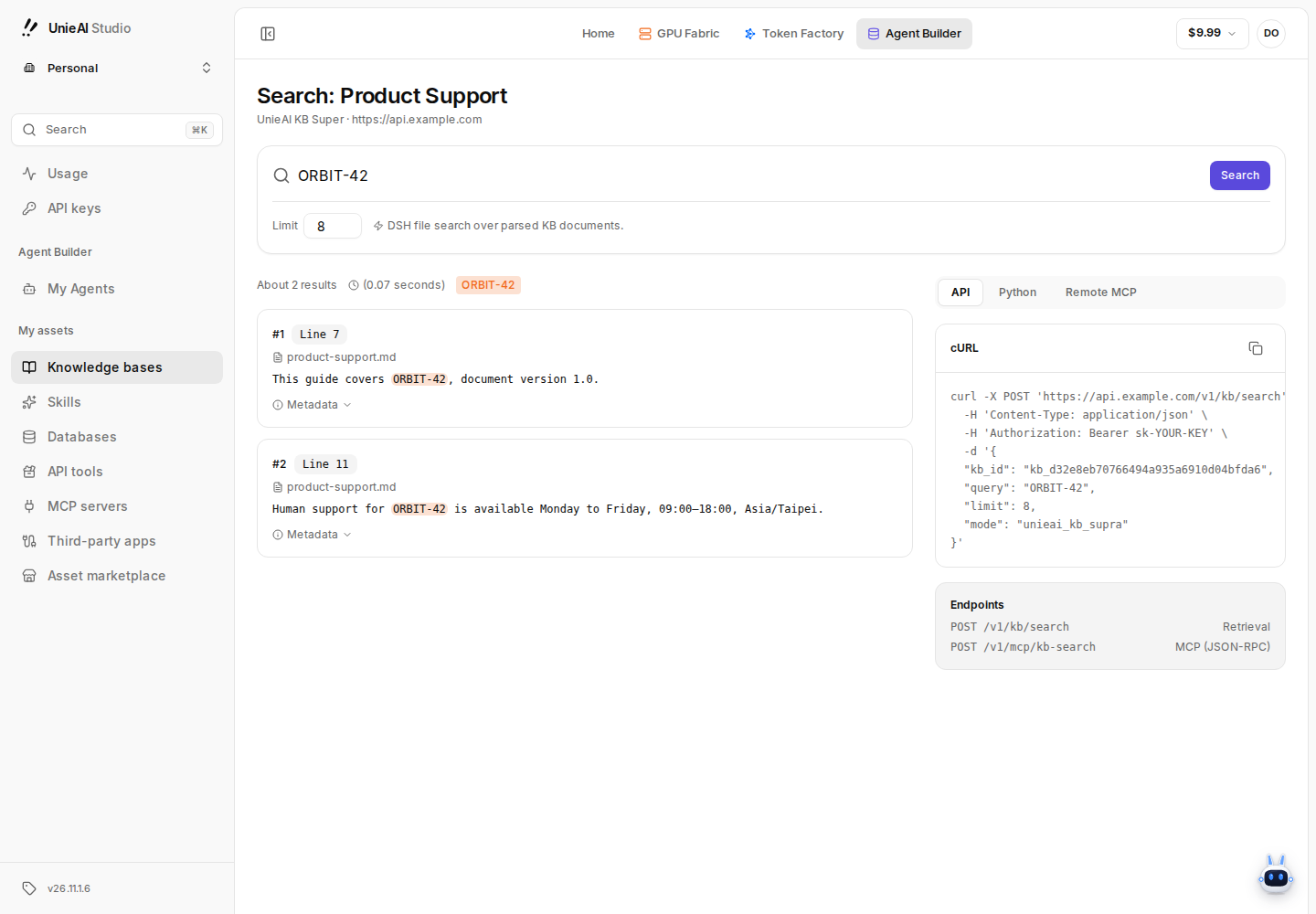
Step 6: verify KB search first
- Click Search at the upper right of the KB file page.
- Ask
When is human support for ORBIT-42 available?. - Run the search with the initial settings.
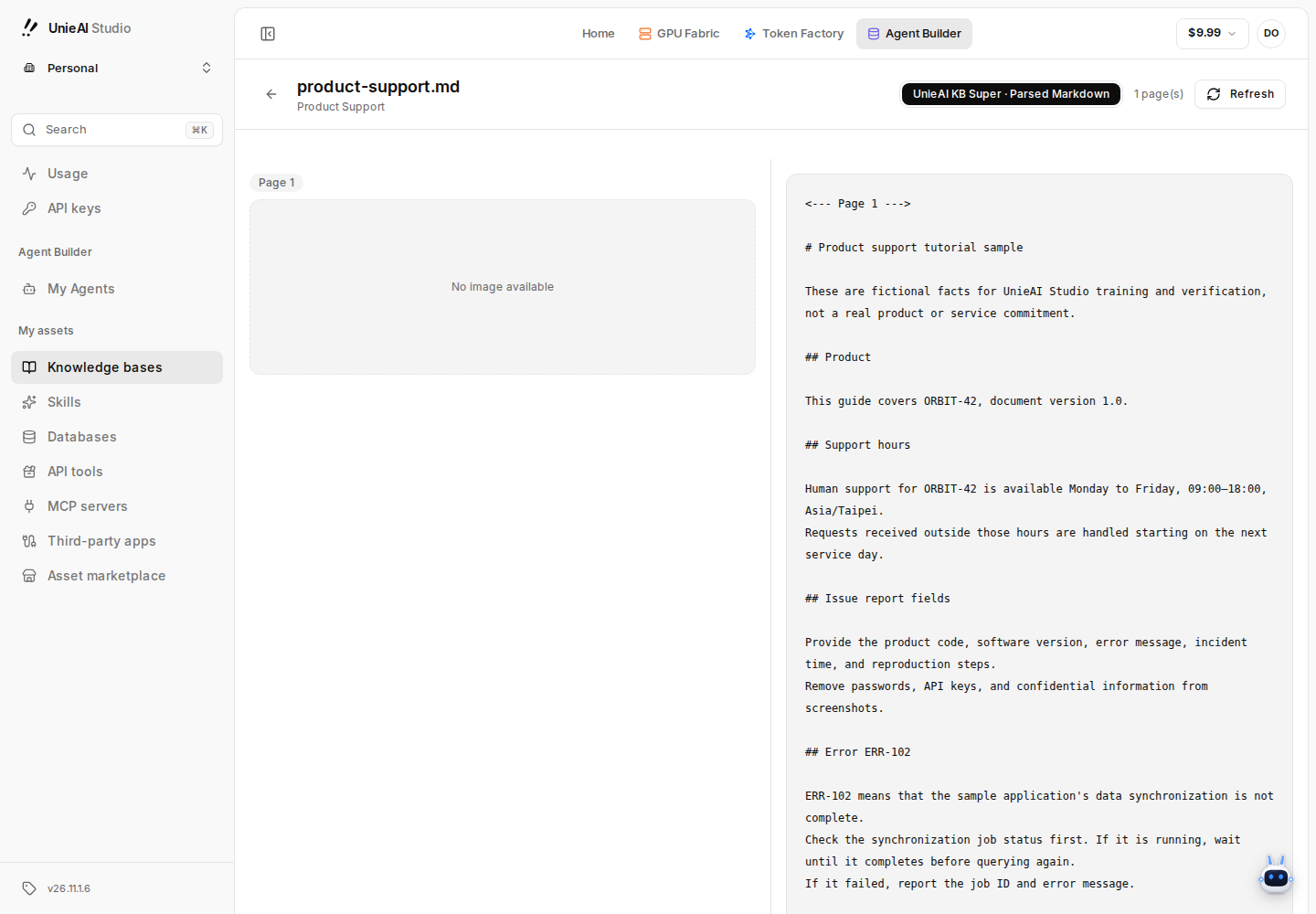
- Expand results and check for Monday–Friday, 09:00–18:00, and
Asia/Taipei. - Confirm the source is
product-support.md.
Checkpoint: the relevant source passage is found. This page returns evidence, not necessarily a conversational answer. Fix KB search before configuring the agent.
Step 7: create the agent
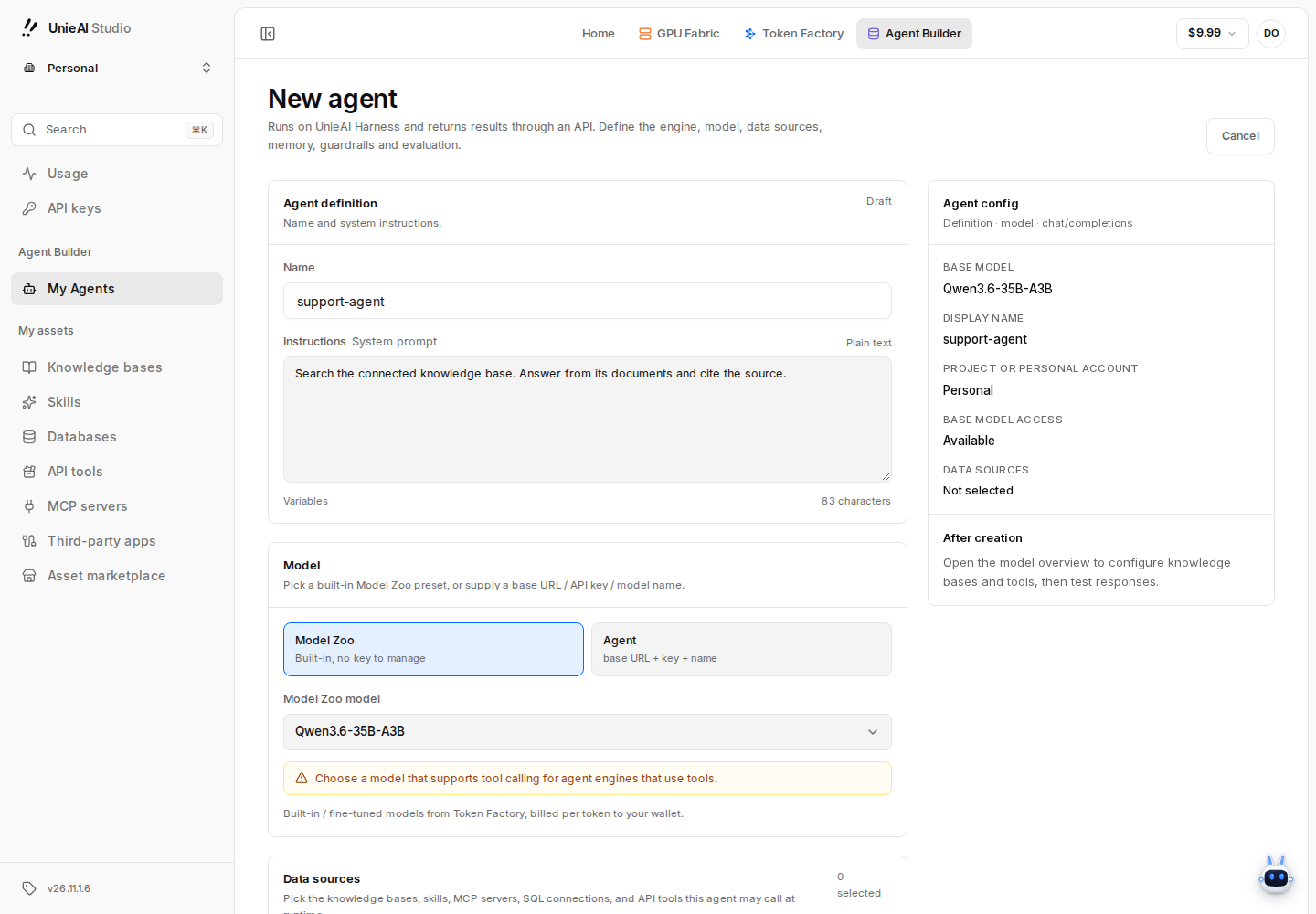
- Open Agent Builder → My Agents → Create agent.
- Enter
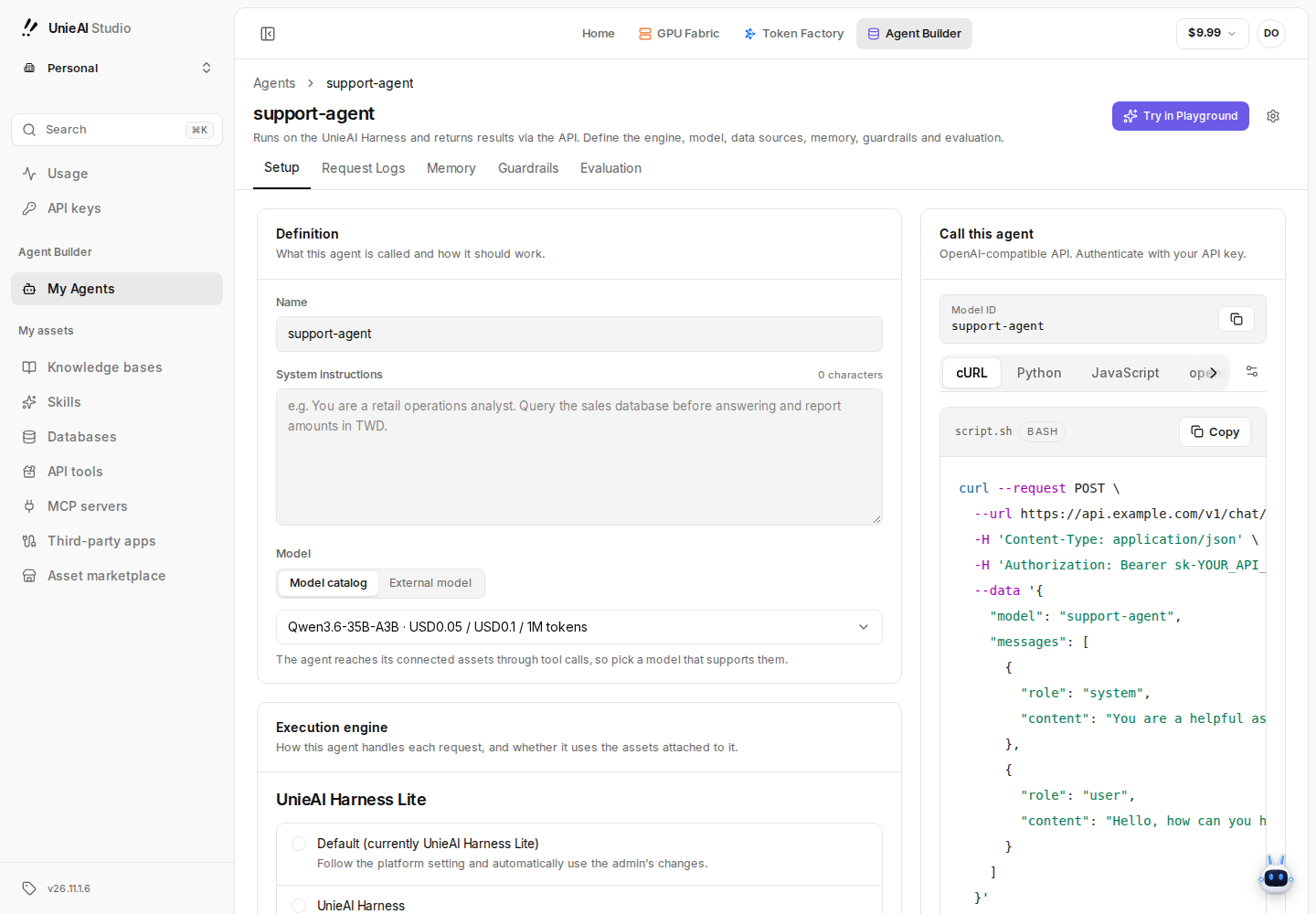
support-agentin Name. Creation accepts 3–50 letters, digits, dots, underscores, or hyphens. - Paste the instructions below into Instructions.
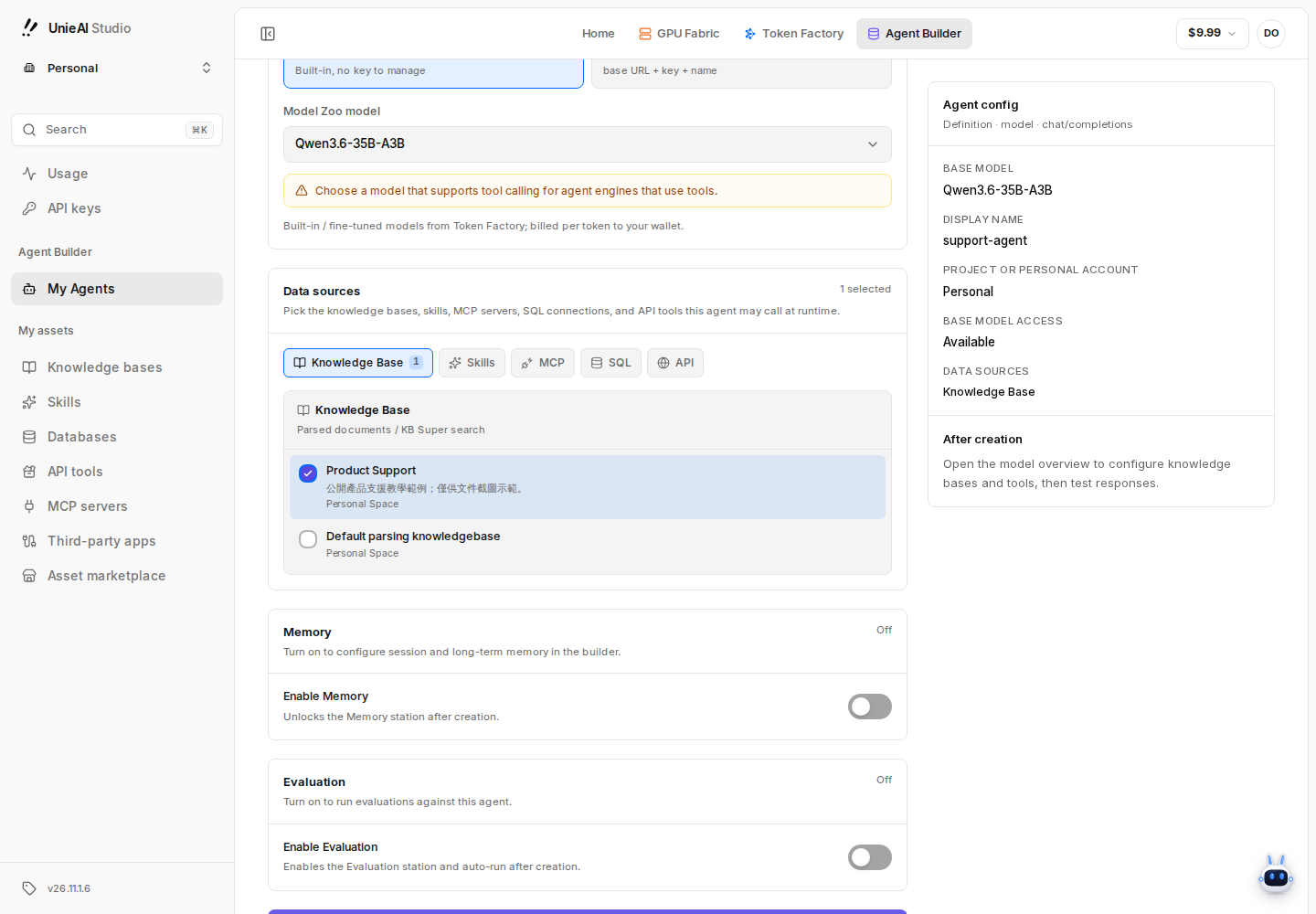
- Under Model → Model Zoo, select the model adopted in step 2.
- Under Data sources → Knowledge Base, select
ORBIT-42 Tutorial. You can also attach it after creation. - Scroll to the bottom and click Create agent. Wait for the agent's Setup page.
You are a product support documentation assistant. Answer in English.
Search the attached knowledge base before answering product questions.
Use the retrieved evidence and cite the source filename and page, when available.
If information is missing, say that the documents do not provide it. Do not guess.
Present troubleshooting actions in the order in which they should be performed.
Checkpoint: the agent exists and its Setup page opens. If adoption is required, finish adding the model to My Models first.
Step 8: verify saving, attachments, and engine
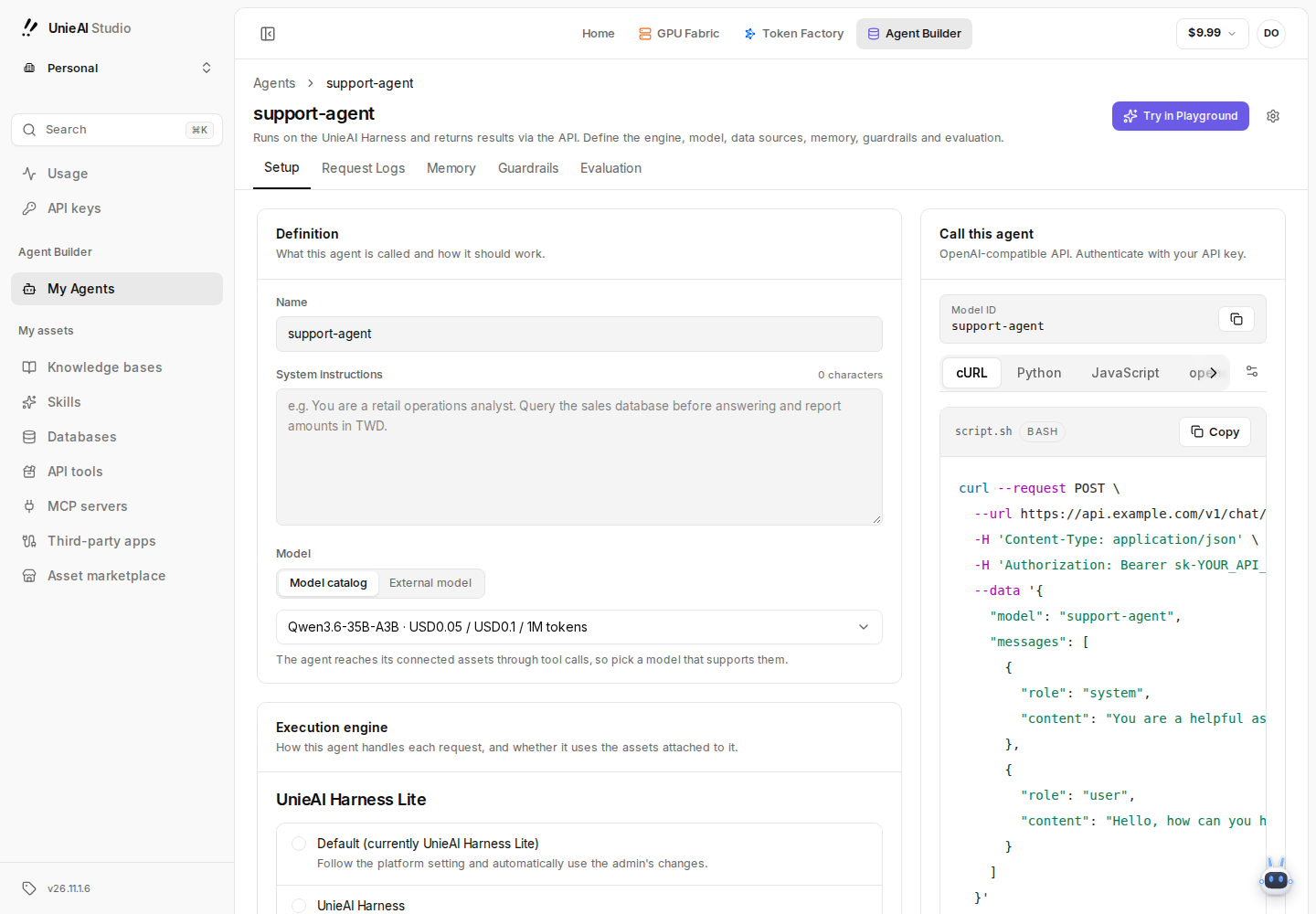
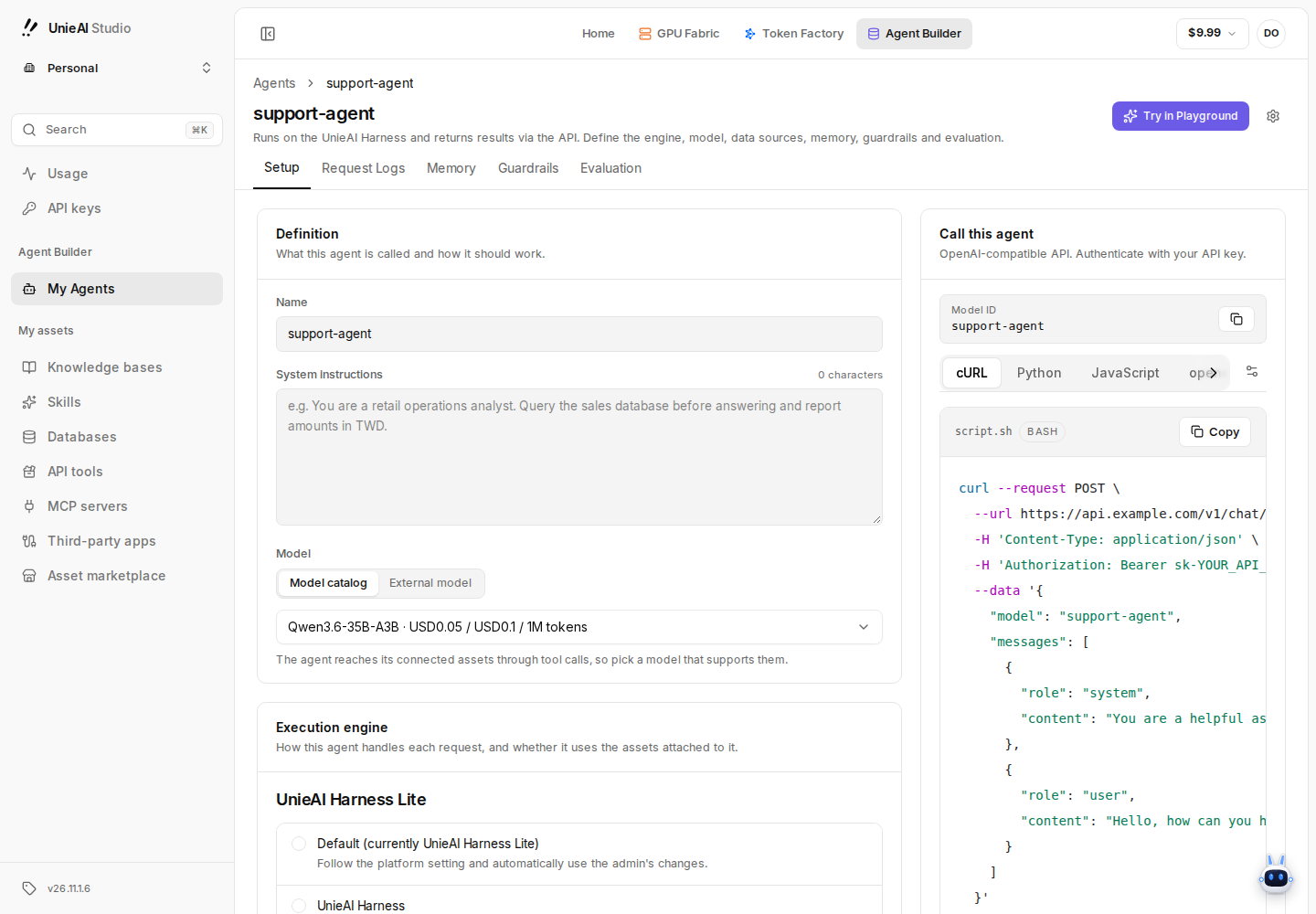
- In Setup, check Definition and Model.
- After editing the name, instructions, or model, click Save at the bottom and confirm Saved.
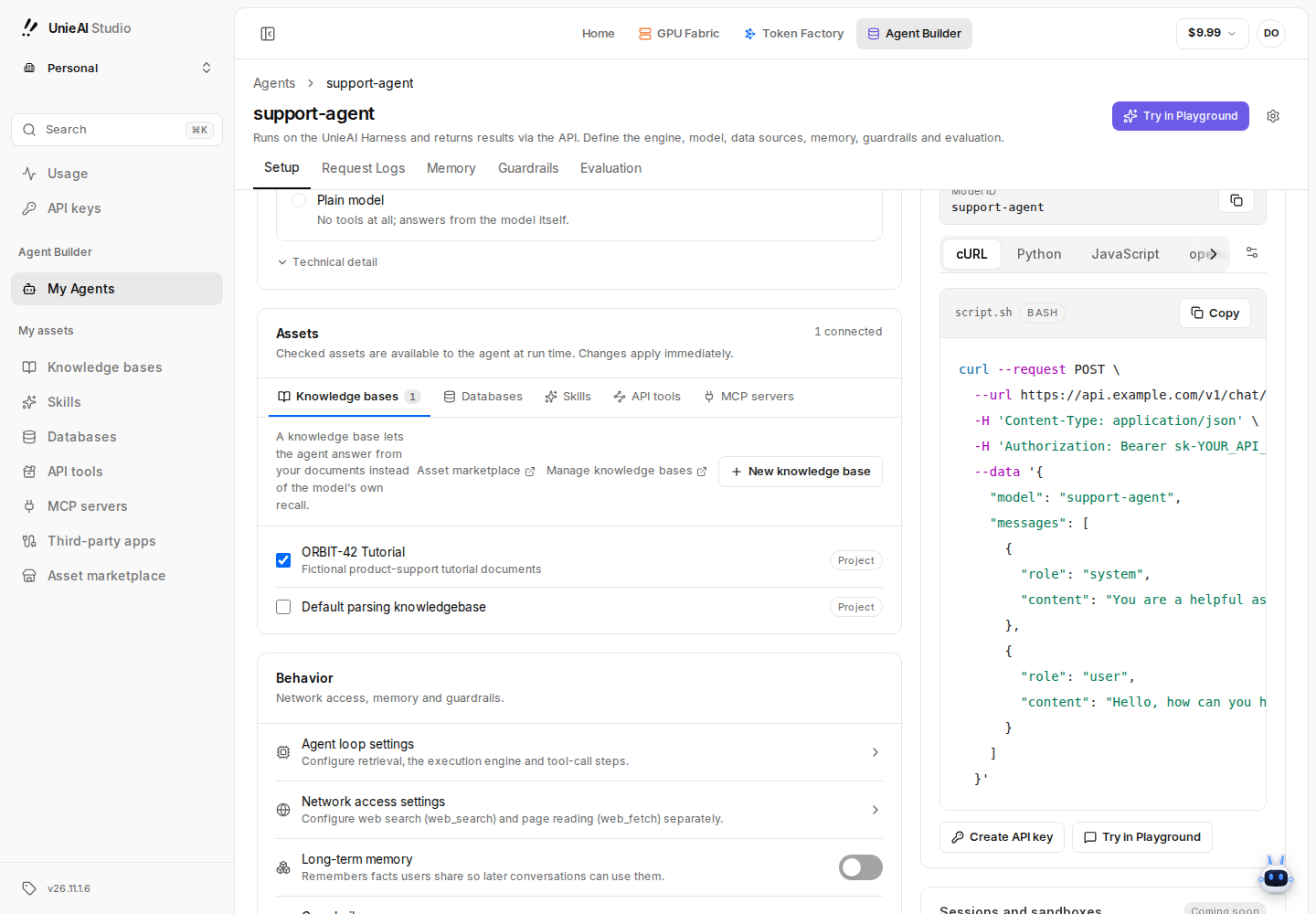
- Under Assets → Knowledge bases, check that the tutorial KB is selected. Asset selection saves immediately; resolve any save error before continuing.
- Check Execution engine. Choose an engine that calls tools, such as UnieAI Harness Lite. Plain model does not use attached KBs or tools.
- If using Default, inspect which engine it currently resolves to.
Checkpoint: reopening the agent preserves instructions and the KB selection, and the engine allows tools. Creating an empty KB or mentioning its name in instructions does not supply document content.
Step 9: run three Playground tests
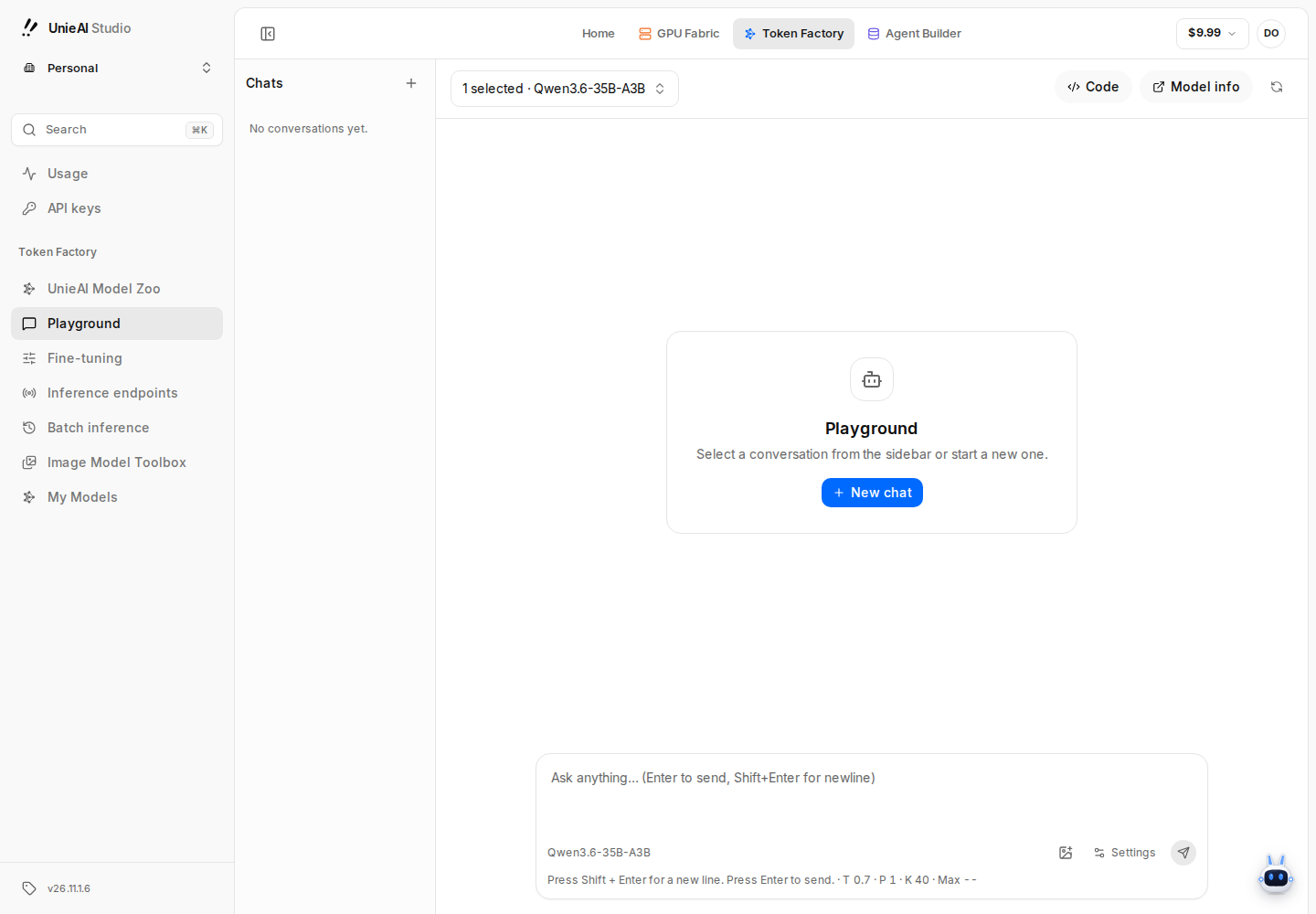
- Click Try in Playground.
- Confirm the selected model is
support-agent, not its base model. - Start a new conversation and test the following.
| Question | Expected result |
|---|---|
| What are ORBIT-42 support hours and the timezone? | Monday–Friday, 09:00–18:00, Asia/Taipei, with the source filename |
| What should I do about ERR-102? | Check synchronization, wait if running, or report the job ID and error if failed |
| What does ORBIT-42 cost? | Explain that the document does not provide a price |
Expand tool events or the timeline when available to check that KB search actually ran. Verify citations against the document rather than assuming an instruction guarantees them.
Checkpoint: all three cases pass. Keep these questions as regression checks whenever you change a model, instructions, or documents.
Continue
| Goal | Guide |
|---|---|
| Upload, poll, and retrieve Markdown from code | Document parsing API |
| Call this agent from code | First agent API request |
| Change models, engines, or tools | Create and configure an agent |
| Search works but the agent ignores documents | RAG setup and diagnosis |
| Verify the entire workflow | Document agent acceptance checks |