Permission and Access Scenarios
Use quick-reference tables and real scenarios to understand roles, resource sharing, wallets, and API keys in UnieAI Studio.
This page uses common scenarios to explain how UnieAI Studio decides who can see, use, or edit a resource. For complete role definitions, start with Account Roles and Permissions.
Permission Quick Reference
Platform Roles
| Role | Admin panel | Platform administration | Standard capabilities |
|---|---|---|---|
| Super Admin | ✓ | ✓ | ✓ |
| Admin | ✓ | ✓ | ✓ |
| Pro | ✗ | ✗ | Based on the active role quota preset |
| User | ✗ | ✗ | Based on the active role quota preset |
| Pending | ✗ | ✗ | Sign-in and limited browsing only |
The first platform account created becomes a Super Admin. The default role for later registrations is configurable and is not fixed to User or Pending.
Project Roles
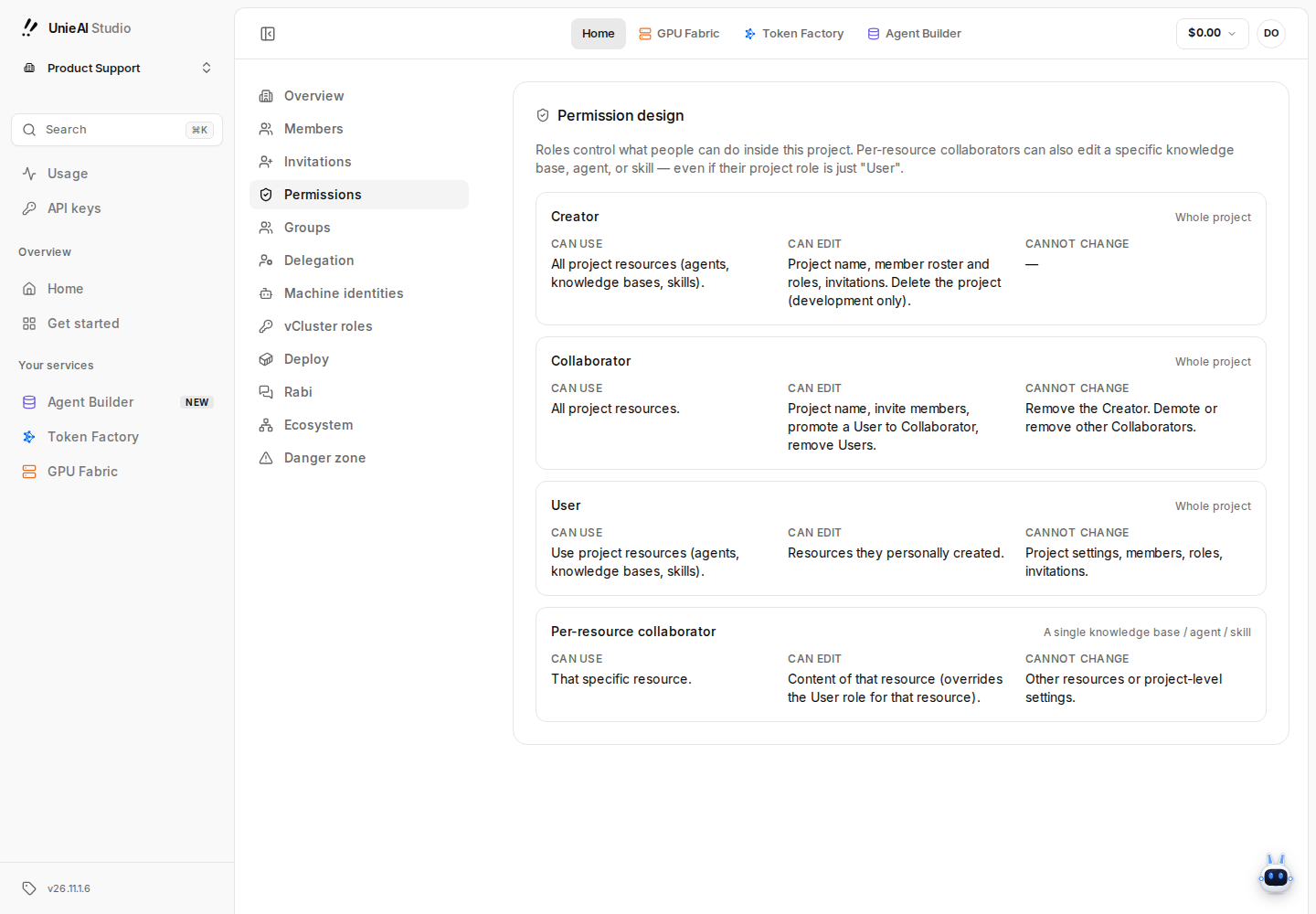
This table shows the default project permissions when no additional resource grant exists:
| Project role | Create project resources | Edit project resources | Use project resources | Manage project members |
|---|---|---|---|---|
| Creator | ✓ | ✓ | ✓ | Full management |
| Collaborator | ✓ | ✓ | ✓ | Invite, promote, or remove Users |
| User | ✗ | ✗ | ✓ | ✗ |
A Collaborator cannot remove the Creator or demote or remove another Collaborator. A project User who receives Resource Collaborator access can still edit that specific resource.
Resource Permissions
| Resource permission | View/use | Edit content | Manage other resources or the project |
|---|---|---|---|
| Creator | ✓ | ✓ | Based on project role |
| Resource Collaborator | ✓ | ✓ | ✗ |
| User access | ✓ | ✗ | ✗ |
| Member of a shared project | ✓ | ✗ | ✗ |
Resource permissions affect only the assigned Customize Model, knowledge base, or skill. They do not change the user's platform or project role.
Personal account and project
| Action | Personal account | Project |
|---|---|---|
| Invite project members | Not supported | Creator or Collaborator |
| Create a Customize Model | Owner | Creator or Collaborator |
| Share a Customize Model | Not supported | Grant access to eligible users or projects |
| Share a knowledge base/skill with users | Supported | Supported, subject to resource scope |
| Share a knowledge base/skill with projects | Supported for projects the actor belongs to | Supported for projects the actor belongs to |
| Adopt Marketplace assets | Supported | Subject to project or personal account permission and wallet state |
| API key | User API key | Project/Project API key |
| Billing wallet | Personal wallet | Project wallet |
Customize Models in a Personal account cannot be shared or co-edited. Create the Customize Model in a project when multiple people need to configure it.
Account Scenarios
First Platform Account
The first account created in the platform database becomes a Super Admin and can enter the admin panel to configure Model Zoo, sign-in methods, role quotas, and other platform settings. The first active Super Admin has additional protection from deactivation.
Pending Account
When the default registration role is Pending, the user can sign in and browse some pages but cannot adopt or use models, create Customize Models, create API keys, or create projects. A Super Admin or Admin must assign an active platform role first.
Admin and Super Admin
Both roles can enter the admin panel and share most day-to-day administration capabilities, including user management, Model Zoo, platform settings, Marketplace review, and usage views. Super Admin is the highest tier and also serves platform bootstrap and account-protection purposes.
Project or personal account and Project Scenarios
Personal account
The platform prepares a Personal account for an account. It has one owner and does not support project or personal account-member invitations. It is intended for personal models, knowledge bases, and skills.
Personal knowledge bases and skills can still be shared with eligible users or projects through resource access settings. This does not apply to Customize Models in a Personal account.
Create a project and Invite Members
After a project is created, its Creator or a Collaborator can send invitations from project settings. Invitations are delivered through platform notifications and become active after the recipient accepts them.
SSO is a sign-in method. Invite codes are primarily for account invitation attribution and rewards. Neither replaces a project membership invitation.
Resources in a project
Creators and Collaborators can create and manage Customize Models, knowledge bases, and skills in the project. Users can use resources available to them but cannot create or modify project resources unless they receive Resource Collaborator access to a specific resource.
Explicit user or project access lists can further narrow what appears for a particular resource type. Do not assume that every project member will always see every resource.
Resource-Sharing Scenarios
Share a project Customize Model
A project Customize Model can assign:
- Resource Collaborators, who can edit model configuration.
- Users with access, who can view and use the model without editing it.
- Projects with access, whose members can use the model without gaining edit permission.
Assigned Collaborators and Users must satisfy the source-project membership rules. When sharing with another project, the actor can select only projects they belong to. The recipient sees a “Shared by {owner}” label in resource lists.
Share Knowledge Bases and Skills
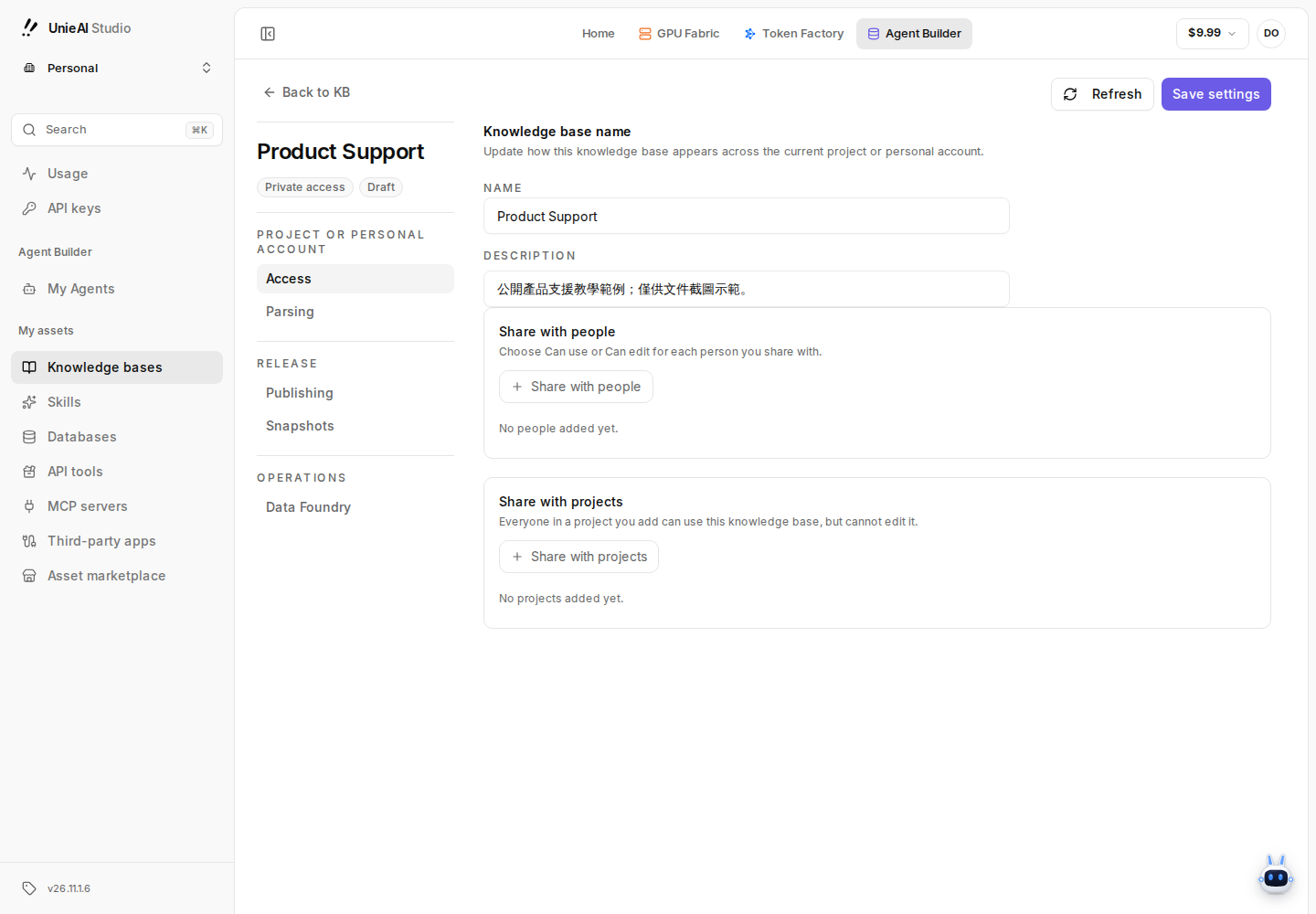
Knowledge bases and skills can be shared from either a Personal account or project with users or projects. Eligible recipients depend on the owning project or personal account, projects already granted access, and the actor's project memberships.
- A Resource Collaborator can edit content.
- User or project access grants viewing or use, not editing.
- Sharing does not transfer ownership.
Capabilities Included with a Shared Customize Model
When someone chats through a shared Customize Model, the model continues to use its connected knowledge bases, skills, and tools according to its current configuration. Even when recipients do not receive those dependencies as direct assets, model output can contain summaries, quotations, or results produced from them.
Before sharing a Customize Model, treat its connected knowledge bases, skills, and tools as part of its externally available capability. Verify that model responses cannot expose information that should remain private.
Direct Retrieval API
/api/[customModelId]/search authenticates the API key and checks Customize Model access before searching the model's configured knowledge bases. It does not return 422 solely because a user has use-only access.
A 422 response normally indicates a missing knowledge base, retrieval model, or other prerequisite. A caller with model API access may receive retrieved snippet data, so this endpoint must not be treated as a guaranteed raw-data security boundary.
Marketplace Scenarios
Publish an Asset
The Marketplace currently supports knowledge bases and skills. After a Creator completes the listing and submits it, a Super Admin or Admin reviews it. Other users can adopt it only after approval.
Customize Models and MCP tools are not currently Marketplace publication types.
Adopt a Knowledge Base
Adopting a knowledge base creates an adoption relationship in the target project and continues to reference the source knowledge base. If the Marketplace asset has a price, the platform purchases it through the personal or project wallet associated with the target project or personal account.
Import a Skill
Importing a skill creates a read-only imported item from the currently approved version. When the source later publishes another version, do not assume that every existing import updates automatically in the background. Run the import/update flow again to bring in a newer approved version.
Billing and API Scenarios
Personal and Project Wallets
Studio supports both:
- A Personal wallet for Personal usage and user-level purchases.
- A Project wallet for project purchases, model requests, and other project usage.
Project Creators and Collaborators can top up the project wallet. The credential, model-owning project or personal account, and billing context determine the actual wallet charged; the individual caller does not universally pay every request.
User and Project API Keys
- A User API key is an account-level credential used in Personal contexts.
- A Project/Project API key is created in a project and managed by an authorized Creator, Collaborator, or platform administrator.
Each key type has its own access scope, usage records, and rate limits. Project keys do not appear in a general member's personal API-key list.
Admin Panel
/admin-panel is available only to Super Admin and Admin. It is expected that Pro, User, and Pending accounts cannot see it.