Create and configure an agent
Set the name, instructions, model, execution engine, and assets, with explicit save instructions and verification steps.
An agent combines instructions, an answering model, an execution engine, and available assets. Test the smallest configuration first, then add KBs or tools one at a time. To build a document assistant alongside its KB, use the complete walkthrough.
1. Prepare the current project or personal account and answering model
- Choose a personal account or project.
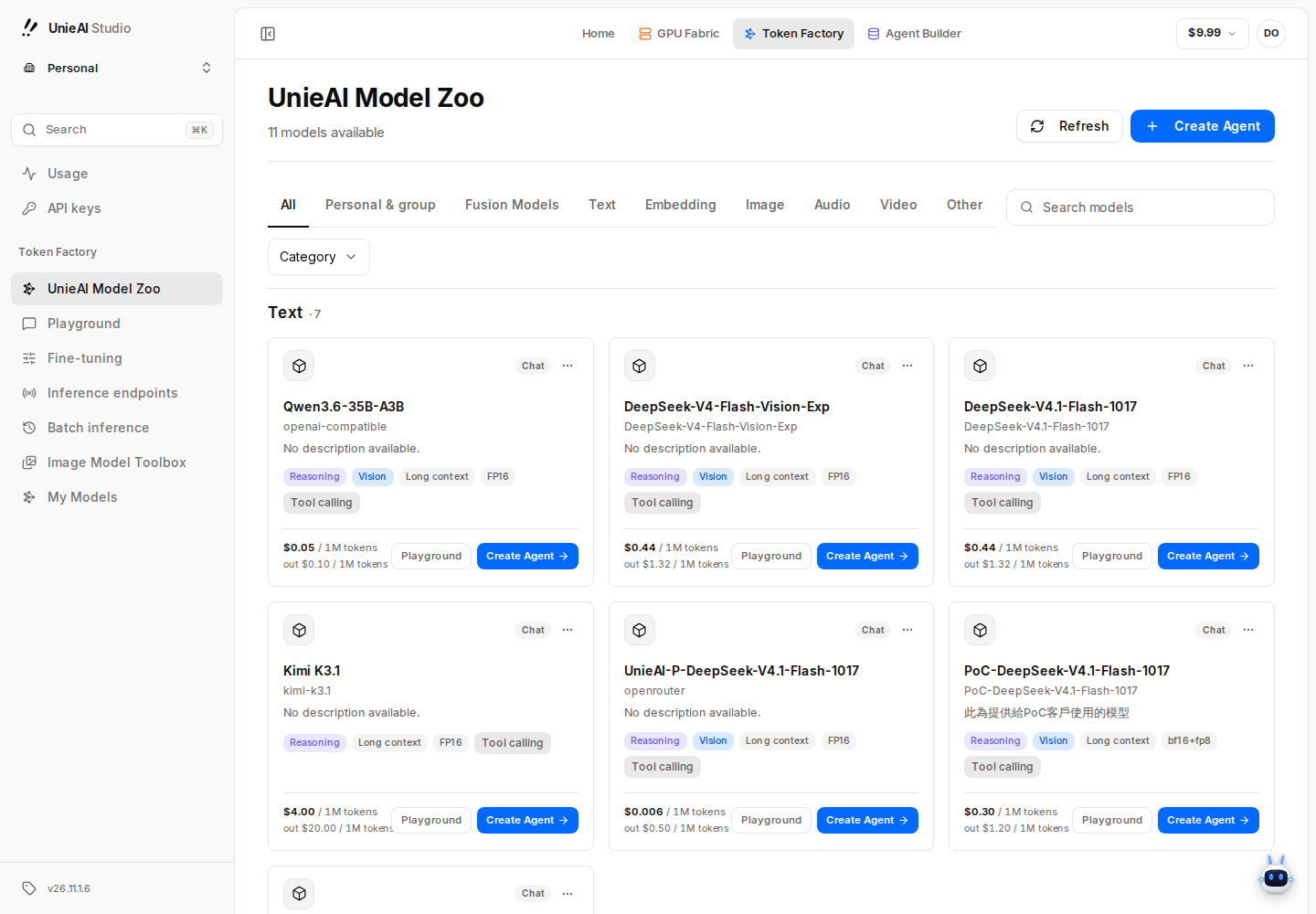
- Open Token Factory → UnieAI Model Zoo.
- Choose a text-generation model. KB, SQL, API, and MCP use also requires Tool Calling.
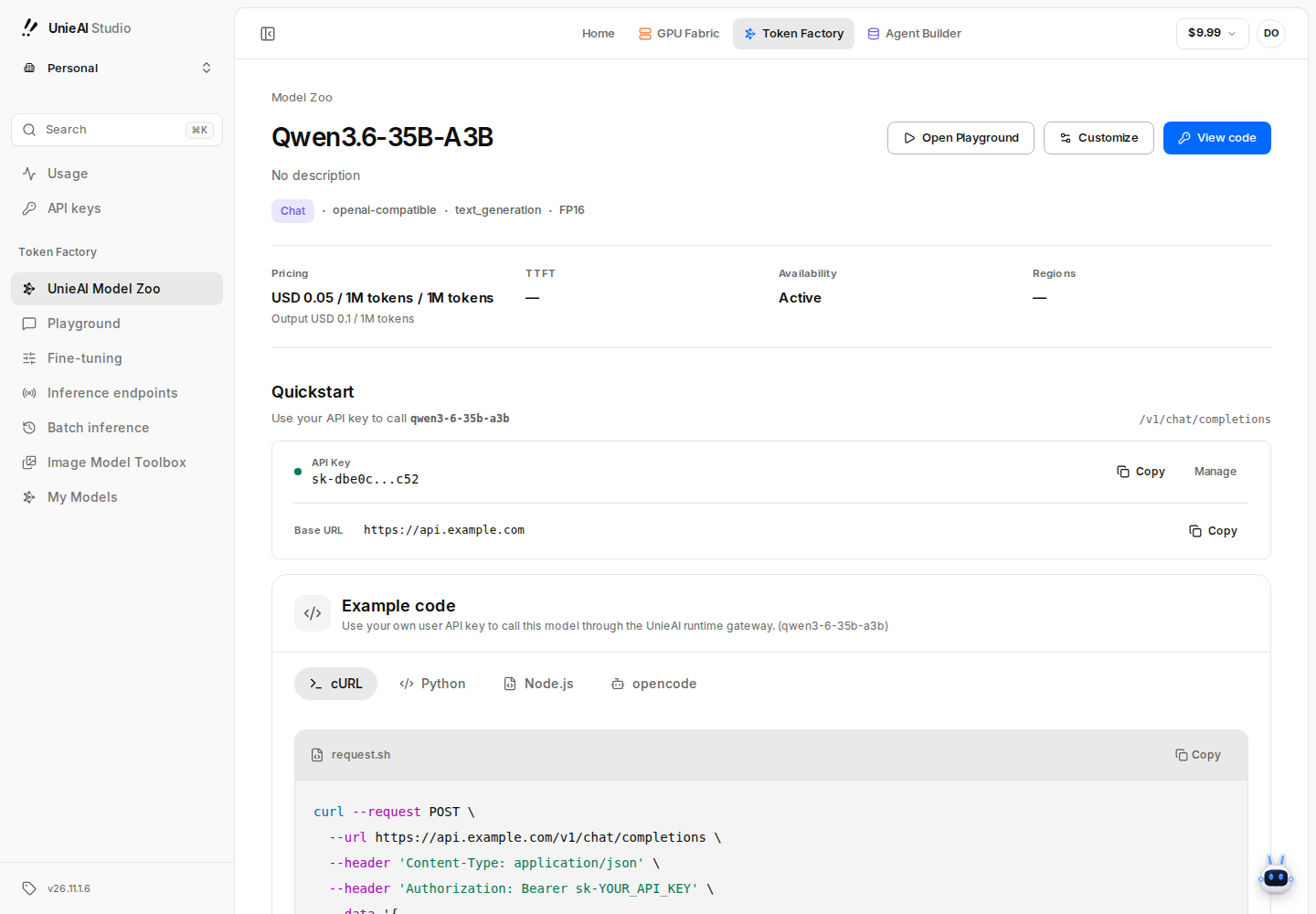
- Click Use base model and adopt it into the current project or personal account.
- Confirm availability in My Models.
Checkpoint: the model can be selected during agent creation. Embedding and speech-to-text models serve different purposes and cannot replace a general answering model.
2. Open creation and define the agent
- Open Agent Builder → My Agents → Create agent.
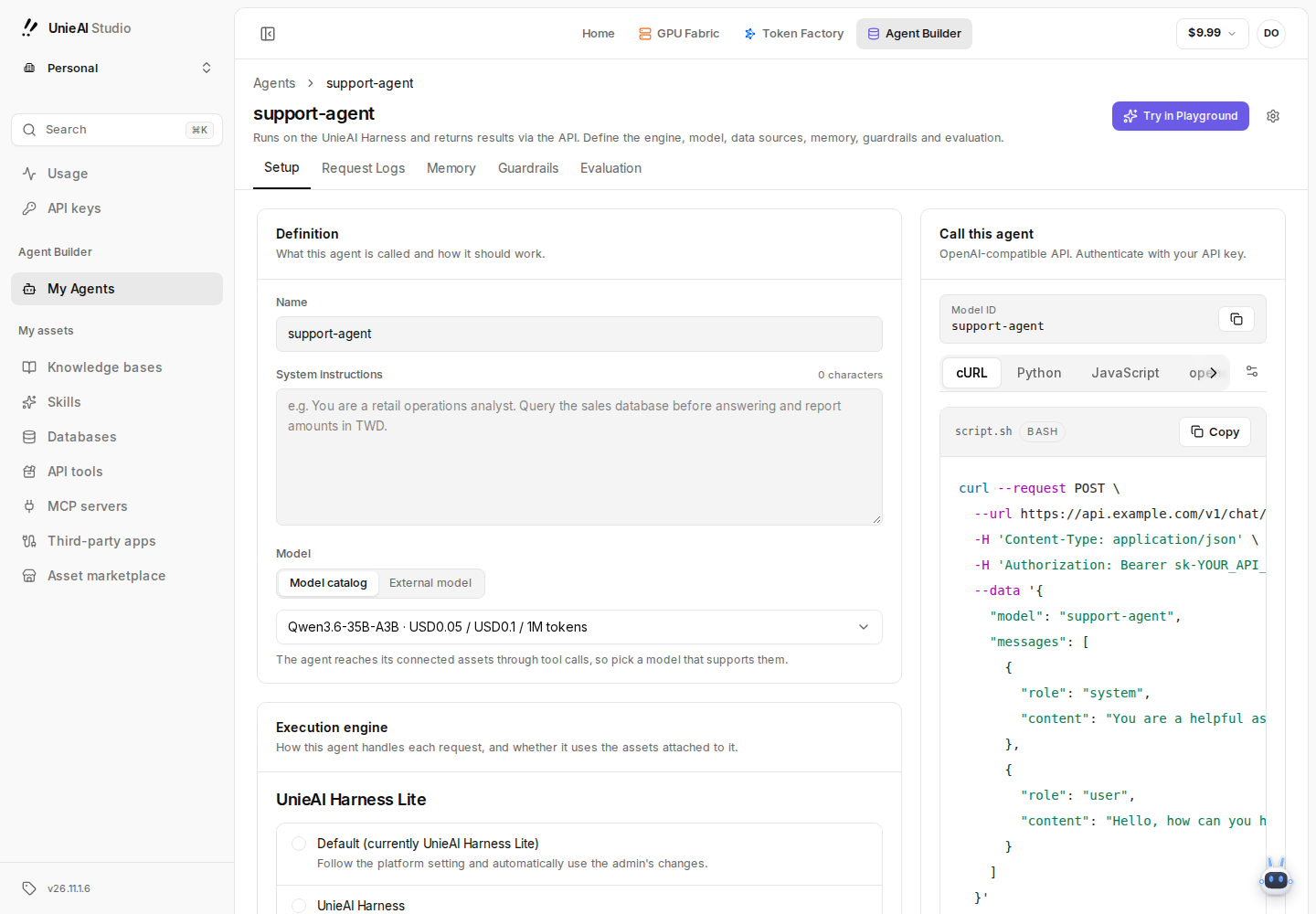
- Under Agent definition → Name, enter
support-agent. - In Instructions, describe the role, evidence to use, and expected behavior.
| Field | Example | Check |
|---|---|---|
| Name | support-agent | Creation requires 3–50 letters, digits, dots, underscores, or hyphens |
| Instructions | The example below | Instructions do not attach assets automatically |
| Model | An adopted Tool Calling model | Inspect capability and price, not just a similar name |
You are a product support documentation assistant. Answer in English.
Search the attached knowledge base before answering product questions.
Answer from retrieved evidence and cite the filename and available page number.
If information is missing, explain what is unavailable instead of guessing prices or specifications.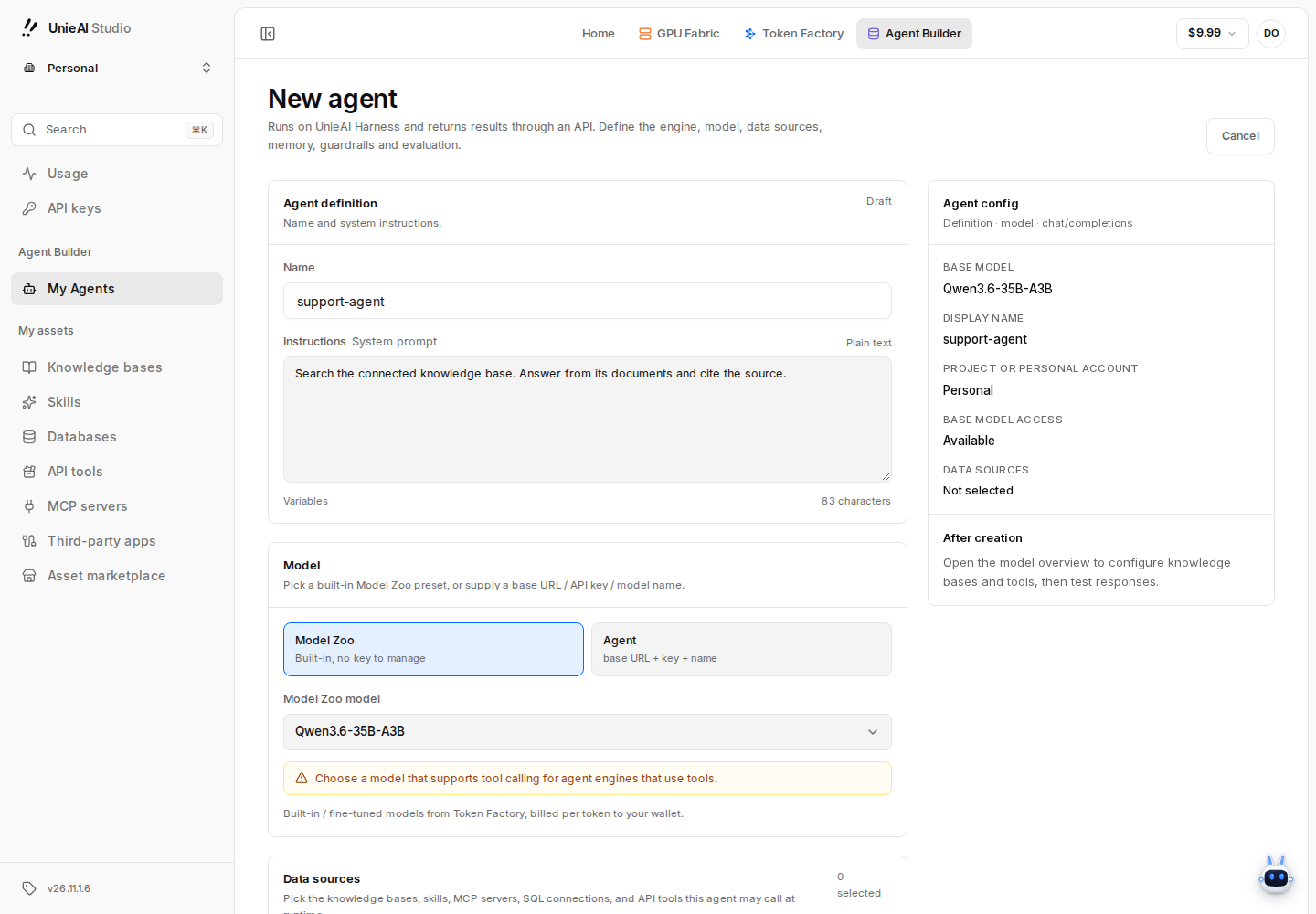
3. Choose the model source
Model Zoo
- Select Model Zoo in the Model card.
- Choose the model adopted in step 1.
- If adoption is required, add it to My Models before creating the agent.
External model
Select the creation page's Agent (base URL + key + name) external-connection option and fill in:
| Field | Value |
|---|---|
| Base URL | The provider's OpenAI-compatible API base, commonly ending in /v1; not the full /chat/completions URL |
| API key | The external service's key, rather than a Studio Default Key |
| Model name | The exact model identifier accepted by that service |
The external model must support the tool-calling format your agent needs. If unsure, complete the first exercise with Model Zoo.
4. Select data sources and create
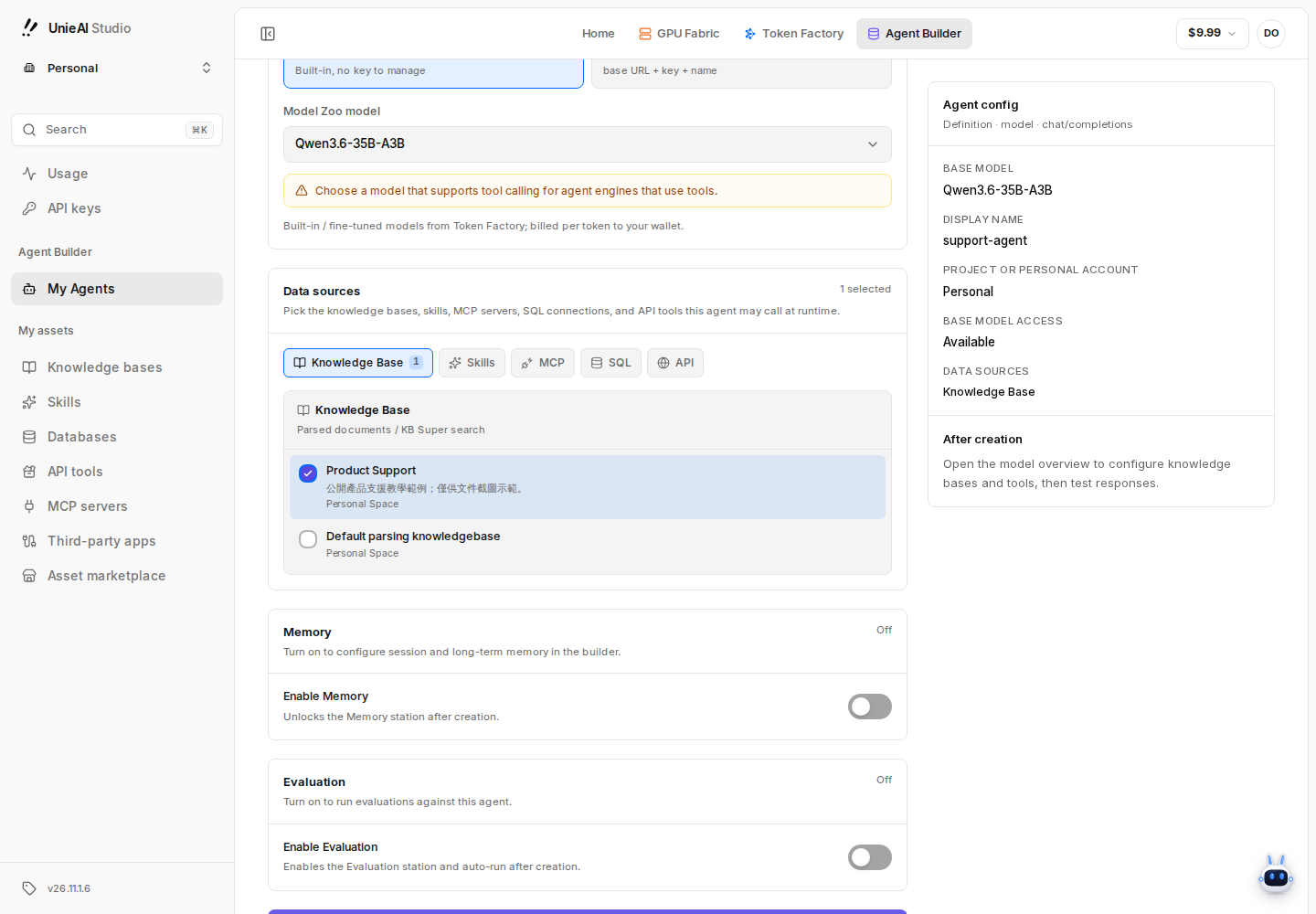
- Scroll to Data sources.
- For documents, select Knowledge Base and check a KB with indexed documents.
- If no assets exist yet, create the agent first and attach them later.
- Keep advanced options such as Memory at their initial settings for the first test.
- Check the current project or personal account, model, and sources in the Agent config summary.
- Click Create agent at the bottom and wait for Setup.
Checkpoint: you can reopen it from My Agents. A draft or an error on the creation page means creation has not finished.
5. Know which edits need Save
Open My Agents → your agent → Setup.
| Change | Persistence | Verification |
|---|---|---|
| Name, instructions, answering model, external connection | Click Save at the bottom | Saved notification; values survive reopening |
| Select/deselect KB, SQL, skill, API, or MCP assets | Saves immediately | Selection and connected count remain; no error |
| Execution engine | Saves when selected | New engine appears; complete any confirmation dialog |
| Long-term memory switch under Behavior | Saves immediately | Switch keeps the selected state |
| Model settings behind the gear | Edit settings → Save changes | Success notification |
An asset saving successfully does not mean edited instructions have also been saved. Resolve Unsaved changes before leaving the page.
6. Choose an execution engine
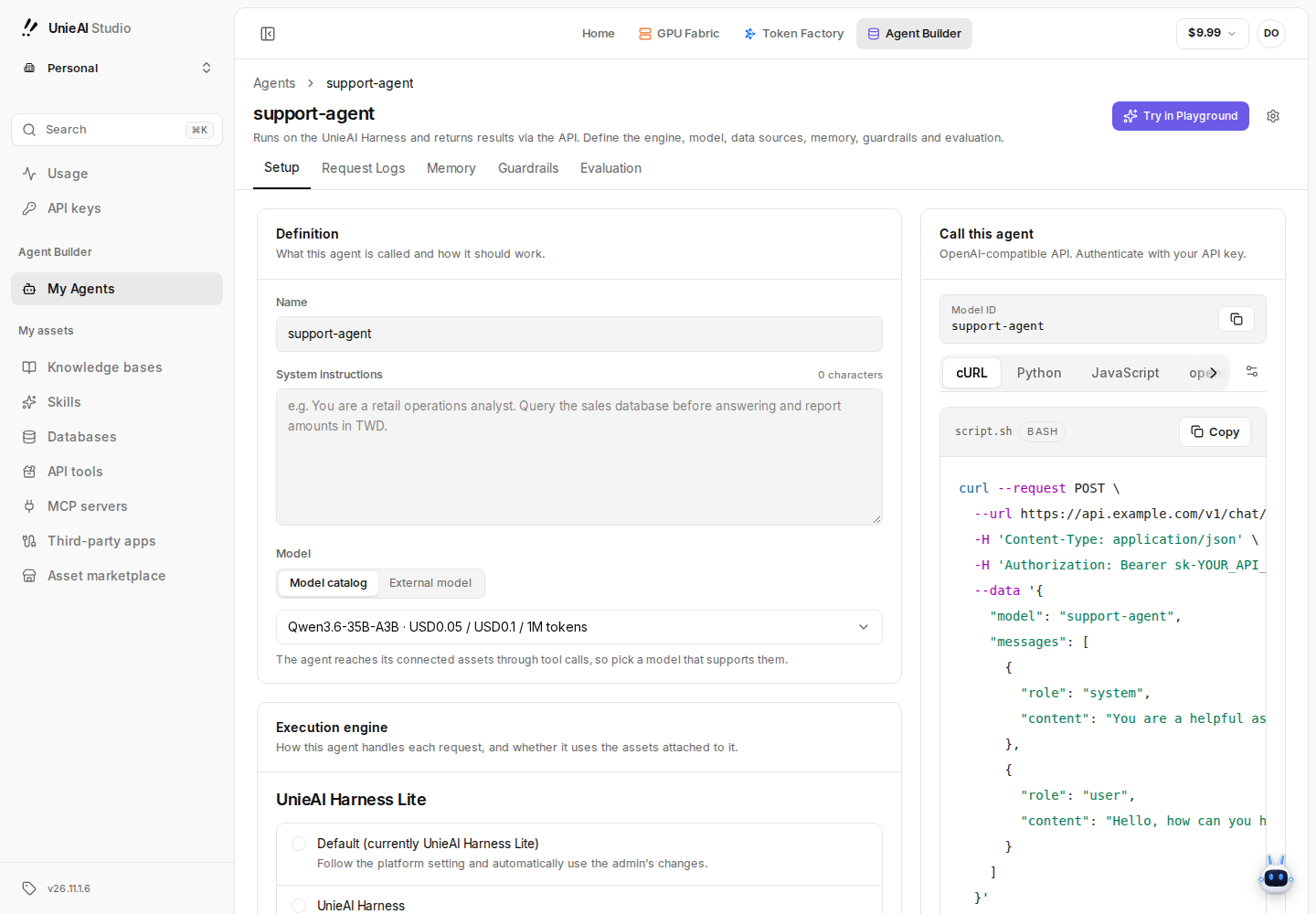
| Engine | Purpose | First configuration |
|---|---|---|
| Default | Follows the platform setting | Inspect the effective engine; administrators can change it |
| UnieAI Harness | Planning, repeated tools, long-conversation compaction | Use when available and required |
| UnieAI Harness Lite | Lower-latency multi-round tools and question answering | A suitable starting point for document questions |
| Plain model | No tool calls | Do not choose it when testing attached KBs or tools |
The engine and answering model are separate. A tool engine still needs a Tool Calling model; a capable model still needs actual asset attachments.
7. Finish the attached assets
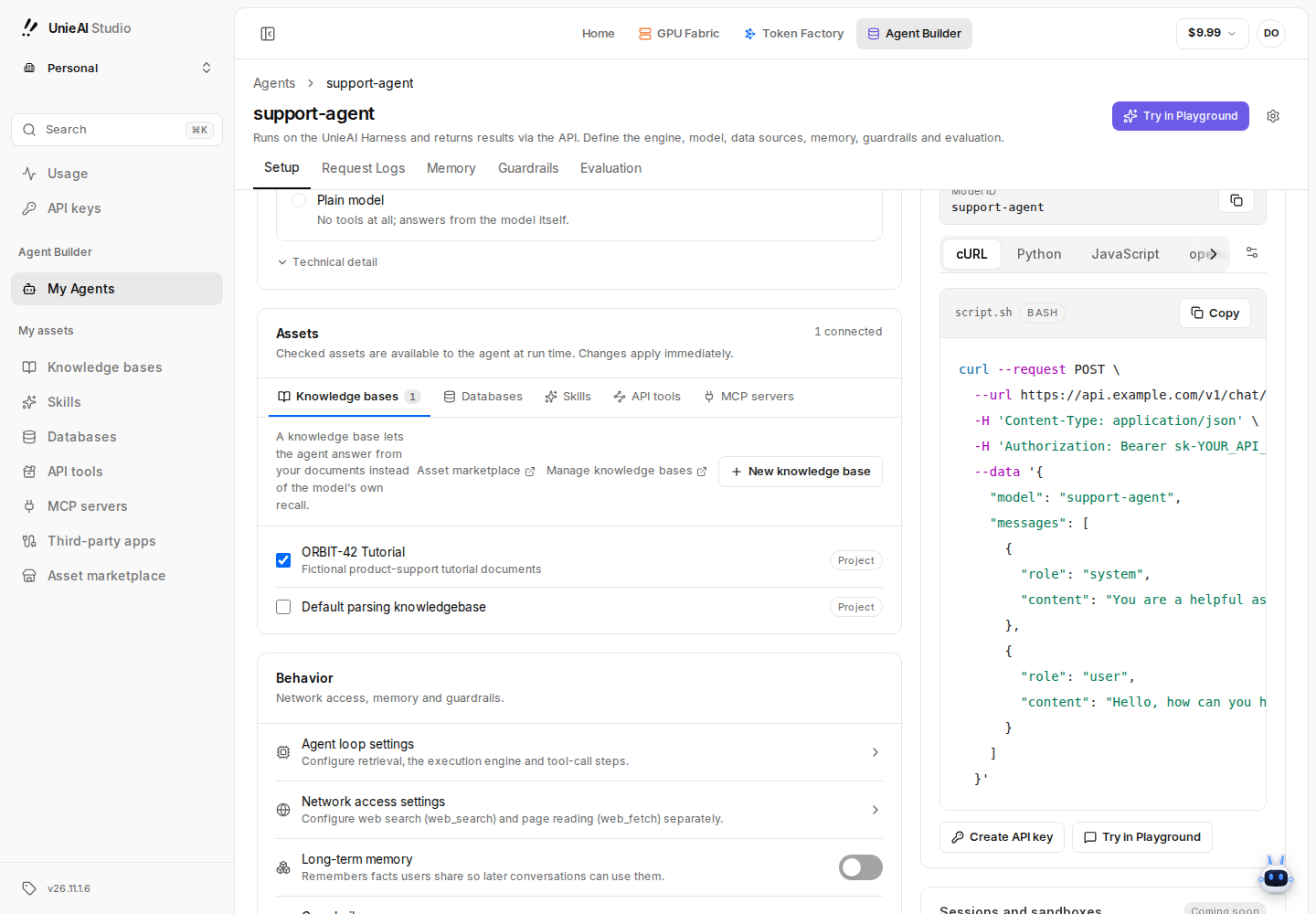
- Choose an asset type in Assets.
- Select an existing asset or create one there.
- Confirm a newly created asset appears and is checked.
- Open the asset and finish its data or connection configuration.
- Return and verify attachment.
| Asset | Work still required |
|---|---|
| Knowledge base | Upload documents, finish indexing, test search |
| Database | Configure connection, tables, allowed operations, and verify queries |
| Skill | Write procedures and applicability; a name alone is not a skill |
| API tool | Configure operations, parameters, authentication, and test requests |
| MCP server | Finish connection/authentication and verify tool discovery |
Checkpoint: the asset works independently. An empty attached KB cannot supply evidence.
8. Test before enabling broader use
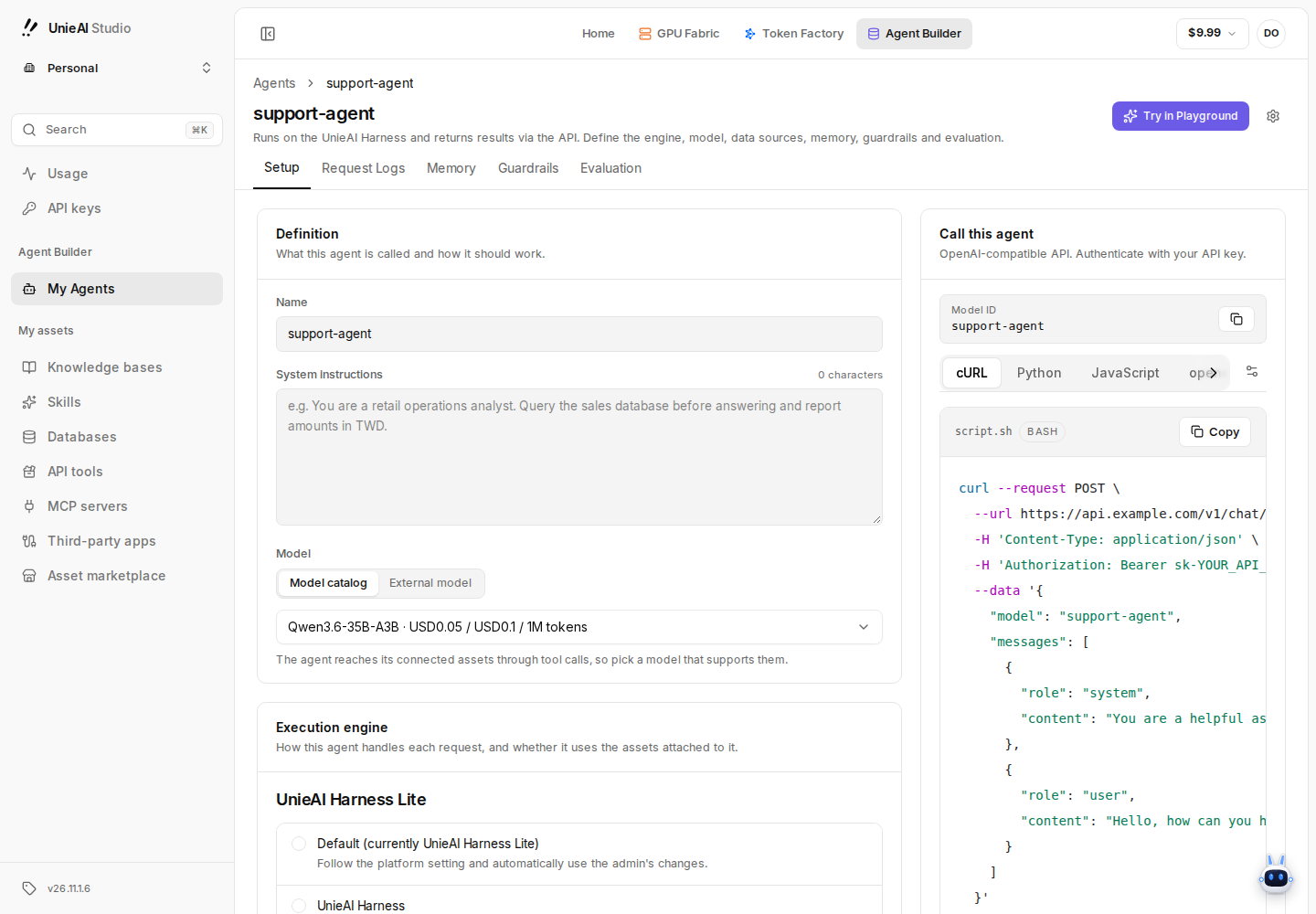
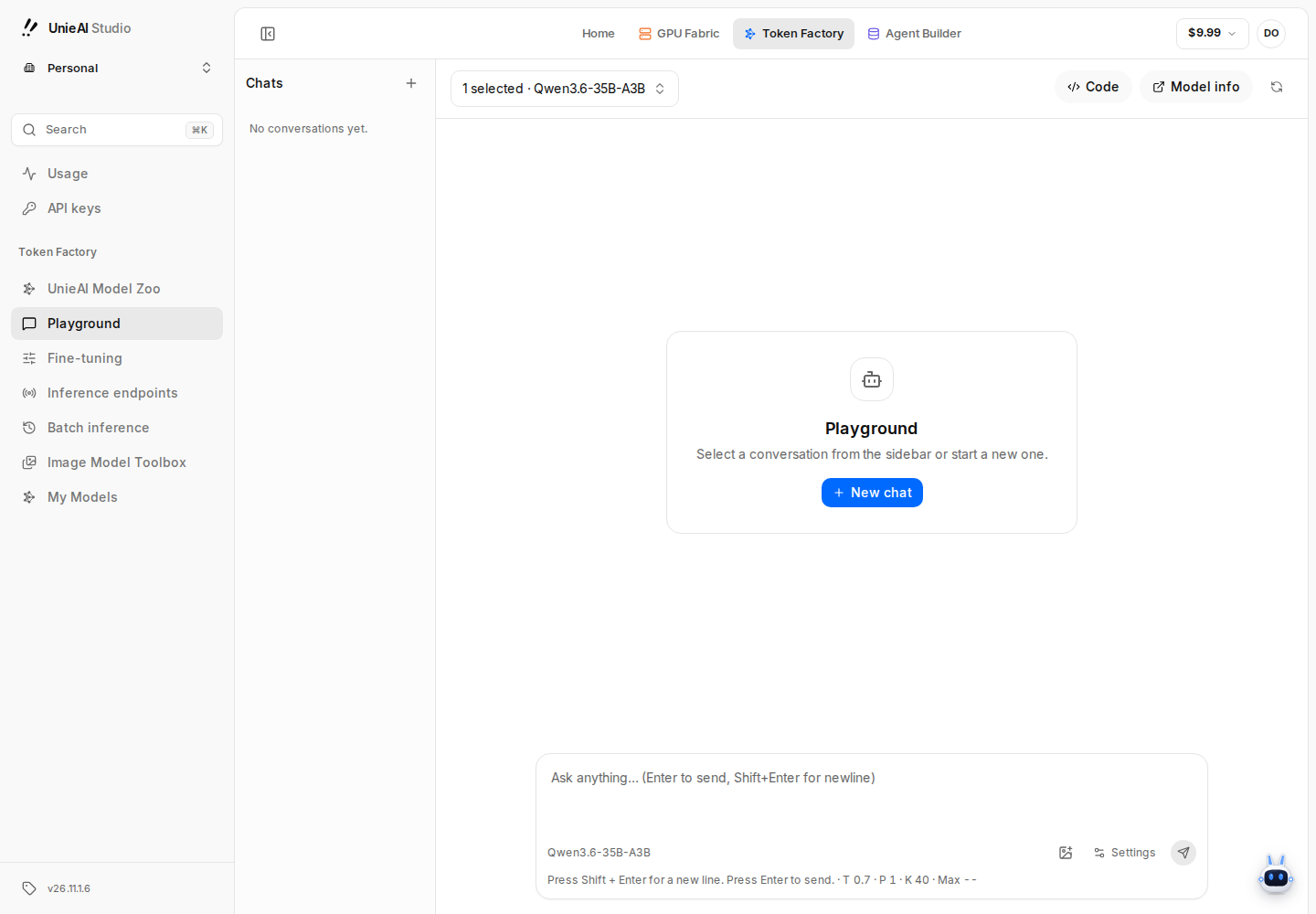
- Click Try in Playground and confirm the selected agent.
- Start a new conversation.
- Test an in-document question, a missing-information question, and one requiring a tool.
- Verify answers, sources, and available tool events.
- Use the upper-right gear for Model settings or Access when changing generation settings, enabled state, or permissions.
- For code access, copy Model ID from Call this agent, then follow the API quickstart.
Use the agent model ID/API name in the API's model field. Calling the base model directly does not apply this agent's instructions or assets.
Troubleshooting
| Problem | Check in order |
|---|---|
| Creation fails | Name format → model adoption → project or personal account creation rights → error message |
| Instructions disappear | Bottom Save action and any failure notification |
| A KB is missing | Project or personal account → KB permission → refresh the list |
| Attached KB never used | Independent search → Plain model engine → Tool Calling capability |
| External model fails | Base URL, external key, exact model name, tool compatibility |
| API differs from Playground | Project or personal account, key permissions, agent ID, history, request parameters |
Continue with setup navigation, system instructions, and RAG setup.