Account Roles and Permissions
Understand platform roles, project roles, resource permissions, and visibility in UnieAI Studio.
UnieAI Studio uses three permission layers to determine which features a user can enter and which actions they can perform:
- Platform roles control administration, platform capabilities, and default quotas.
- Project roles control permissions inside a specific project.
- Resource permissions control use and editing of a specific Customize Model, knowledge base, or skill.
Resource visibility is a separate access condition evaluated together with these roles and explicit grants.
Platform Roles
Platform roles apply to the entire account. The platform currently supports five roles:
| Platform role | Primary purpose |
|---|---|
| Super Admin | Highest platform-management role, with access to the admin panel and platform administration |
| Admin | Access to most platform-management features, including users, Model Zoo, platform settings, and Marketplace review |
| Pro | Non-admin role that uses the currently configured Pro capabilities and default quotas |
| User | Standard non-admin role that uses the currently configured User capabilities and default quotas |
| Pending | Restricted, not-yet-activated role that can sign in and browse some pages but cannot use the main creation and model features |
The first platform account created becomes a Super Admin. The first active Super Admin is protected from deactivation. The default role for later registrations is configurable and is not always User or Pending.
Super Admin and Admin
Super Admin and Admin share most day-to-day administration capabilities, including:
- Managing platform users and their platform roles
- Configuring role quota presets and per-user overrides
- Managing UnieAI Model Zoo and platform model settings
- Reviewing knowledge base and skill Marketplace submissions
- Viewing platform usage and managing platform settings
- Managing invitation and reward-related settings
Super Admin represents the highest management tier and is used for platform bootstrap and account protection. The exact features shown still depend on the deployed edition and enabled modules.
Pro, User, and Role Quotas
Pro and User are standard non-admin roles. Their differences are primarily determined by the active role quota preset, such as:
- Whether projects can be created
- The number of projects a user can create
- Project member and collaborator limits
- Total knowledge base storage and per-file limits
Administrators can change role presets and apply per-user overrides. Pro should therefore not be described as a permanently fixed feature bundle.
What Pending Can Do
Pending users can sign in and browse some project or personal account or model pages, but currently cannot:
- Adopt base models or use models
- Create Customize Models
- Create user API keys
- Create projects
- Redeem gift codes or authorize CLI access
- Be assigned as project or Customize Model members
An administrator must change the account to an active platform role, such as Pro or User, before the user can access capabilities allowed by that role and its quotas.
Project Roles
Project roles apply only inside a project. A Personal account belongs to one user and does not use project member roles.
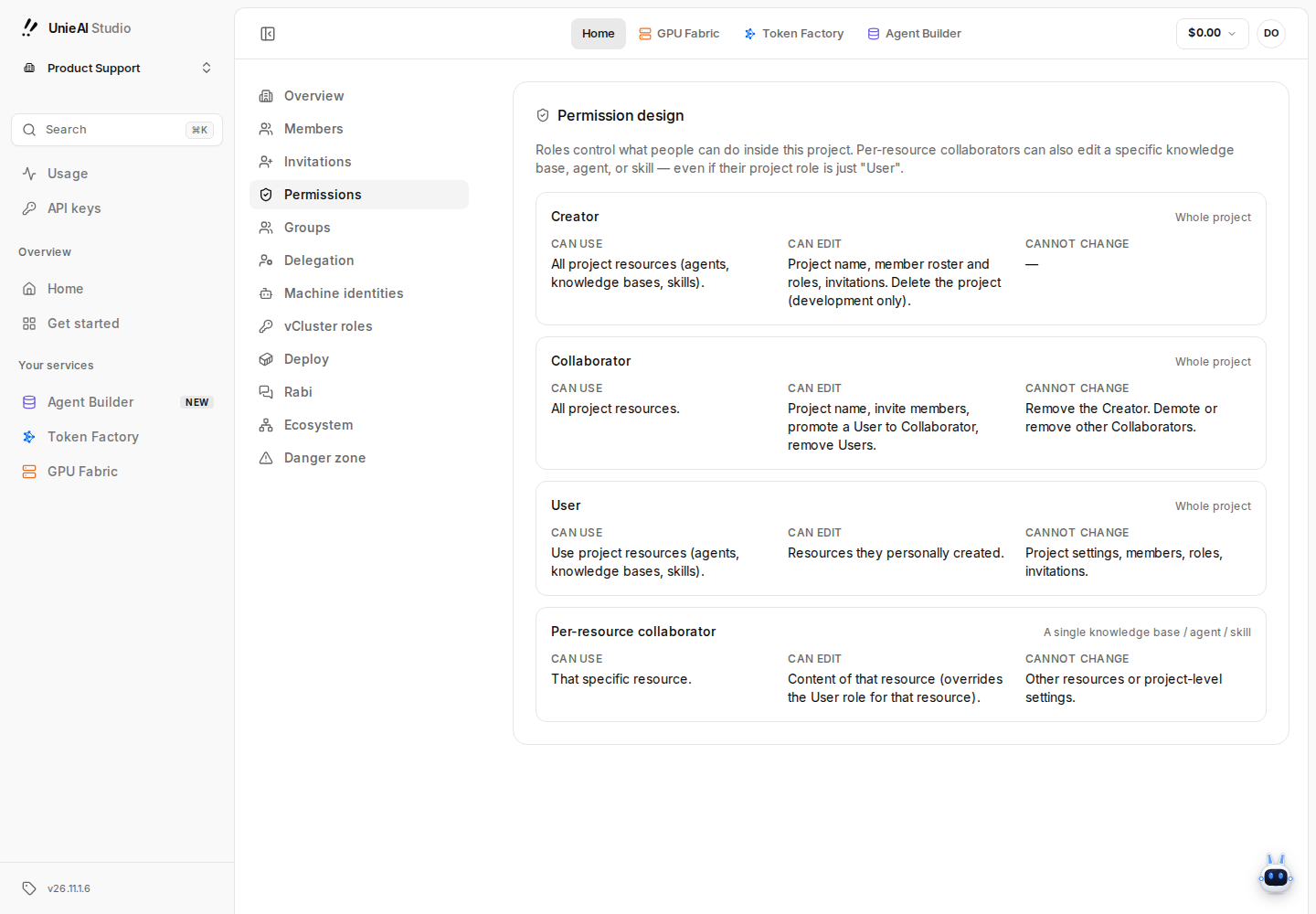
The Creator is the highest-permission project member:
- Update the project name and settings
- Invite or remove members and change member roles
- Use and manage project resources
- Delete the project in supported development environments
Each project has one Creator.
A Collaborator can help manage the project and its resources:
- Update the project name
- Invite members
- Promote a User to Collaborator
- Remove Users
- Use and edit project resources
A Collaborator cannot remove the Creator or demote or remove another Collaborator.
A project User can use project resources and manage resources they created:
- View and use accessible Customize Models, knowledge bases, and skills
- Edit resources they created inside the project
- Cannot change project settings, members, roles, or invitations
- Cannot edit resources created by someone else unless granted resource-level Collaborator access
Resource Permissions
Customize Models, knowledge bases, and skills can have their own assigned members. Resource permissions affect only that resource and do not change a user's platform or project role.
| Resource permission | Allowed actions |
|---|---|
| Creator | Manage resource content, members, access settings, and deletion |
| Resource Collaborator | Edit the assigned resource; does not gain control over other resources or project settings |
| User access | View or use the resource without editing its content |
For example, a project User can be assigned as a Resource Collaborator on one knowledge base. They can edit that knowledge base but still cannot change project settings or edit unrelated resources.
Resource Visibility
Visibility determines whether someone who is not explicitly assigned to the resource can still see or use it:
| Visibility | Meaning |
|---|---|
| Private | Accessible by the Creator by default, plus explicitly granted resource members |
| Group | Accessible to members of the project according to their permissions; available only to resources created in a project |
| Public | Viewable or usable by signed-in platform users who satisfy the relevant authentication requirements |
Permission to use a resource does not imply permission to edit it. Public, Group, and User access normally grant use; editing still requires Creator or Resource Collaborator permission.
How Permissions Are Combined
When a user opens or modifies a resource, the platform evaluates:
- Whether the account is active and the platform role allows the feature.
- Whether the current context is a Personal account or a project.
- The user's role in that project.
- Any explicit Collaborator or User grant on the resource.
- The resource's visibility and other access settings.
A platform role does not automatically give a standard user ownership of every project resource, and a project role does not affect permissions in another project.
FAQ
Next Steps
Permission Troubleshooting
The checking order and common causes when an asset is invisible, a button is grayed out, or an operation is denied.
Projects: create, invite, and review access
Create a project, verify its project or personal account, invite members, and distinguish project roles from resource access.