Create and use a knowledge base
Create a knowledge base, add documents and verify their use.
Create a knowledge base
- Select a personal space or project at the top left.
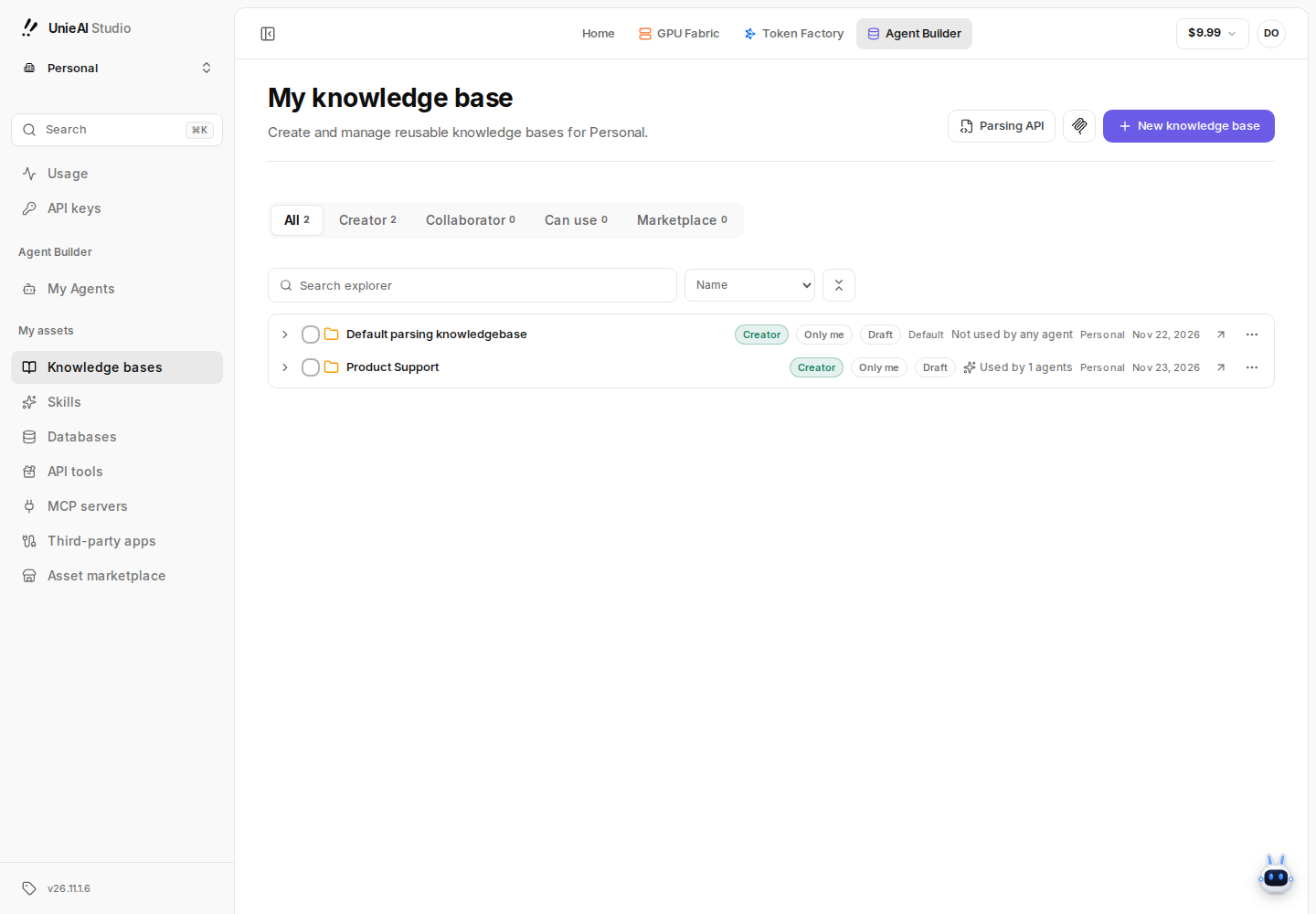
- Open Knowledge bases and choose Create knowledge base.
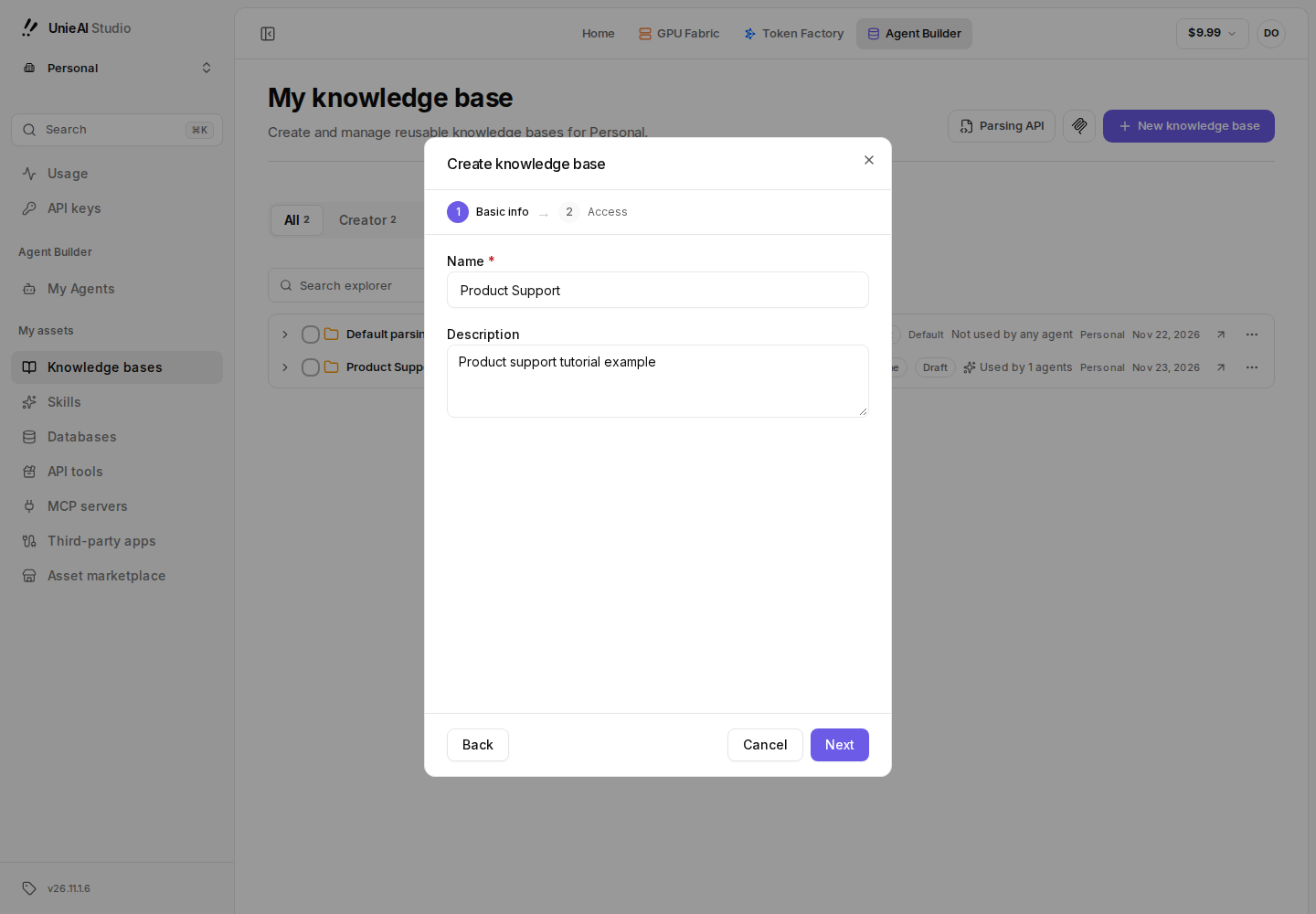
- Enter the name, description and access settings, confirm the owning space and create it.
Add documents
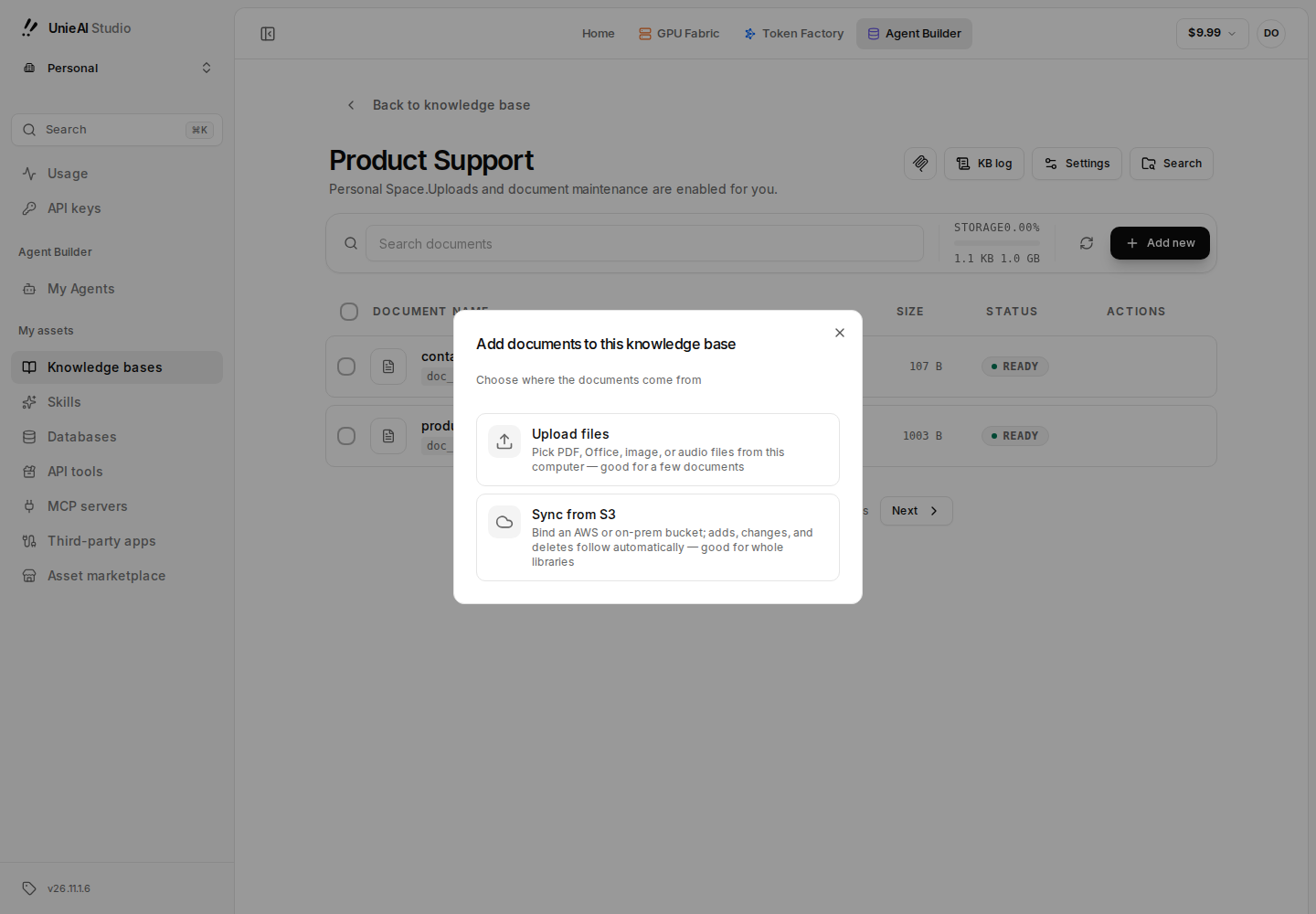
Choose Add → Upload files. Use S3 synchronization when enabled on your platform. Parsing depends on the file format: PDFs and images may need a visual model; audio and video may need a speech model. If prompted to adopt a model, check its purpose, price and target space first.
KB Super searches complete parsed content. Search does not require adopting embedding, chunking or reranking models.
Check parsing and search
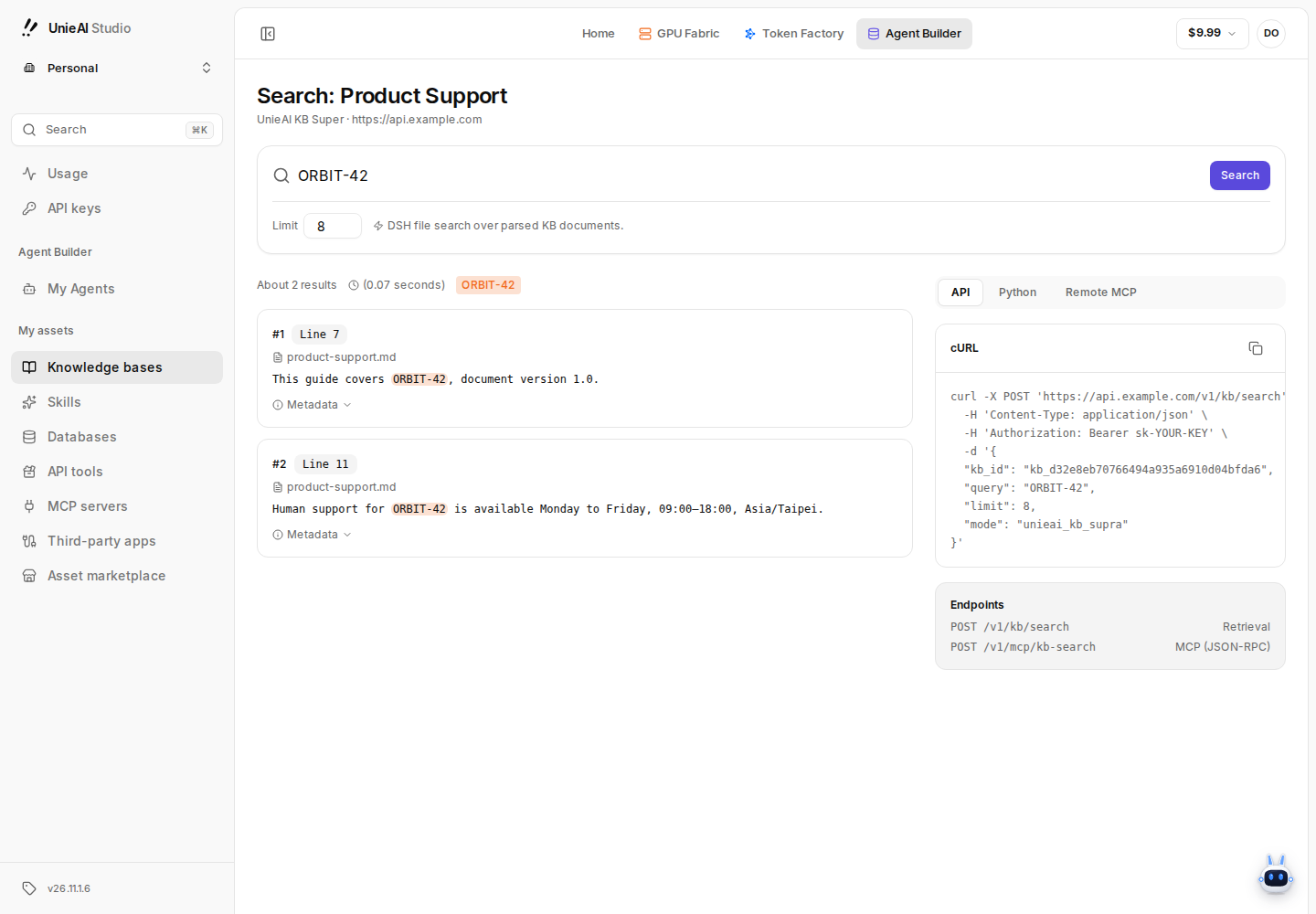
After processing finishes, open the document and inspect text, worksheets, pages, images or the video timeline. Then use Search with exact source text and check the evidence and location.
Search hit counts are not total data records. Use complete worksheets for sums and rankings rather than a handful of excerpts.
Connect an Agent
Select the knowledge base in the Agent’s data sources and save. Use a tool-capable answering model and an engine that runs tools. Ask a question in Playground, then open the cited source to verify the answer.
See uploading documents, images and figures and Data Foundry for corrections, parsing and sensitive-text processing.