Resource Co-editors
Manage a Customize Model, knowledge base, or skill together with other platform users.
A resource co-editor can maintain a specific Customize Model, knowledge base, or skill together with its Creator. The current UI assigns an existing user directly under Settings → Access; it does not send an invitation that the recipient must accept.
A project Collaborator is a project-wide role. A resource co-editor applies to one resource. Their effective capabilities differ by resource type, so treat them as separate concepts.
Rules Shared by All Resources
- The assignee must already have a platform account and must not have the Pending platform role.
- After adding, removing, or changing a role, select the save button on that page to apply the change.
- The Creator is not listed as a removable grant, and assigning a co-editor does not change resource ownership.
- A group grant is always Can use. Co-editing is assigned to an individual user.
- A co-editor cannot remove or downgrade themselves from their own view. Another manager must make that change.
- Resource ownership cannot currently be transferred.
Customize Model Co-editors
A Customize Model in personal account cannot currently be shared or assigned co-editors. The following workflow applies only to a model in a project.
Add a Co-editor
From the sidebar, go to Agent Builder → My Agents and open a Customize Model in a project.
Open Settings → Access.
Search for a member of the current project or personal account and add them. An individual on a project model is fixed to Can edit and cannot be changed to use-only.
Select Save access. After the update succeeds, the user is a model co-editor immediately and does not need to accept an invitation.
This settings workflow does not currently send an automatic in-app invitation notification to a new model co-editor. Notify them separately when needed.
Model Co-editor Capabilities
| Action | Creator | Co-editor | Regular User / allowed group |
|---|---|---|---|
| Use the model and Playground | ✓ | ✓ | ✓ |
| Change the Kernel Prompt, RAG, tools, memory, and guardrails | ✓ | ✓ | — |
| Change the base model and runtime settings | ✓ | ✓ | — |
| Manage access and other co-editors | ✓ | ✓ | — |
| View request logs and evaluation data | ✓ | ✓ | — |
| Enable or disable the model | ✓ | ✓ | — |
| Delete the model | ✓ | ✓ | — |
A model co-editor must belong to the model's owning project or personal account. The number of co-editors may also be limited by the model owner's account or role quotas.
Access is in the settings opened by the agent’s top-right gear. The top Setup tab is a different entry. See the settings entry guide if Access is not visible.
Knowledge Base Co-editors
Knowledge bases support both personal accounts and projects, with different role choices.
Add a Co-editor
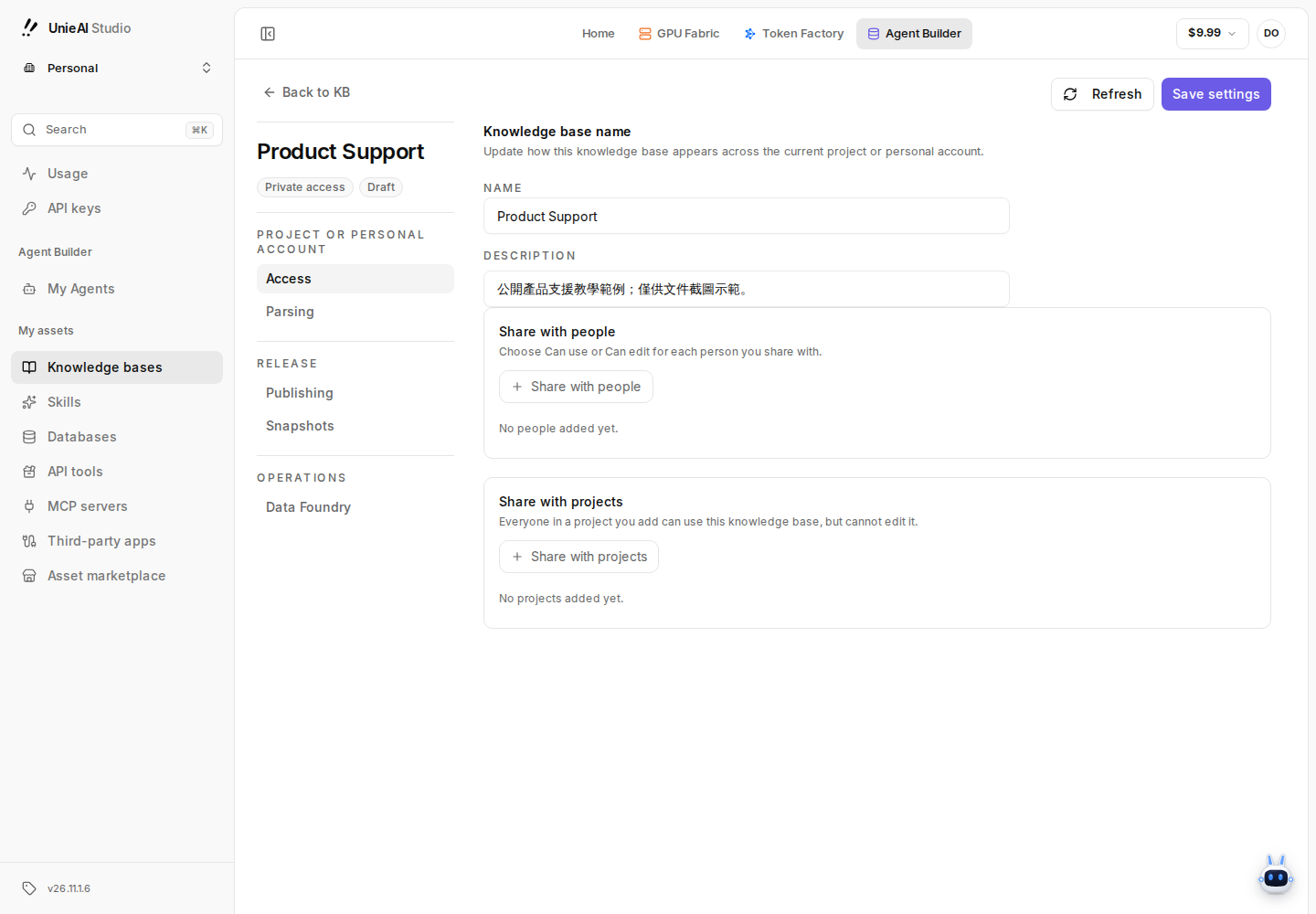
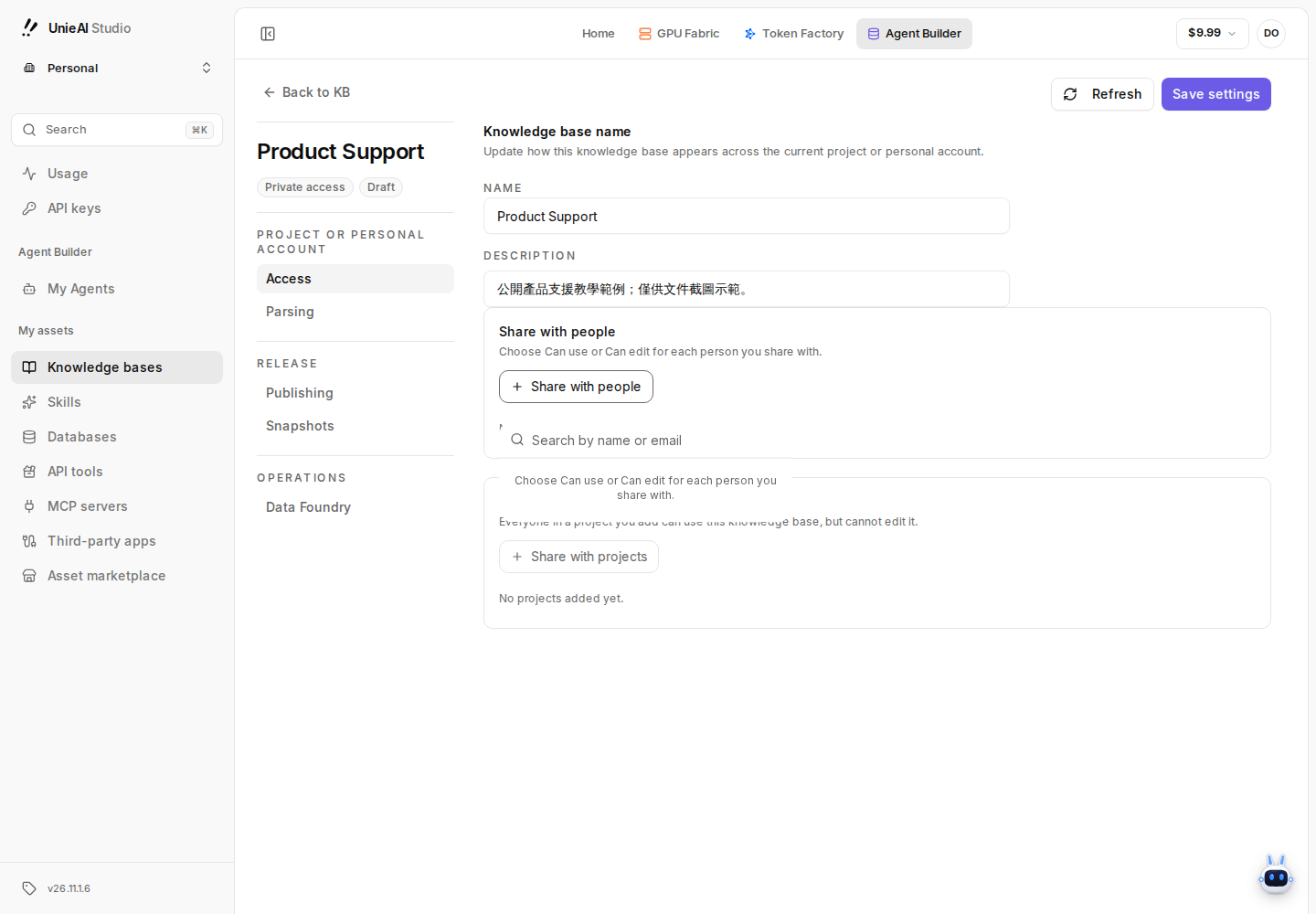
Open the knowledge base from the sidebar, then open Settings → Access.
Search for an existing platform user. Personal account requires an exact full-name or email search; a project lets you search its members.
- Personal account lets you choose Can use or Can edit.
- An individual in a project is fixed to Can edit.
- A co-editor of a project knowledge base must belong to its project or personal account or to an already allowed group.
Select Save settings. A newly added knowledge-base co-editor receives an in-app notification, but access is already active and no acceptance is required.
Knowledge Base Co-editor Capabilities
The knowledge-base Creator, a directly assigned co-editor, and the Creator or Collaborator of the project can manage a project knowledge base. They can:
- Change its name, description, and access settings.
- Upload, delete, and manage documents and content.
- Configure document parsing.
- Manage other co-editors.
- Manage publishing settings and snapshots.
- Delete the knowledge base.
A user or group with Can use permission can view and use the knowledge base but cannot change its content or settings.
Skill Co-editors
Skills use the same resource-access editor.
A skill co-editor can edit skill content and versions, manage access, configure publishing, roll back versions, and delete the skill. A co-editor of a project skill must belong to the same project or personal account.
A skill imported from Marketplace is read-only. Copy it into your own skill before changing its content or co-editors.
Remove or Change a Co-editor
An action that has already started is not recalled. Removing a co-editor does not delete the resource, documents, versions, or existing configuration.