Agent setup navigation and saving changes
Find instructions, model settings, attachments, memory, guardrails, evaluation, and logs in the current interface.
Open Agent Builder → My Agents → your agent. The main tabs are Setup, Request Logs, Memory, Guardrails, and Evaluation. The upper-right gear opens model and access settings. Advanced editors remain reachable from Setup; you do not need the old seven-station navigation.
1. Choose the correct entry
- Select the agent's project or personal account at the top left.
- Open My Agents and select the agent.
- Confirm the page heading, then use the table below.
- Use-only access may show read-only content or fewer controls.
| Task | Entry | Persistence |
|---|---|---|
| Name, instructions, answering model | Setup → Definition / Model | Bottom Save |
| Execution engine | Setup → Execution engine | Saves on selection |
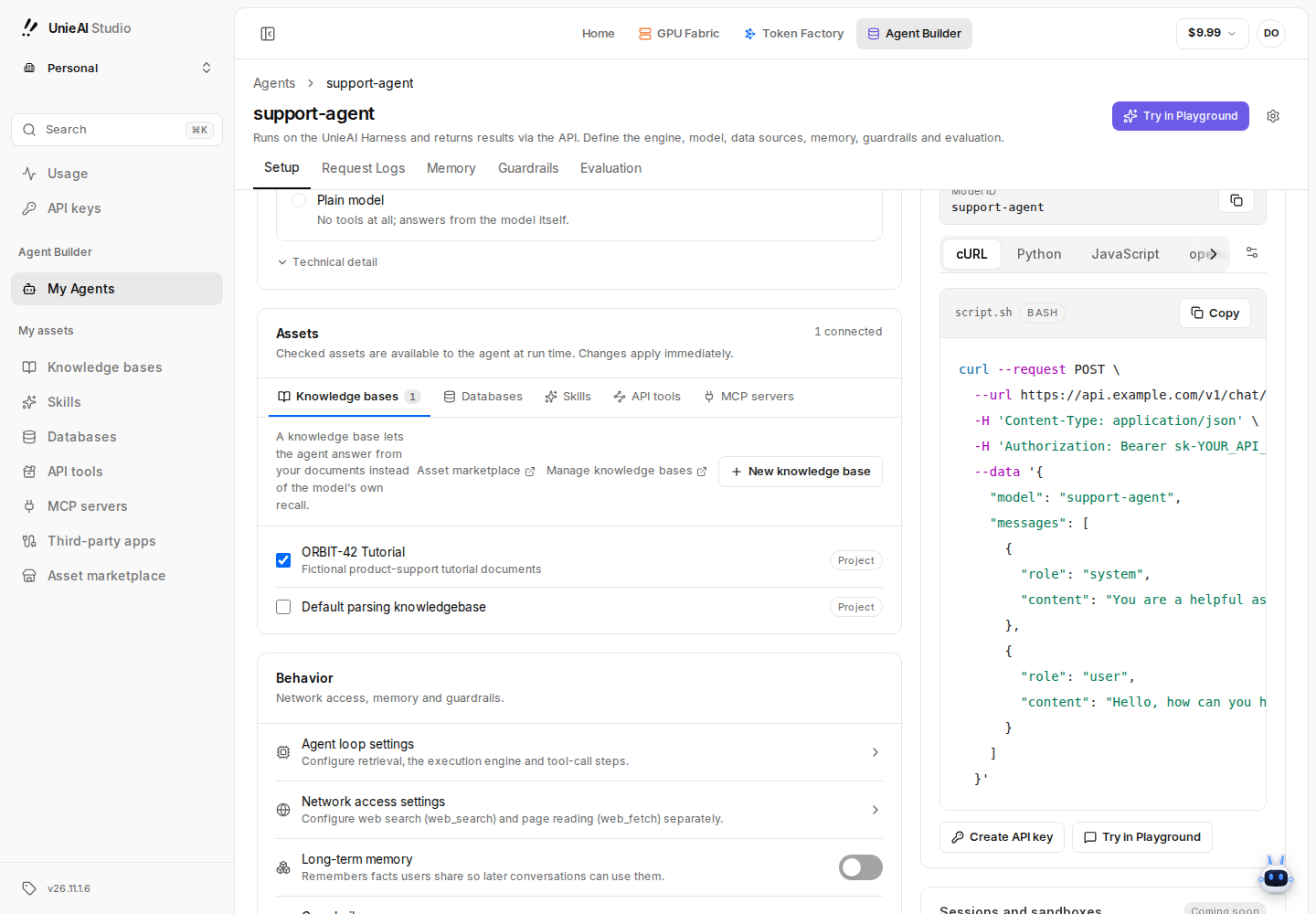
| KB, database, skill, API, MCP | Setup → Assets | Saves on selection |
| Long-term memory switch | Setup → Behavior → Long-term memory | Saves on toggle |
| Detailed memory rules and entries | Memory tab | Check that page's save status |
| Guardrails | Guardrails, or Configure in the Behavior card | Follow the page's save action |
| Requests, tools, errors | Request Logs | Read/query operation |
| Evaluation and KB retrieval tests | Evaluation | Configure the test, then run it |
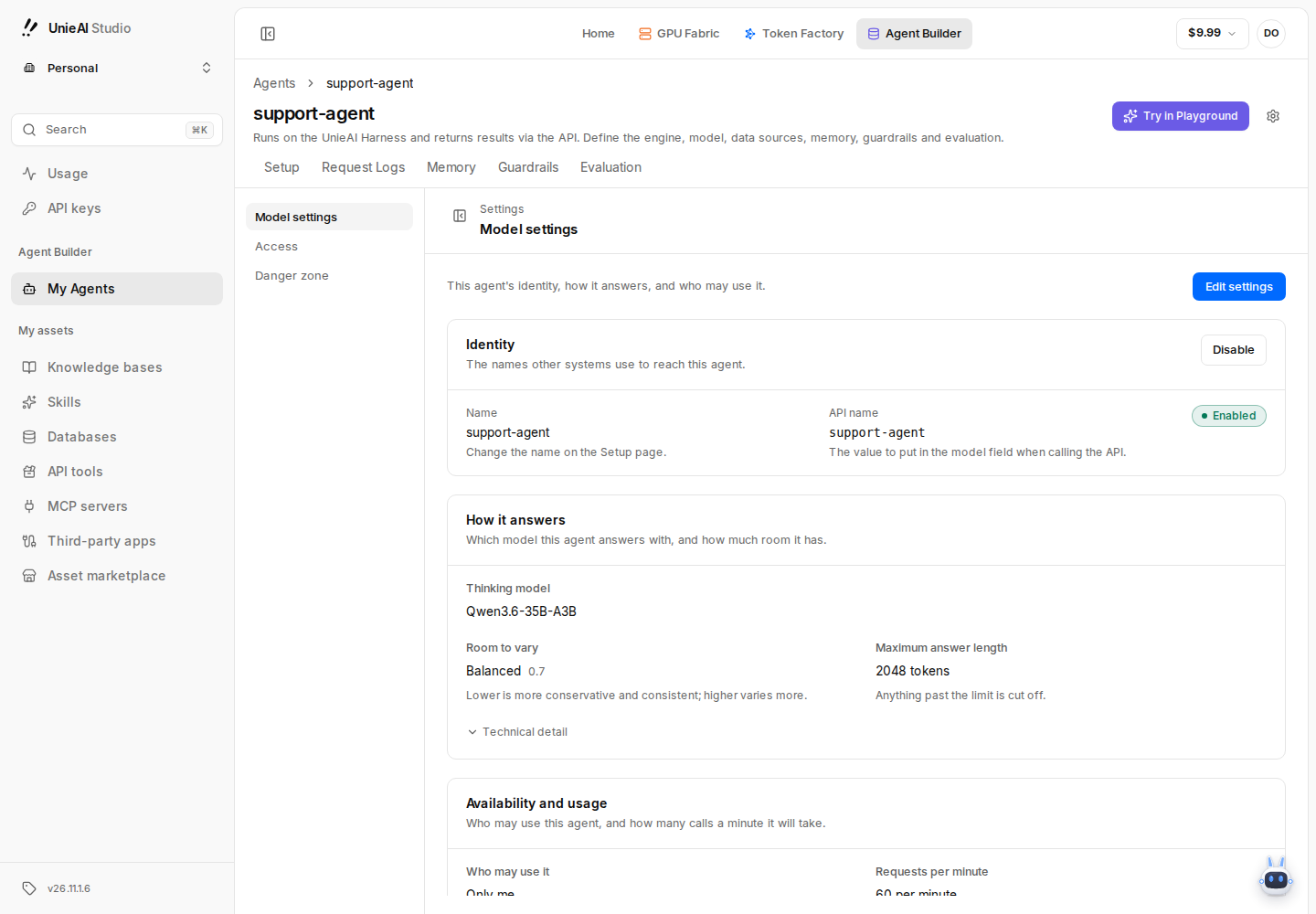
| Temperature, answer length, enabled state | Gear → Model settings | Edit settings → Save changes |
| Users and co-editors | Gear → Access | Use the displayed save action |
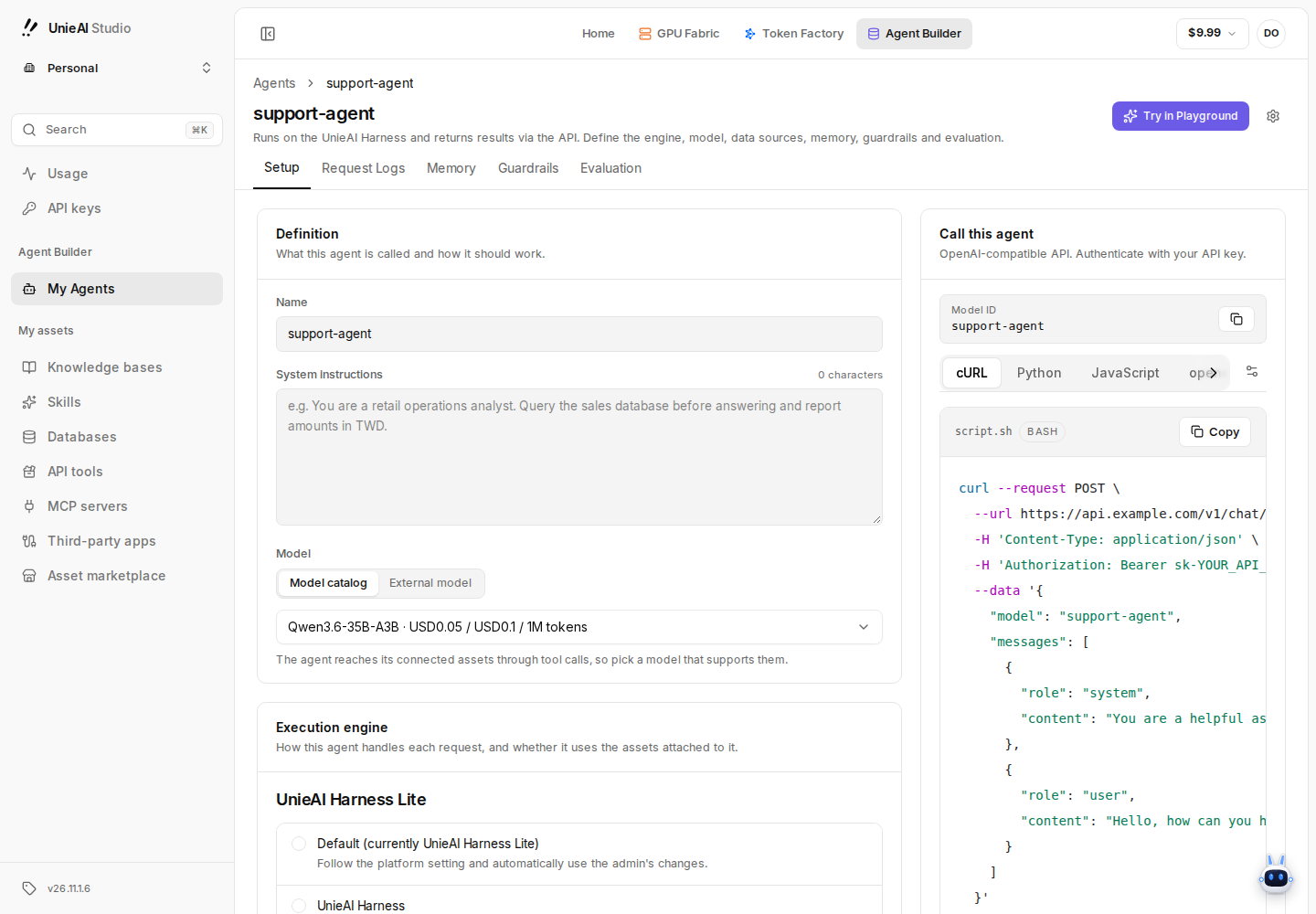
2. Change instructions or a model
- Open Setup.
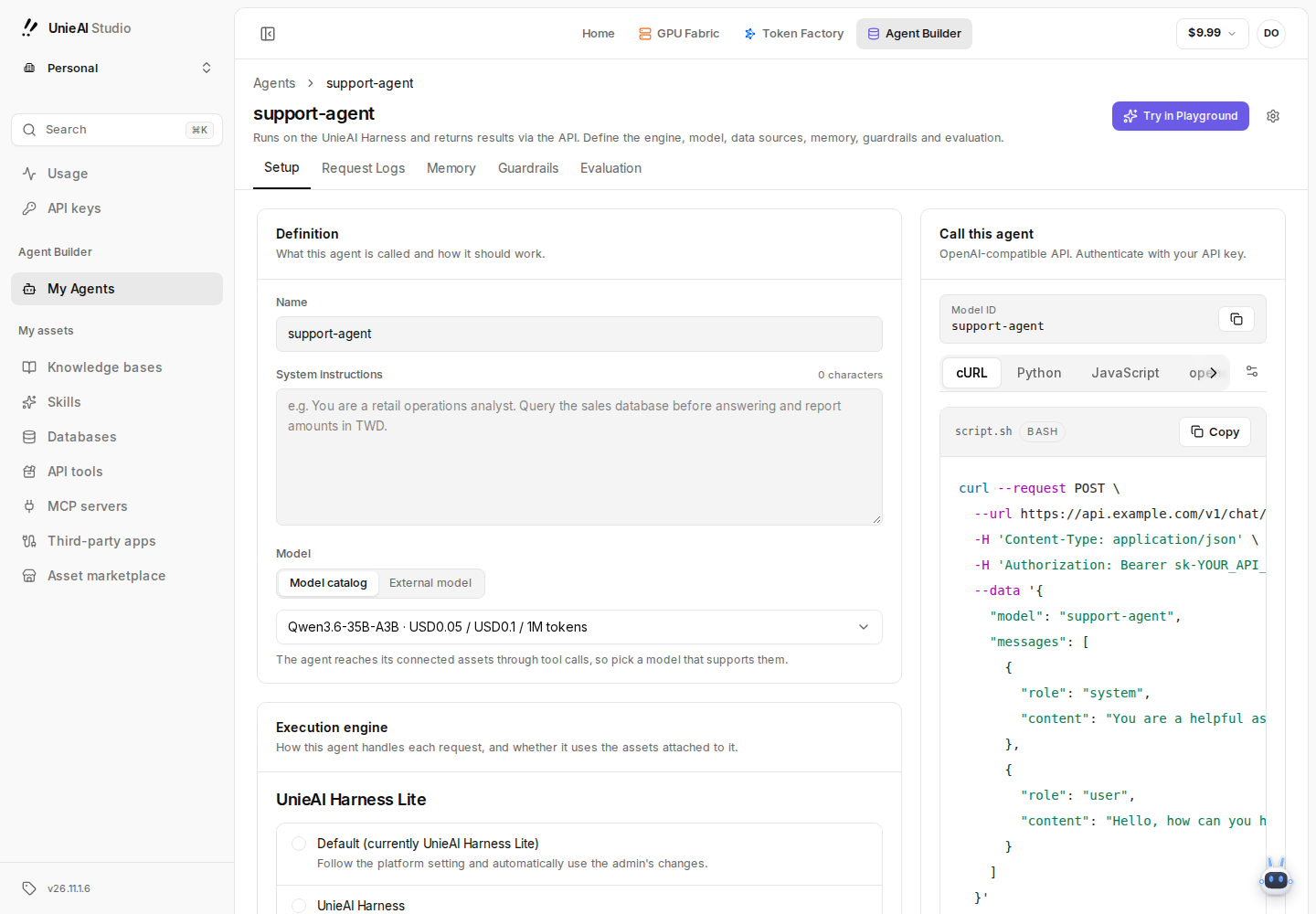
- Edit System instructions under Definition, or choose the answering model/connection under Model.
- Look for the unsaved-changes notice at the bottom.
- Click Save and wait for Saved.
- Reopen the page, verify persistence, and test in Playground.
If the external key field says to leave it blank to keep the current key, changing other settings does not require entering the key again. See agent configuration.
3. Connect assets
- In Assets, choose Knowledge bases, Databases, Skills, API tools, or MCP servers.
- Check the desired item and wait for the request.
- Confirm it remains selected without an error.
- Open the asset to finish its own data or connection setup.
A newly created KB still needs documents. A new skill still needs procedures. Verify created, connected, and usable separately.
4. Open advanced editors
The Setup Behavior card provides More settings links:
- Data and semantics: KB, SQL, and data settings.
- Advanced behavior: core prompt, AI engine, skills, Websearch, and other editors.
- Access and sharing: model and resource access settings.
Advanced forms may autosave or display Save changes. Confirm their saved state before leaving. Do not assume their autosave behavior also applies to Setup's name, instructions, or model fields.
5. Adjust answer behavior through the gear
- Open the gear at the upper right.
- Choose Model settings → Edit settings.
- Confirm the API name/model ID, then adjust the answering model, creativity, or answer-length limit.
- Save and test in a new conversation.
The Plain model engine does not use tools. Changing Temperature here does not enable attached KBs; inspect the execution engine in Setup.
6. Verify changes
Run the three tutorial questions: a fact, a procedure, and missing information. Use the acceptance checklist and request logs to diagnose failures.