Remote MCP servers: create and authorize
Add an MCP server, choose authentication, inspect tools, and connect it to an agent.
1. Open Remote MCP
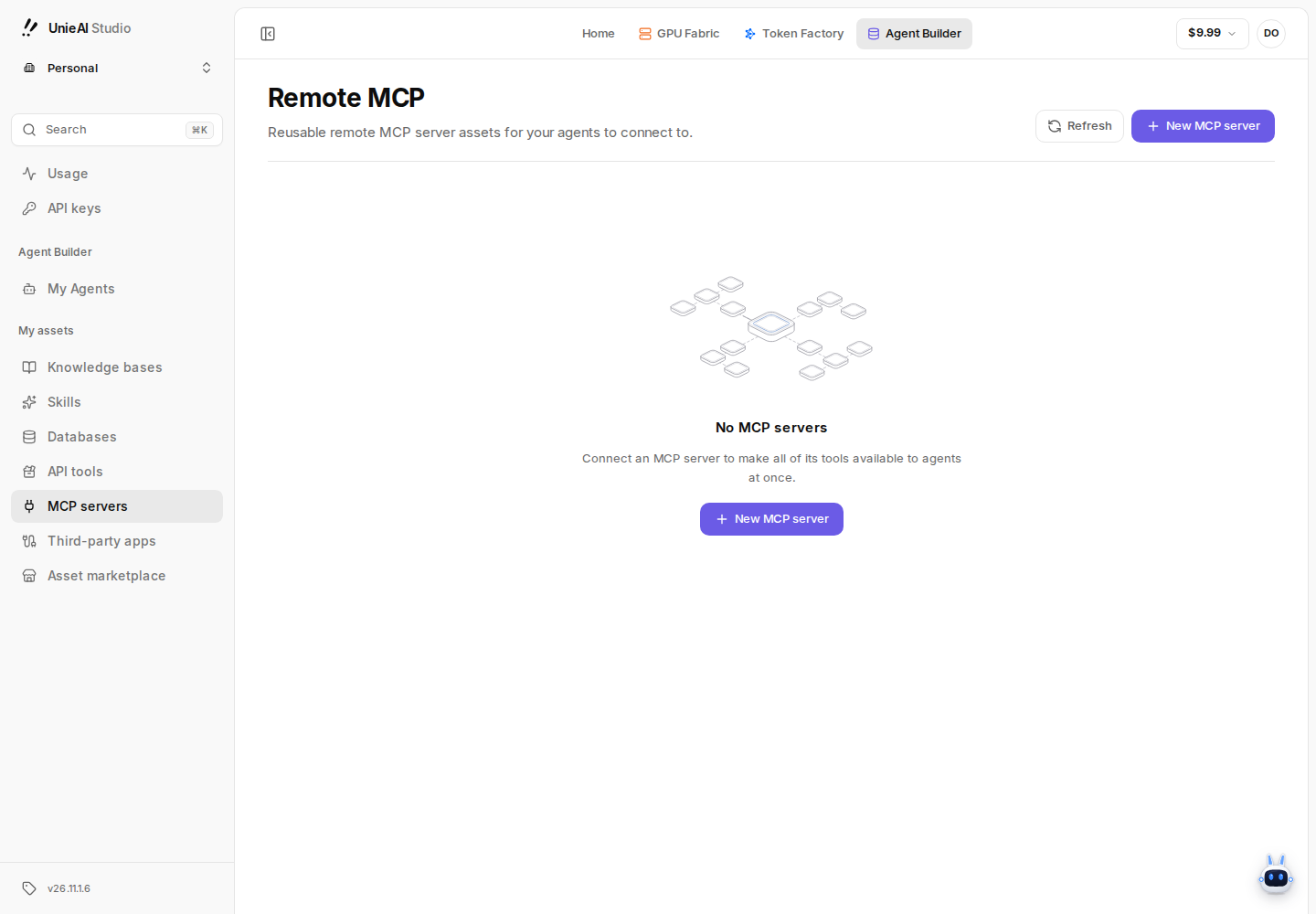
Select the current project or personal account, then open Agent Builder → MCP servers. Click New MCP server. The list separates your own assets from shared or installed assets.
2. Enter the server
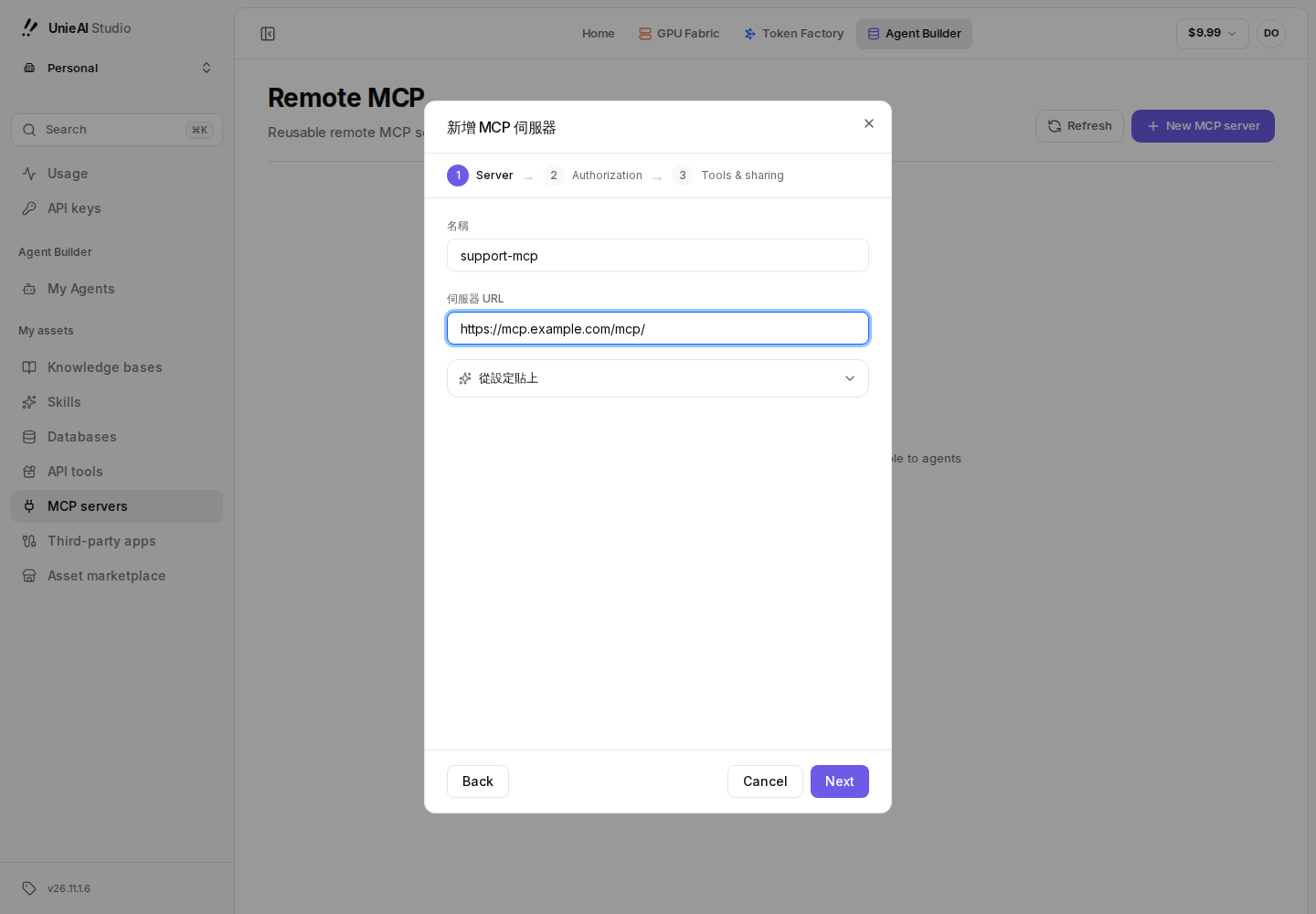
Enter a name and the actual MCP server URL. Use the configuration-paste option if you already have a supported MCP configuration. The example.invalid URL in the screenshot is a placeholder and cannot discover tools. Continue to authentication.
3. Choose authentication
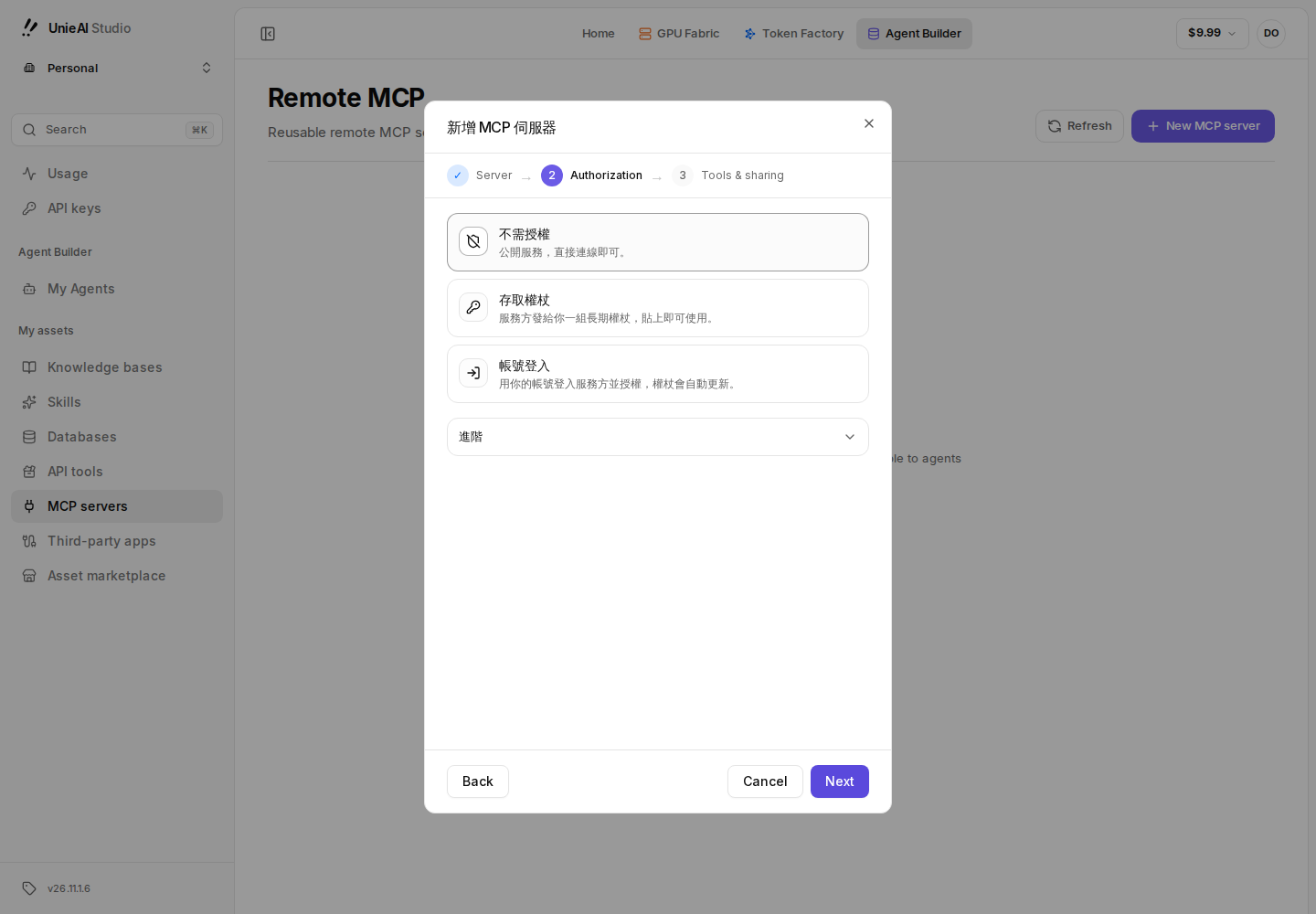
Choose no authentication, an access token, or account sign-in according to the server. Enter a token only when required. For OAuth, complete the sign-in flow; depending on server support, client credentials may also be required. Saving the server does not by itself complete an OAuth authorization.
4. Inspect tools and sharing
Review the tools returned by the server and the users or groups that can use the asset. Check URL, authentication, and server availability if discovery fails. Apply timeout overrides only when necessary. Save after reviewing the tool list and access scope.
5. Connect and test
In the agent’s Setup → Assets → MCP servers, select the server. Use a model and engine that support tools, then ask a question requiring one of its discovered tools in a new Playground conversation. Inspect the real tool event. A server can be shared as an asset; authorizing it does not authorize every other MCP server.
See MCP configuration and agent configuration.
Manage sharing and editing rights
Open a server's ⋯ → Access settings to choose private access, selected users/groups or the marketplace publishing flow. An authorized user can use the asset; a co-editor can edit content. Ownership and permission management remain separate. Review the effective sharing dialog and resource sharing before granting access.
Versions and change history
Open the server's details and select Versions to inspect saved versions. If you have editing rights, choose the version to restore and confirm. Restoration creates a new version, so later changes remain traceable.
Version restoration does not replace current secrets with historical values. If authorization is invalid, complete sign-in or update credentials separately. Change history records who changed the asset and when; secret fields are represented as changes rather than raw secret values.
Delete a server
Use ⋯ → Delete, review the affected references and confirm. Deleting the shared asset removes its bindings from agents that used it, so those agents lose these tools. Reconnecting an alternative asset requires reviewing its permissions and tools again. Back up non-secret configuration you still need before deletion.