External tools (MCP)
Connect standard remote MCP servers to a custom model and manage authentication, tool discovery, and timeouts.
MCP lets an agent call tools supplied by an external server. Create a reusable MCP server asset, complete authentication and discovery, then connect it from agent Setup. Use API tools for ordinary REST APIs.
1. Create and authorize a server
- Choose the personal account or project and open Agent Builder → MCP servers.
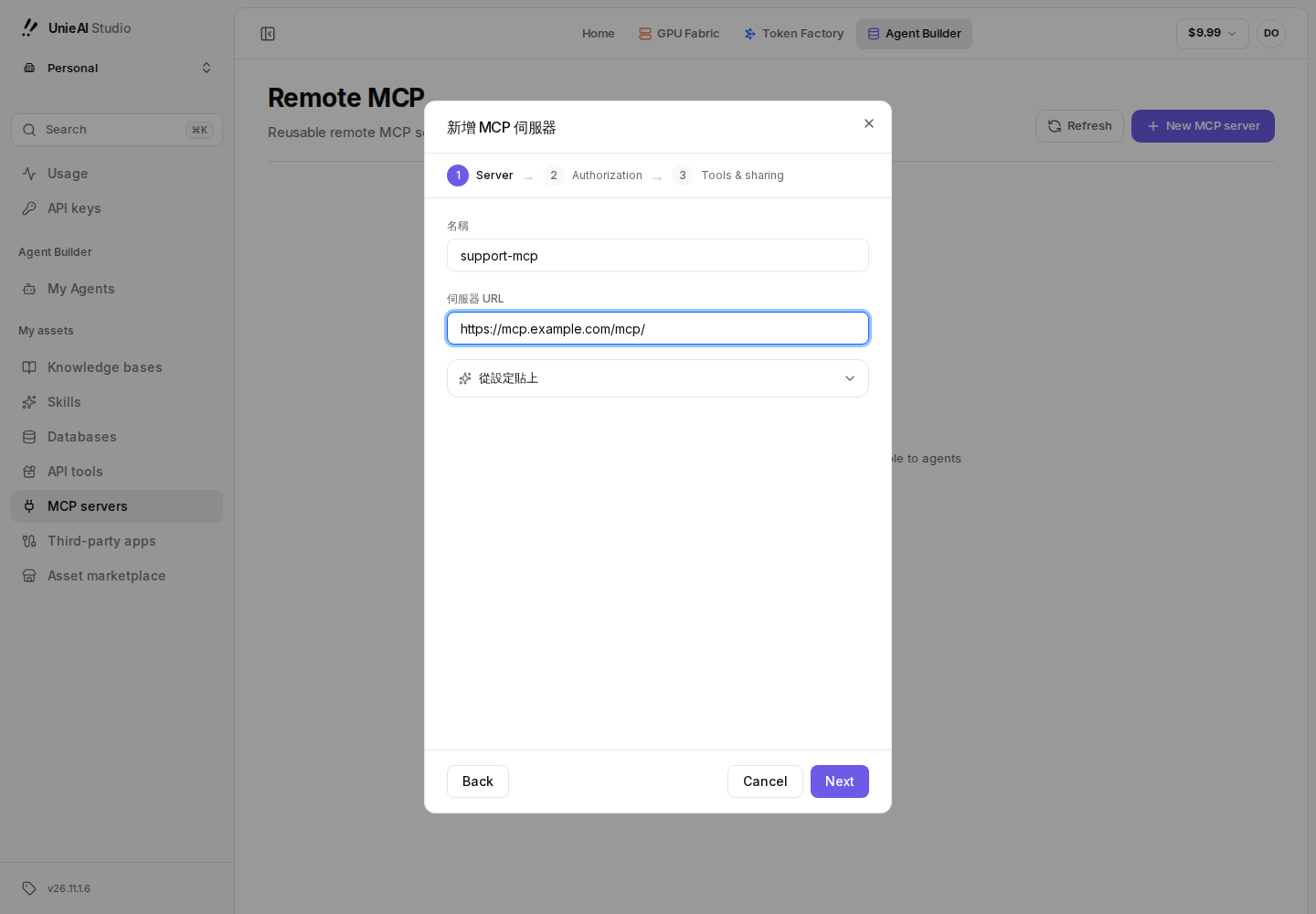
- Select New MCP server, enter a name and the real MCP endpoint. Use the configuration-paste option when you have a supported configuration.
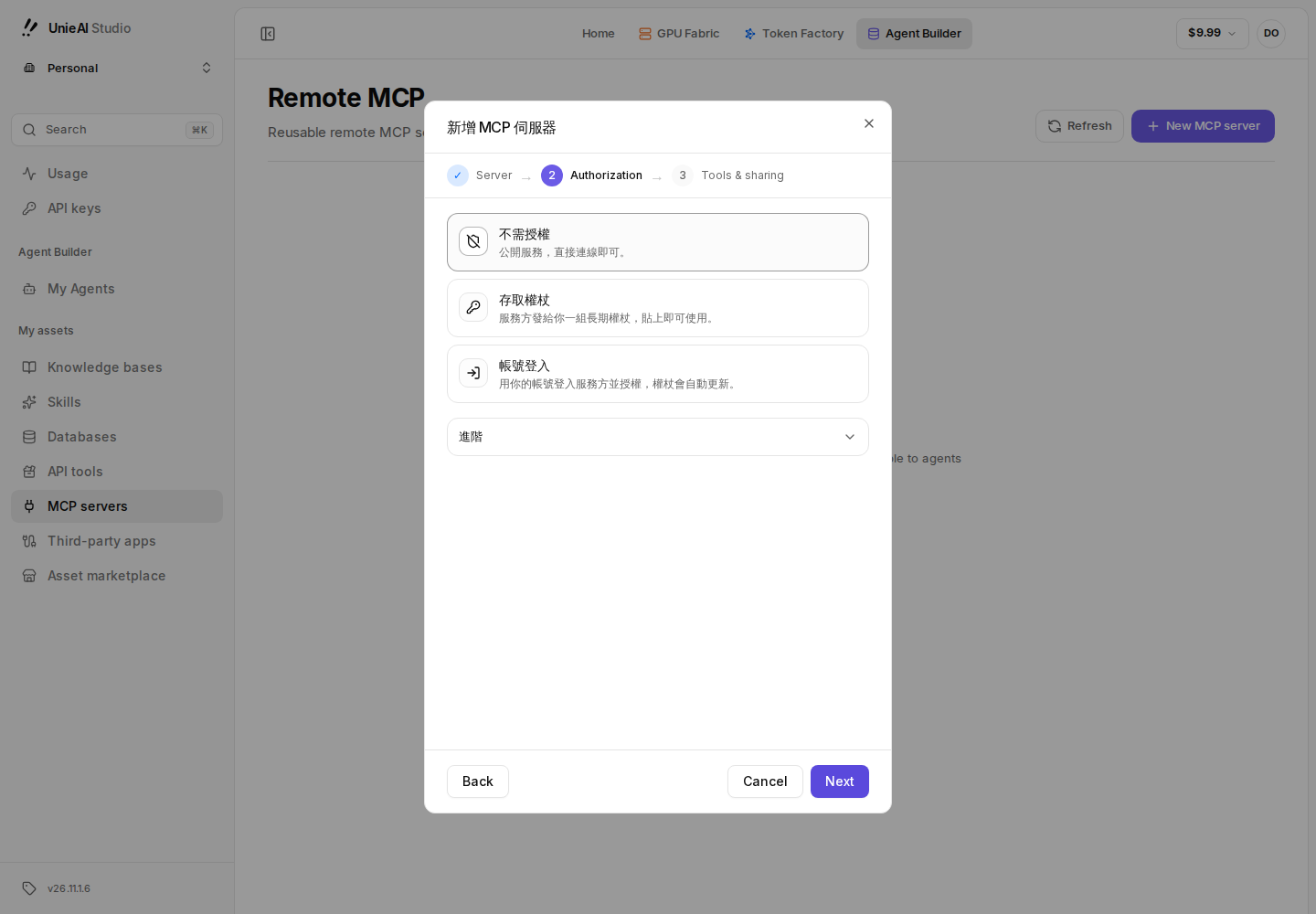
- Choose no authentication, token/custom headers, or account sign-in (OAuth), according to the service.
- Complete OAuth sign-in and consent. Saving the server alone does not authorize it. Services without dynamic registration may require a Client ID and other credentials.
- Review discovered tools and sharing before creating the asset. Resolve connection or sign-in errors before relying on its tools.
2. Connect the agent
- Open Setup → Assets → MCP servers on the agent.
- Select a server you own or may use and check that MCP is enabled. Asset selection is saved when changed.
- Choose a tool-capable model with UnieAI Harness or UnieAI Harness Lite.
- Start a new Playground conversation requiring one of the tools. Check its actual name, arguments and result. The plain-model engine does not execute these tools.
The advanced MCP page controls bindings and the enabled state of the same reusable assets. It is not a separate copy of the sign-in credentials. Connect from Setup and edit the connection under MCP servers.
Connection, tools and timeouts
| Setting | What to check |
|---|---|
| URL | The actual MCP endpoint; placeholder addresses cannot connect |
| Token and headers | The service's required values; avoid duplicating a secret across fields |
| OAuth | Completed sign-in, consent and the correct scopes; sign in again if authorization expires |
| Tools | The detail dialog's Tools tab; resolve sign-in or connection errors first |
| Timeout | The server setting and inherited value; inspect records before adjusting it, since waiting longer does not fix a wrong URL or missing authorization |
A successful check proves current connectivity, not future availability or answer correctness. A completed tool event is not proof that the whole user request was answered.
Versions, sharing and deletion
Use Sharing, Versions and Change history in server details. Authorized editors can restore a version, creating another version without replacing current credentials with historical credentials. Editing and usage rights are different.
Deleting a server affects agents bound to it. Review dependencies and alternatives first. See Remote MCP servers for the full management workflow.
Configuration files and security
Pasted configuration may contain tokens, client secrets and authorization headers. Treat it as confidential. Ordinary sharing screens do not expose the stored raw credentials.
External MCP services receive tool arguments. Connect only trusted services, grant the permissions required for the task, and review the behavior of write or delete tools before use.
Studio connecting as an MCP client to external servers is different from external clients calling Studio's Remote MCP API. See Agent configuration and Agent execution.