Attach a KB and verify document question answering
Check indexing, independent search, attachment, tool engine, and Playground before tuning retrieval.
RAG finds evidence in authorized KBs before the agent answers. Four things must work: searchable documents, attached KBs, a tool-capable engine, and a Tool Calling answering model.
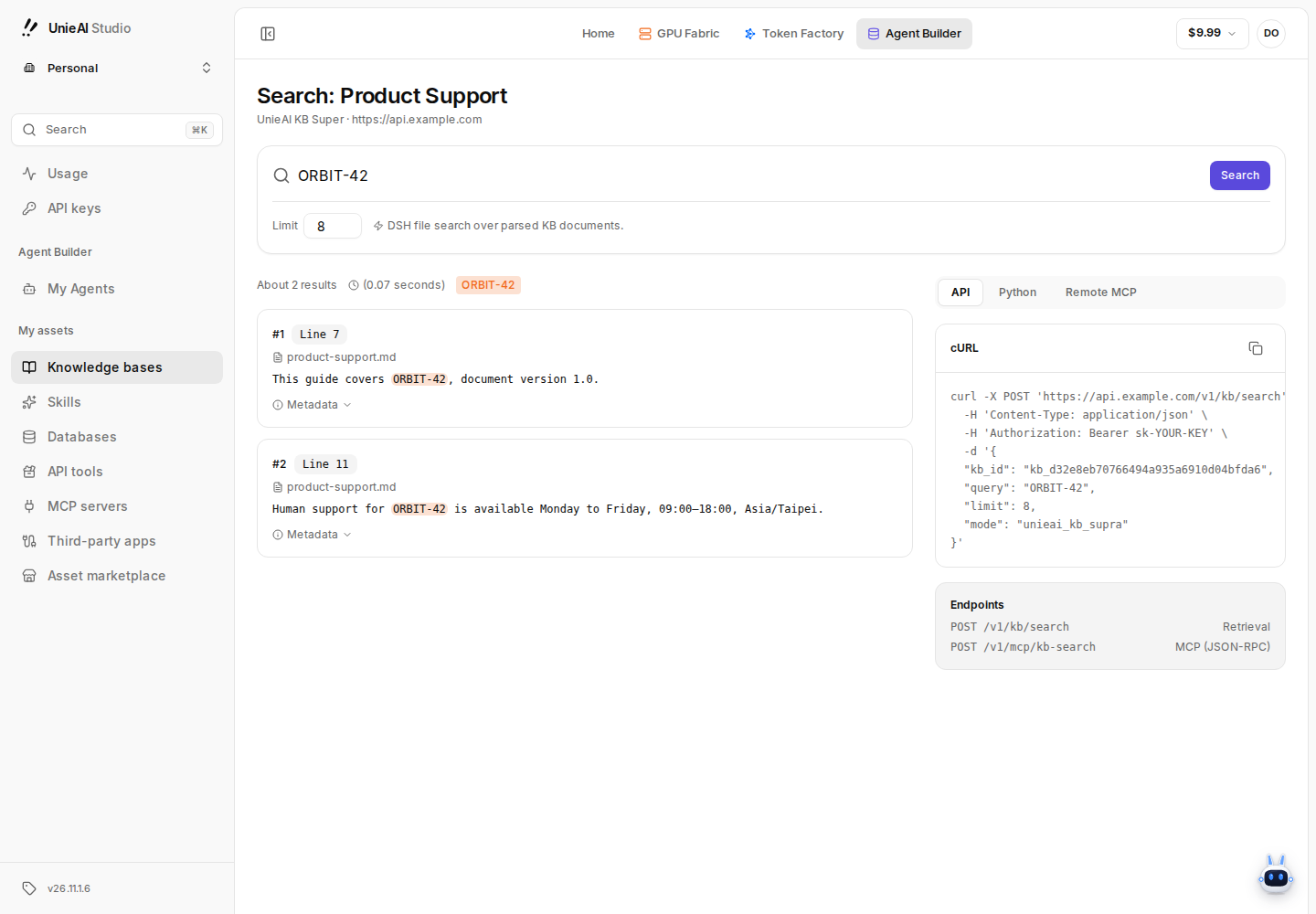
1. Verify the KB independently
- Open Agent Builder → Knowledge bases → target KB.
- Check that at least one document is indexed, not merely uploaded.
- Click Search at the upper right and ask a question explicitly answered in the document.
- Expand results and verify text, filename, and available page metadata.
- If empty, try exact document terms and inspect indexing and search settings.
Checkpoint: the correct source passage is found independently. If not, return to the KB walkthrough. Editing agent instructions cannot repair a missing index.
2. Attach the KB in Setup
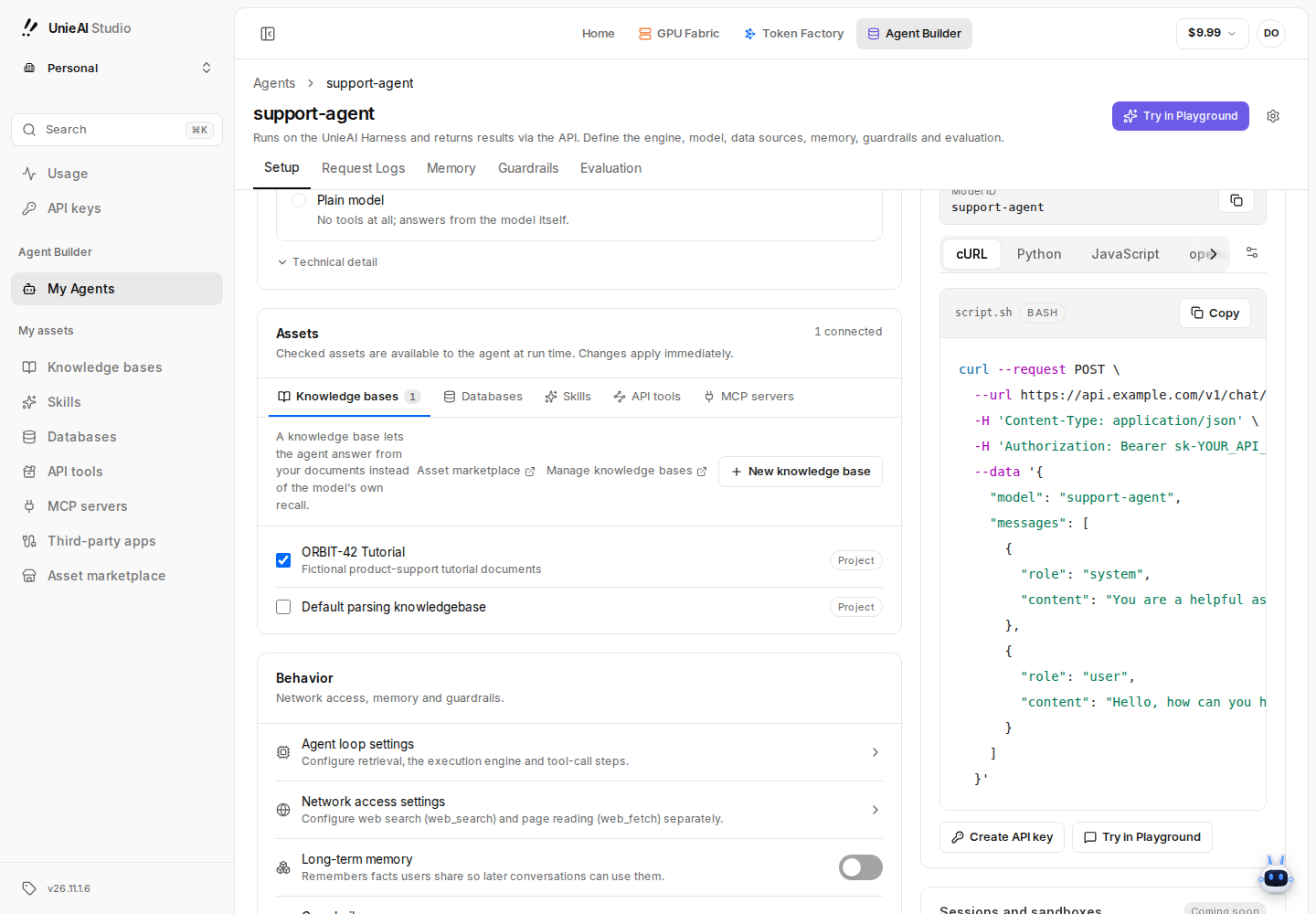
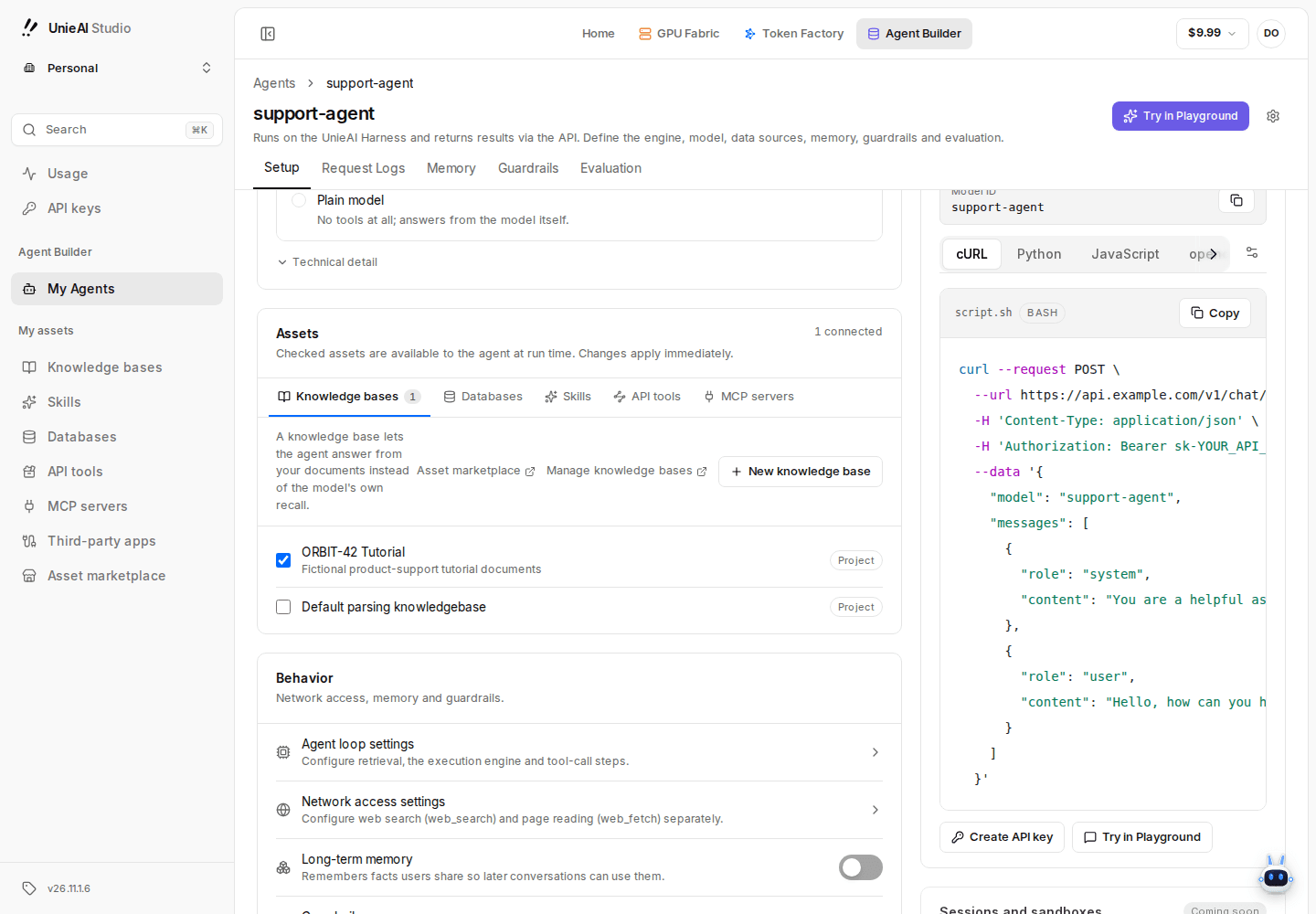
- Open Agent Builder → My Agents → target agent → Setup.
- Scroll to Assets → Knowledge bases.
- Select the KB and wait for saving.
- Reopen Setup and confirm the selection remains. If the KB is missing, check project or personal account and access.
Asset selection saves immediately. The advanced editor is available from the Setup Behavior card's More settings → Data and semantics, then Data sources → Knowledge bases. Confirm its save status or use Save changes where displayed.
Checkpoint: the correct KB is attached, rather than an empty or similarly named dataset.
3. Check engine and model capability
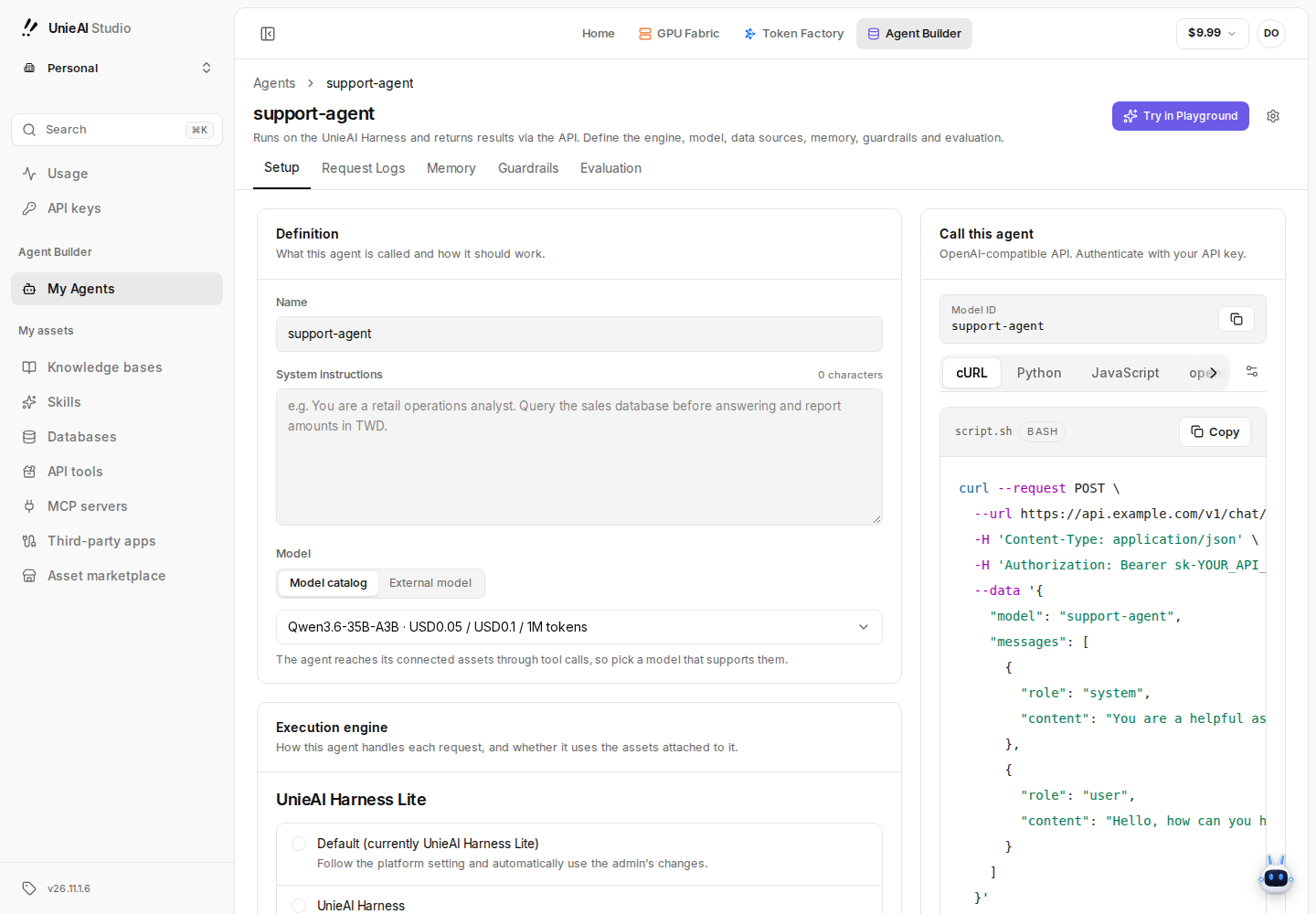
- Inspect Execution engine in Setup.
- Start document questions with UnieAI Harness Lite. Consider UnieAI Harness for planning when enabled by the platform.
- For Default, inspect the currently resolved engine.
- Do not test KB use with Plain model, which calls no KB or other tools.
- Confirm the answering model supports Tool Calling and is available in the current project or personal account.
Checkpoint: engine, model capability, and actual asset attachment are all correct; none substitutes for the others.
4. Save evidence and missing-information instructions
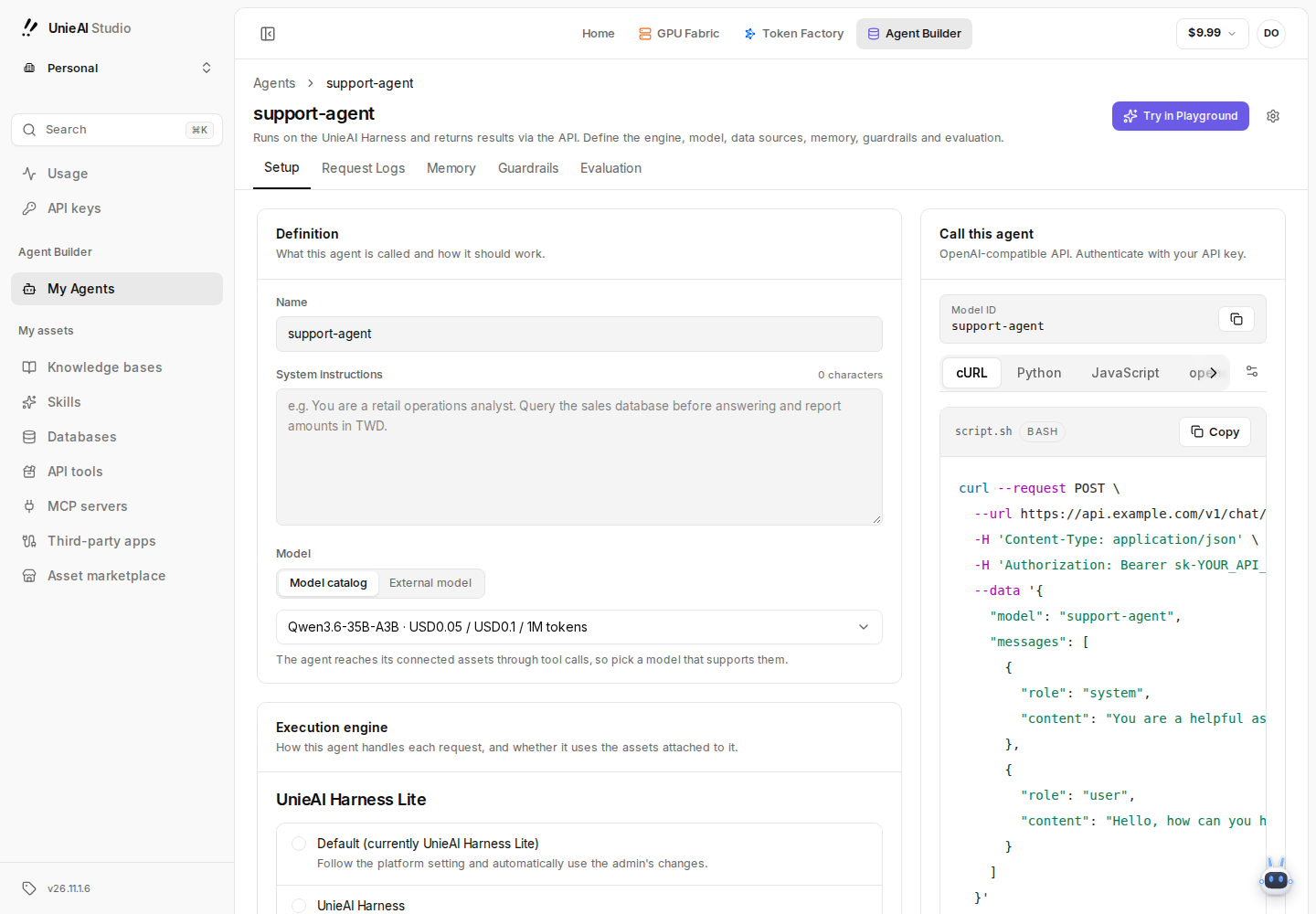
- Open Setup → Definition → System instructions.
- Merge these rules with the existing role.
- Click Save at the bottom and confirm success.
Search the attached knowledge base before answering product questions.
Use retrieved evidence and cite the filename and available page number.
If the document does not answer the question, explain the information gap instead of guessing.
Verify citations in real output. Instructions neither create permissions nor attach a KB.
5. Test three cases in a new conversation
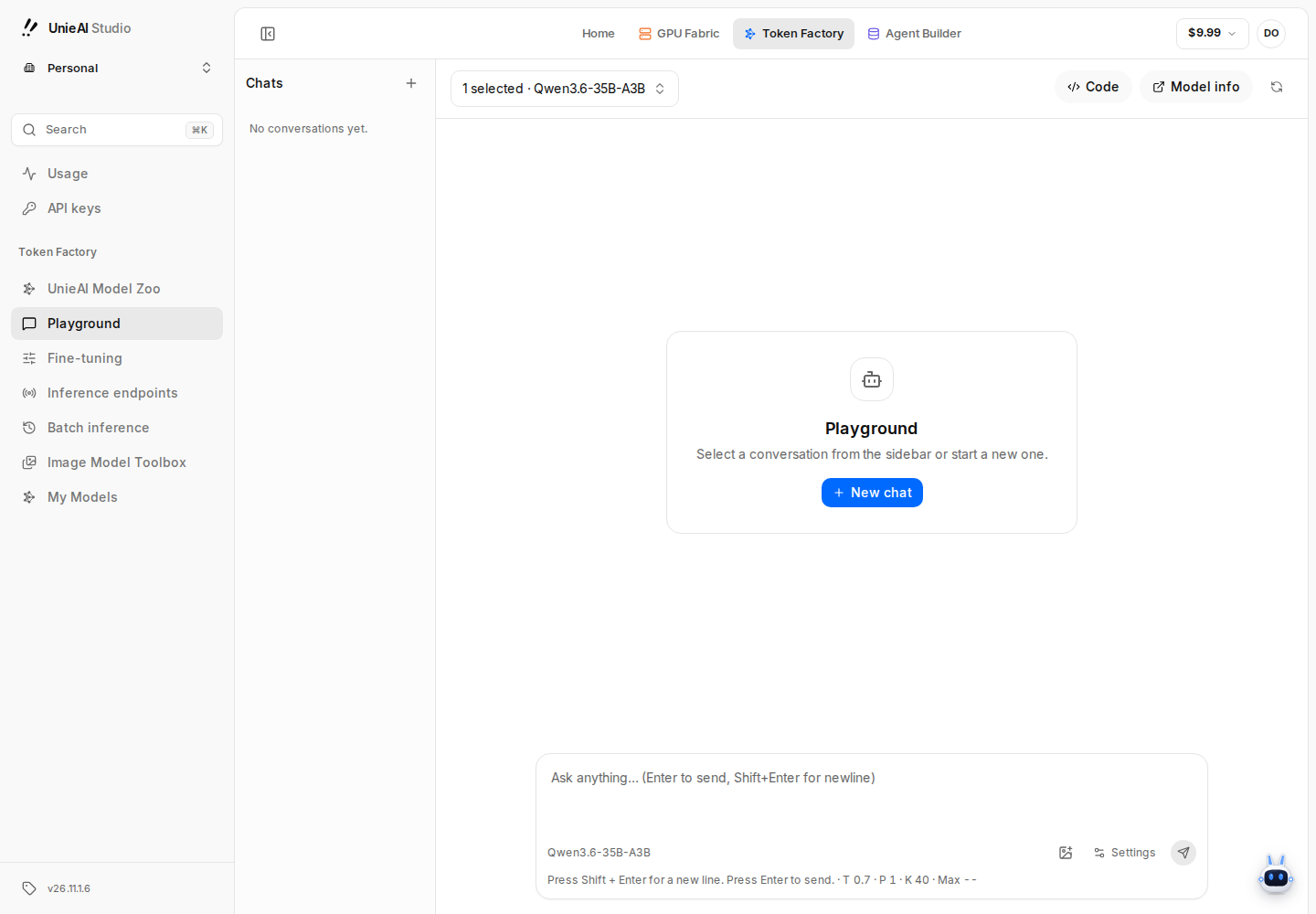
- Click Try in Playground.
- Select the agent model ID, not the base model.
- Start a new conversation to avoid previous test answers influencing results.
- Test and compare evidence with the sample document.
| Test | Sample question | Acceptance |
|---|---|---|
| Fact | ORBIT-42 support hours and timezone? | Correct time, timezone, and source |
| Procedure | How do I handle ERR-102? | Synchronization check, waiting, and failure reporting in order |
| Missing information | What is the product price? | No invented price |
Inspect available tool events for actual KB search. Only investigate instructions and answer generation after independent retrieval works.
6. Tune retrieval and tool rounds when needed
Establish a baseline with the defaults. Open Setup → Behavior → Agent loop settings and expand Advanced adjustments. Available settings depend on the selected engine and current UI.
| Setting | Tradeoff | Compare |
|---|---|---|
| Retrieval count | Number of references returned by ordinary search | Check sources and read more original text when evidence is insufficient |
| Iteration/step limit | Additional rounds may help complex tasks and increase latency and usage | Whether the extra tool rounds help complete the task |
Retrieval count is not a document, page or source-row count, and differs from Playground's model-sampling top_k. Counts, sums and rankings require the complete worksheet, not the number of search hits.
KB Super matches parsed text without a vector-similarity threshold. Some compatibility interfaces retain min_score, but changing it does not filter KB Super matching lines. For missing results, check the text, document scope, parsing status and active version.
Change one setting at a time, save it and compare with the same questions.
7. Verify document updates
- Upload a new file when content changes. Reparse processes the platform's stored original, not your edited local file.
- Wait for the new index, then search the changed paragraph.
- Verify filename/version in the result.
- Open a new agent conversation and check the updated answer.
A same-name document series prioritizes its latest successfully indexed version. Differently named files may still duplicate content. See document management.
Diagnose by layer
| Failing layer | First checks |
|---|---|
| Upload/parse | Required models, project or personal account permissions, balance, format, stage error |
| KB search | Completed parsing, exact terms, document scope and version |
| Search works; agent does not search | Attachment, Plain model, Tool Calling, selected agent |
| Evidence found; answer wrong | Instructions, model capability, conversation history, conflicting versions |
| Playground works; API does not | Runtime URL, key scope, allowed models, agent model ID |
Continue with agent setup, Playground, and acceptance checks.
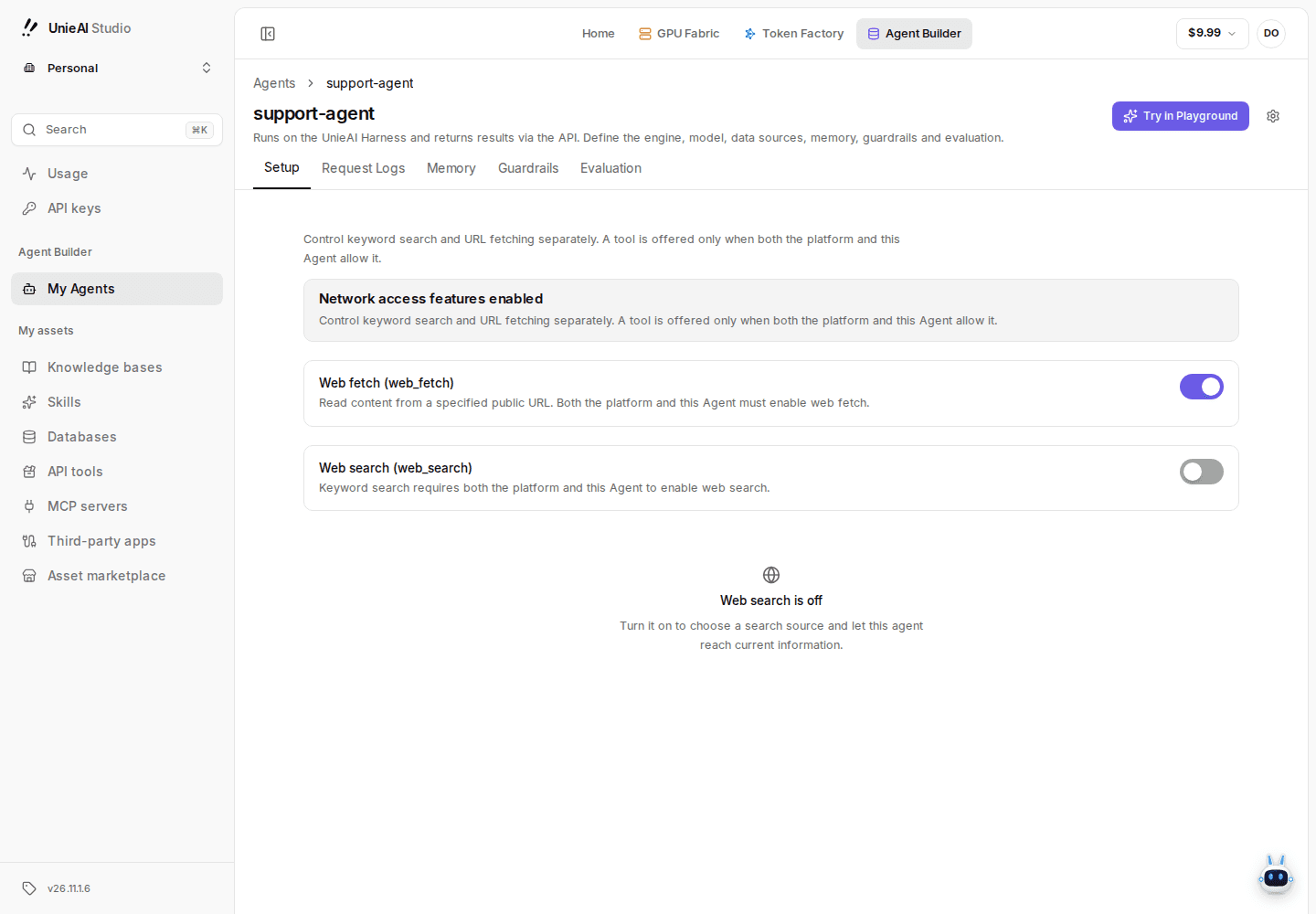
Network access settings
On the agent Setup page, use Network access settings in the Behavior card to configure web search (web_search) and page fetching (web_fetch) separately. Answers from a connected knowledge base do not require external web access.
Agent loop settings
Use Setup → Behavior → Agent loop settings to adjust the engine and tool behavior. Expand Advanced adjustments for additional settings. Retrieval counts here serve a different purpose from the Playground model sampling parameter top_k.